Archive for the ‘TSAPI’ Category

ctiSVR 1.4.2 Released

Posted: September 17, 2025 in News, TSAPI

ctiSVR 1.4.2 just released, this version has the following updates:

1. Filter connected call and failed event is delivered after far end customer hangup the call. A parameter ivr_filterconnectedfailedevent is introduced.
2. Parameters ivr_filterdmccringerevent and ivr_filterdmcclampmodeevent are introduced for filtering of DMCC ringer and lampmode events.
3. Supports listreasoncode and listspeeddial API calls. Reason codes and Speed dial numbers can be defined by the CtiSVR and populates to the softphone applicaions such as calltoui.exe.
4. Add makeoutbouondcall API. The API will pick one phantom device to make outbound call, when the call is connected, it then makes a consulte call to an extension. The call is transferred to that extension once the extension is connected.
5. Register license to license.upignet.com.

AgentLight 1.3.0 Released

Posted: April 26, 2025 in News, TSAPI

1. Compile using the latest libary.
2. Package with the latest library.
3. Update the installation procedure, please reference the blog.

CallAnalytics 2.2.1 Released

Posted: April 19, 2025 in News, TSAPI

1. Add calltrace Splunk log for VDN calls. A new parameter ca_writecalltrace is introduced for this.
2. Update the ucid and origucid fields in the delivered, established, transfer and conference events.
3. Fine tune the object deletion sequence in program exit.
4. Supports PostgreSQL database.
5. Add lasthandledagent() API which search last handled agent in real-time records in memory and historical records from database. Parameters ca_dbreaderpoolsize and ca_maxlastagentquerytimerange are added for this API.
6. Apply locking for database writing and checking to prevent database disconnection when the two are executed in parallel. Add a parameter ca_dbtest to control database testing or not.
7. Add id_endtime to table tCallInfo, tCallInfoExt, tCallAban and tShortDuration tables.
8. Add callaban() api searching from the database.
9. Add parameter ca_checkstreaminterval to adjust the TSAPI stream checker interval.

AutoBridge 1.3.1 Released

Posted: February 28, 2025 in News, TSAPI

AutoBridge 1.3.1 just released, this version has the following updates:

1. When the calling device is registered in the crisis alert map and a call with new call id is informed, the old registration is removed and activate the bridging again.
2. A scheduler procedure is added to check the crisis alert map and cleanup the mapping after the call is finished.
3. Crisis alert cancel event (by crisis-alert button auto pressing) and list emergency notification will be returned immediately.
4. If a new call’s state is in initiated, alerting and connected state, bridging can be started. Before that, only connected call will trigger the bridging. This maybe related to timing issue because the call can be notified before the call is connected.
5. OSSI interface can be integrated and the list emergency API can be used to trigger the bridging for specific tenant stations. New parameters ab_ossi and ab_cmtenant are introduced.
6. A new parameter called ab_crisisalertcancelbutton and ab_crisisalertcancelbuttonautopresss are introduced to press the crisis-alert button once bridging is started. This action is to cancel the crisis-alert.
7. No action to agent extension when the agent extension is not in bridging mode after receiving CONNECTION_CLEARED event.

AutoBridge 1.3.0 Released

Posted: February 10, 2025 in News, TSAPI

AutoBridge 1.3.0 just released, this version has the following updates:

1. Integration with ctiSVR for DMCC support. A parameter called ab_ctisvr is introduced.
2. Supports auto bridge call for Crisis Alert extension. Parameters ab_crisisalertdevice, ab_crisisalertbridgedestination and ab_crisisalertbridgebackup are introduced.
3. Crisis alert events are sent to Splunk for centralized logging.
4. Crisis alert bridging is supported only when phantom device is available.
5. Fine tune the object deletion sequence for program exit.
6. Add database logging for crisis alert bridging.
7. Add email notification for Crisis Alert calls. The parameter ab_crisisalertemailnotify is added.

ctiSVR 1.4.1 Released

Posted: February 9, 2025 in News, TSAPI

ctiSVR 1.4.1 just released, this version has the following updates:

1. Add “setup” and “setup api” commands for program configuration.
2. Add API aya (Are you alive) to check the server status.
3. Compile with lastest version of CSchedulerEx for better handling of start stop internal scheduler.
4. Fine tune the object deletion sequence for program exit.
5. The API listextension add a parameter details=full for display more parameters.
6. Encode the password to XML format before sending to DMCC login.

AvayaMonitor Supports CM OSSI Integration

Posted: December 20, 2024 in News, TSAPI

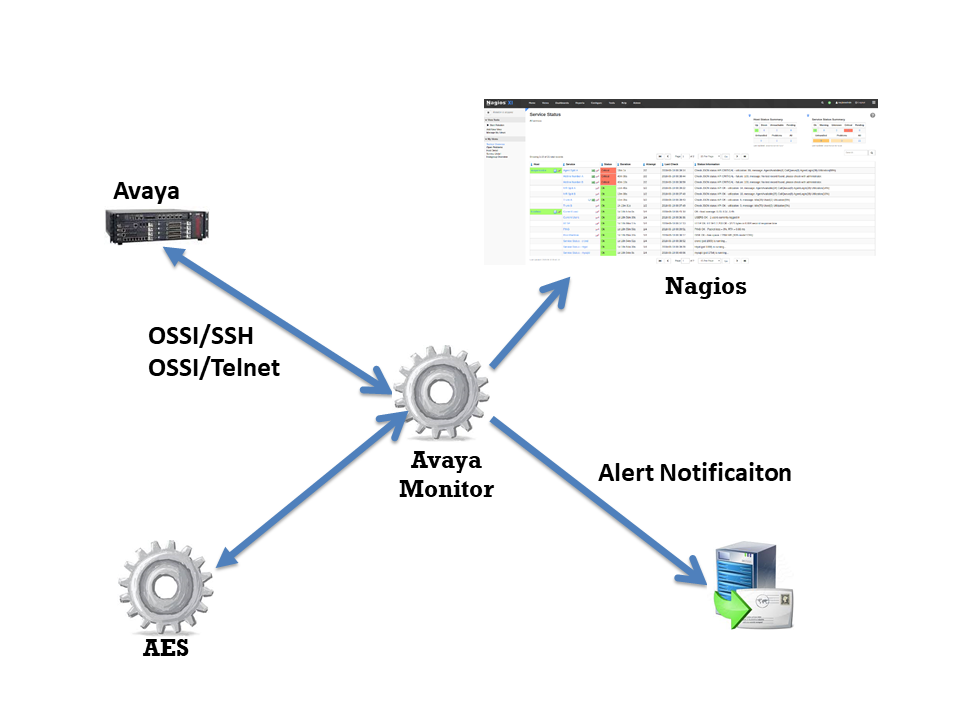
The AvayaMonitor has enhanced to support integration with Avaya CM using the OSSI interface. Currently, the following CM objects can be monitored by AvayaMonitor. Also, the dashboard can be easily created using Nagios Monitoring tool. If you want to have a trial, please contact us.

  • CM AE Svcs CTI Link
  • CM Processor Channels

bcmsSVR Reports with AUX Reason Codes

Posted: December 7, 2024 in BCMS, TSAPI

bcmsSVR can integrate with ctiSVR now to get AUX reason codes for two real-time reports. This makes the two real-time reports have similar look and feel as CMS reports. The JSON format of the two reports are illustrated as follows. We can use Grafana to query the two reports and produce useful and beautiful dashboards. You can reference this for using Grafana to monitor call center.

1. monitor bcms split status (real-time)

{
  "msgtype": "response",
  "id": "",
  "result": "success",
  "report": "bcmsmonitorsplitstatus",
  "acd": 5,
  "timestamp": 1733519669,
  "list": [
    {
      "split": "123",
      "splitName": "ABC",
      "callsWaiting": 0,
      "oldestCallWaiting": 0,
      "acceptableServiceLevel": 20,
      "percentWithinServiceLevel": -1,
      "agentsStaffed": 1,
      "agentsAvailable": 0,
      "agentsACD": 0,
      "agentsACW": 0,
      "agentsAUX": 1,
      "agentsAUX0": 0,
      "agentsAUX1": 0,
      "agentsAUX2": 0,
      "agentsAUX3": 1,
      "agentsAUX4": 0,
      "agentsAUX5": 0,
      "agentsAUX6": 0,
      "agentsAUX7": 0,
      "agentsAUX8": 0,
      "agentsAUX9": 0,
      "agentsExtnCalls": 0,
      "agentsOthers": 0,
      "avgSpeedAns": 0,
      "abandonCalls": 0,
      "avgTimeAbandon": 0,
      "acdCalls": 0,
      "avgTimeTalk": 0,
      "avgAfterCall": -1,
      "agent": [
        {
          "agentName": "YP",
          "agentID": "19900",
          "extension": "10001",
          "state": "AUX",
          "reasoncode": "3",
          "time": "5:14",
          "duration": 29,
          "acdCalls": 0,
          "extInCalls": 0,
          "extOutCalls": 0
        }
      ]
    }
  ]
}

2. monitor bcms split sla (real-time with day summary)

{
  "msgtype": "response",
  "id": "",
  "result": "success",
  "report": "bcmsmonitorsplitsla",
  "acd": 5,
  "timestamp": 1733519846,
  "split": "123",
  "serviceName": "ABC",
  "callsWaiting": 0,
  "oldestCallWaiting": 0,
  "displayOldestCallWaiting": "00:00",
  "agentsStaffed": 1,
  "agentsAvailable": 0,
  "agentsACD": 0,
  "agentsACW": 0,
  "agentsAUX": 1,
  "agentsAUX0": 0,
  "agentsAUX1": 0,
  "agentsAUX2": 0,
  "agentsAUX3": 1,
  "agentsAUX4": 0,
  "agentsAUX5": 0,
  "agentsAUX6": 0,
  "agentsAUX7": 0,
  "agentsAUX8": 0,
  "agentsAUX9": 0,
  "agentsExtnCalls": 0,
  "agentsOthers": 0,
  "acdCalls": 0,
  "abandonCalls": 0,
  "avgSpeedAns": 0,
  "displayAvgSpeedAns": "00:00",
  "avgTimeAbandon": 0,
  "displayAvgTimeAbandon": "00:00",
  "avgTimeTalk": 0,
  "displayAvgTimeTalk": "00:00",
  "totalTimeAfterCall": 0,
  "displayTotalTimeAfterCal": "00:00",
  "percentWithinServiceLevel": -1,
  "acdCallsDay": 0,
  "abandonCallsDay": 0,
  "avgSpeedAnsDay": 0,
  "displayAvgSpeedAnsDay": "00:00",
  "avgTimeAbandonDay": 0,
  "displayAvgTimeAbandonDay": "00:00",
  "avgTimeTalkDay": 0,
  "displayAvgTimeTalkDay": "00:00",
  "totalTimeAfterCallDay": 18000,
  "displayTotalTimeAfterCallDay": "300:00",
  "percentWithinServiceLevelDay": -1,
  "flowIn": 0,
  "flowOut": 0,
  "totalTimeAuxOther": 0,
  "displayTotalTimeAuxOther": "00:00",
  "avgStaff": 1,
  "agent": [
    {
      "agentName": "YP",
      "agentID": "19900",
      "extension": "10001",
      "state": "AUX",
      "reasoncode": "3",
      "time": "5:14",
      "duration": 206,
      "acdCalls": 0,
      "extInCalls": 0,
      "extOutCalls": 0,
      "acdCallsDay": 0,
      "avgTalkTimeDay": 0,
      "totalACWDay": 18000,
      "totalAvailableTimeDay": 0,
      "totalAuxOthersDay": 0,
      "extnCallsDay": 0,
      "avgExtnTimeDay": 0,
      "totalTimeStaffedDay": 18000,
      "totalHoldTimeDay": 0
    }
  ]
}
Introduction

The Avaya Call Center Auto Greeting Server manages call center greetings centrally. It uses Avaya TSAPI and DMCC library to barges in to an agent extension and plays a greeting when there is incoming call of the extension. Multiple greetings can be defined for an agent. For example, different greetings for service, sales and support calls or different greetings based on languages. Also, the server supports streaming of WAV file. Call center function such as T&C playing with customer during sales activities is supported.

The AutoGreeting server can stream WAV file by itself using RTP streaming. If you want to offload the playing of the greeting file by another server, you can setup and configure an Asterisk server. This  required setup of a SIP trunk between your Avaya CM and the Asterisk and prefix codes are required for call routing from CM to the Asterisk.

Before installation of the software, please make sure you have the following Avaya features and licenses are installed:

  • Avaya AES Basic Licenses
  • Avaya DMCC Licenses

Installation  

  • Download and install the TSAPI client for Windows 32-bit / TSAPI client for Windows 64-bit from Avaya web site, it contains the library files.
  • Contact us for the the Avaya Call Center Auto Greeting Server package file.
  • Follow the installation steps below to install the software.
    • Extract all the files into directory c:\program files\autogreeting
    • Open Windows Command Prompt as Administrator, enter the following commands to register the program as Windows Service
      • cd c:\program files\autogreeting
      • autogreeting -i
      • sc description autogreeting “Provides Auto Greeting functions for Avaya CM”
    • Open ODBC Setting, create a System DSN called AUTOGREETINGCFG for Microsoft Access Driver and point to autogreeting.mdb which is located in the directory c:\program files\autogreeting
    • Start the Windows Service autogreeting
    • Telnet to localhost and port number 14002, enter username tcpgate and password tcpgate01 to access the program console
    • Enter the following command to have the basic setup and restart the service
      • setup
    • Enter the following command in the program console to add extensions
      • add extension 61101
      • Hint: 61101 is agent extension
    • Enter the following command in the program console to add ACD monitoring
      • add acd 51101
      • Hint: 51101 is ACD
    • Enter the following command in the program console to add phantom device
      • add phantom 41101 true/false encrypted_passwd
      • Hint: 41101 is phantom device
      • Hint: true/false is for login DMCC
      • Hint: Encrypted password for registration of DMCC extension
    • Enter the following command in the program console to define agents for autogreeting
      • add agent 50001
      • Hint: 50001 is agent ID
      • All agents are in scope for autogreeting by default. Add your specific agents if you want these agents for auto greeting
    • Enter the following command in the program console for VDN or split number to greeting file folder mapping
      • add greetingpath 10001 c:\\greeting\\programA\\
      • Hint: 10001 is VDN or split number, the path c:\\greeting\\programA\\ contains the voice greeting files which is WAV, mono and 8000 Hz format
    • Enter the following command in the program console for wavnumber to file path mapping
      • add wavnumberpath 00001 c:\\voice\\tc00001.wav
    • Enter the following command in the program console to add prefix mapping for VDN or split number (only required when Asterisk is for greeting purpose)
      • add greetingprefix 10001 451
      • Hint: 10001 is VDN or split number, 451 is dialing prefix and together with agent ID to form the final called number (Asterisk extension), you need to create such called number in Asterisk
    • Enter the following command in the program console for debug messages
      • trace on asc
    • Enter the following command in the program console for help menu
      • help

API for Streaming of Wav File

Asterisk Configuration (Required only without DMCC license)

  • Edit the extension_custom.conf, add the dialplan below for auto greeting
  • autogreeting
  • Create the greeting extension in Asterisk and record the unavailable message, the autogreeting server uses the unavailable  message as the greeting for agent
  • Use Asterisk’s advanced mailbox function to record the unavailable message, agent can change his/her greeting easily

upDialer 1.2.0 Released

Posted: July 3, 2024 in News, TSAPI

upDialer 1.2.0 just released, this version has the following updates:

1. Add “setup”, “setup database”, “setup API” and “setup splunk” commands for program configuration.
2. Add “add dialeruser”, “delete dialeruser” and “disp dialeruser” commands. Before that, the users are defined in the tcpgate admin user database table.
3. A role is associated with each dialeruser. Four standard user roles are defined, they are agent, supervisor, manager and admin. Some functions are limited to supervisor privilege or above only.
4. Add cancelcallitems API to cancel call items of a job.
5. Add listcallcitems API to list call items of a job. The listing supports “active” or “all” call item listing.
6. Add WebSocket “call back start” and “call back cancel” events notification during dialer callback.
7. Support add call items with specific schedule calling time. The dialling will be started after the schedule time (UNIX time stamp).