AgentLight

Posted: January 19, 2018 in AgentLight

Introduction

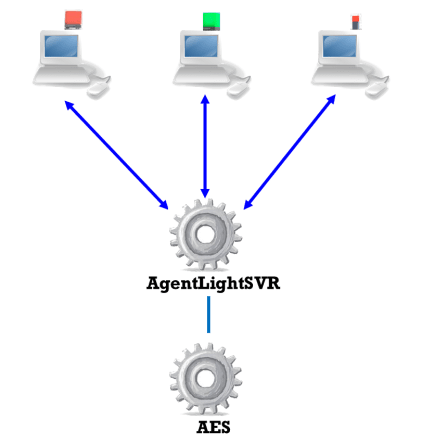
AgentLight is software for Avaya agent status notification. The software integrated with a USB lighting device and showing the agent status by turning on or flashing the device with different color. For example, the software can be configured to show agent idle with green color and on call with red color. The software is designed for the Avaya contact center environment; it integrated with Avaya AES to get the agent status with TSAPI library. The AgentLight has agent software installed on agent workstations and server software installed on server such as Windows 2008R2 or above. The AgentLight provides the following features:

  • Agent presence with different color and flashing
  • Identification of assist calls or hold calls
  • Identification of shuffling among nearby agents
  • Identification of short duration calls among nearby agents
  • Identification of long ACW time
  • Identification of long AUX time with specific reason

Supported USB lighting device

  • Embrava
    • Blynclight PLUS
    • Blynclight Mini
  • Plenom
    • Kuando BUSYLIGHT UC Omega
    • Kuando BUSYLIGHT UC Alpha

Supported platform

  • AgentLight agent installed on
    • Windows 7, Windows 8, Windows 10 or Windows 11
  • AgentLight server installed on
    • Windows 2008 R2 or above

The configuration is centrally managed on the AgentLight Server. The default configurations for agent on call and ACD state as follow:

Agent on Call

Call State Color Flashing
alerting orange 1
connect red 0
fail orange 1
hold red 1
idle off 0
initiate orange 1
null off 0

Agent ACD State

State Reasoncode Color Threshold
acw 0 white 60
auto 0 green 0
aux 0 blue 0
aux 1 blue 30
aux 2 blue 30
aux 3 blue 30
aux 4 blue 30
aux 5 blue 30
aux 6 blue 30
aux 7 blue 30
aux 8 blue 30
aux 9 blue 30
manual 0 green 0
null 0 off 0

Supported Color

  • red
  • green
  • blue
  • cyan
  • magenta
  • yellow
  • white
  • orange
  • off

Preparation and Password Encryption

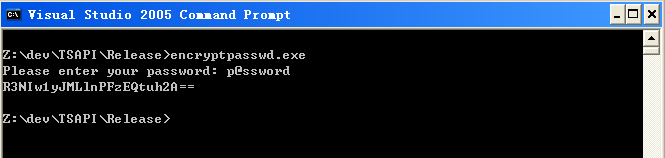
  • The access MDB file stored the username and password of AE server. For security reason, a tool called encryptpasswd.exe is provided to generate an encrypted password for the installation and configuration of the software
  • Execute the program, generate an encrypted passwords for the user of AE server, then paste the encrypted password to parameter ivr_tlink. For example, the encrypted password for “p@ssword” is “R3NIw1yJMLlnPFzEQtuh2A==”
  • encryptpasswd

64 bit Windows System

  • For 64 bit Windows system, please follow the steps below
    • Configure ODBC System DSN using
      • C:\Windows\SysWOW64\odbcad32.exe
    • Configure the Windows firewall for the application. By default telnet port 15012 and handler port 9002 are required on the AgentLightSVR
    • If your system does not have the 64bit version of Access driver, please download and install Microsoft Access Database Engine 2016 Redistributable.

AgentLight Server Windows Installation

  • Download and install the TSAPI client for Windows 64-bit from Avaya web site, it contains the library files.
  • Download the AgentLightSVR zip file here.
  • Follow the installation steps below to install the software.
    • Extract all the files into directory c:\program files\AgentLightSVR
    • Open Windows Command Prompt, enter the following commands to register the program as Windows Service
      • cd c:\program files\AgentLightSVR
      • AgentLightSVR64 -i
      • sc description AgentLightSVR64 “Provides AgentLight Service For Avaya”
    • Execute the package accessdatabaseengine_X64.exe to install Microsoft Access 64-bit driver.
    • Open ODBC Setting, create a System DSN called AGENTLIGHTSVRCFG for Microsoft Access Driver and point to AgentLightSVR.mdb which is located in the directory c:\program files\AgentLightSVR
    • The following is to edit the parameters manually
      • Open the Access file, edit the value of parameters ivr_tlink_01 and ivr_tlink_02 to the TLINK of your AES servers in the tParameter table
    • Start the Windows Service AgentLightSVR
    • Telnet to localhost and port number 15012, enter username tcpgate and password tcpgate01 to access the program console
    • Enter the following command to configure the parameters
      • setup
      • update parameter agentlight_licensekey xxxxyyyyyzzzzz
        • Please contact us for the valid license key
    • Enter the following command to add agentlight handler port if it doesn’t created before
      • add tcp 9002 * * custom agentlightapi
    • Enter the following command to add extension, the AgentLightSVR can control the extension once it is added to the database
      • add extension 60123
    • Enter the following command to map IP address with extension
      • add ipextnmap 10.1.1.100 60123
    • Enter the following command in the program console, you will receive debug information
      • trace on asc
    • Enter the following command in the program console, you will get the help message
      • help

AgentLight Agent Windows Installation

  • Download the AgentLight zip file here.
  • The AgentLight software is installed on agent PC.
  • Install the Microsoft Visual C++ 2010 Redistributable Package vcredist_x86.exe which is included in the package.
  • Execute the following command to register the required DLL
    • %windir%\Microsoft.NET\Framework\v4.0.30319\regasm.exe busylightsdk.dll /tlb:busylightsdk.tlb /codebase
  • Follow the installation steps below to install the software.
    • Extract all the files into directory c:\program files\AgentLight
    • Open Windows Command Prompt, enter the following commands to register the program as Windows Service
      • cd c:\program files\AgentLight
      • AgentLight -i
      • sc description AgentLight “Provides AgentLight Service For Avaya”
    • Copy AgentLight.ini from the installation directory to c:\windows directory
    • Edit the _server entry to point to the AgentLightSVR IP address
    • Edit the _port entry to point to the AgentLightSVR agentlightapi handler port
    • Edit the _extension entry to define extension number locally, this is useful when the PC is configured DHCP
AvayaECHI Splunk Use Cases

Posted: January 1, 2018 in CMS

Background

With reference to the Avaya CMS External Call History Interface document and the data fields, we can produce many use cases by using AvayaECHI tool and Splunk. The following guide assumes you already installed the AvayaECHI tool and imported the data to Splunk.

Caller On Hold Reports

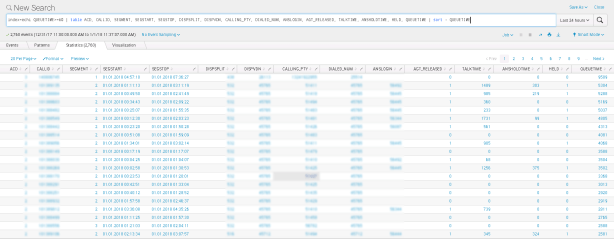
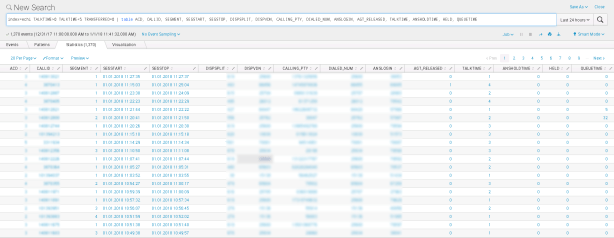
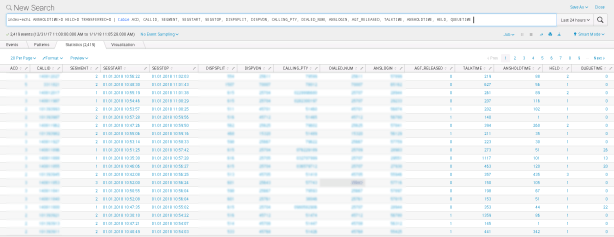
  • Caller On Hold Details Report
    index=echi ANSHOLDTIME>0 HELD>0 TRANSFERRED=0 | table ACD, CALLID, SEGMENT, SEGSTART, SEGSTOP, DISPSPLIT, DISPVDN, CALLING_PTY, DIALED_NUM, ANSLOGIN, AGT_RELEASED, TALKTIME, ANSHOLDTIME, HELD, QUEUETIME
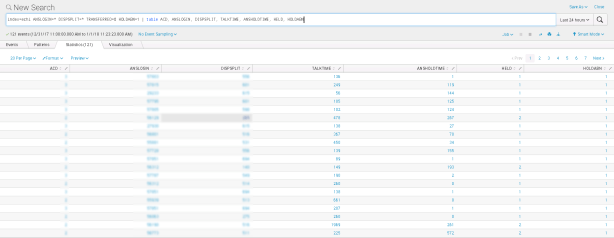
  • Caller On Hold Abandons Details Report
    index=echi ANSLOGIN=* DISPSPLIT=* TRANSFERRED=0 HOLDABN=1 | table ACD, ANSLOGIN, DISPSPLIT, TALKTIME, ANSHOLDTIME, HELD, HOLDABN
  • Caller On Hold Abandon Top 10 Agents Report
    index=echi ANSLOGIN=* DISPSPLIT=* TRANSFERRED=0 HOLDABN=1 | table ACD, ANSLOGIN | stats count as AbandonCalls by ACD, ANSLOGIN | sort limit=10 - AbandonCalls

Caller Calls Reports

  • Search Calls by Specific CALLING_PTY
    index=echi CALLING_PTY=XXXXXXXX
  • Search Calls by Prefix and Wildcard
    index=echi CALLING_PTY=123*

Outbound Calls Reports

  • Search Calls by Specific ORIGLOGIN
    index=echi ORIGLOGIN=XXXXX
  • Search Calls by Specific CALLING_PTY
    index=echi CALLING_PTY=XXXXX

Queue Wait Time Reports

  • Search Calls by QUEUETIME
    index=echi QUEUETIME>=60 | table ACD, CALLID, SEGMENT, SEGSTART, SEGSTOP, DISPSPLIT, DISPVDN, CALLING_PTY, DIALED_NUM, ANSLOGIN, AGT_RELEASED, TALKTIME, ANSHOLDTIME, HELD, QUEUETIME | sort - QUEUETIME

Short Duration Reports

  • Search Calls by TALKTIME
    index=echi TALKTIME>0 TALKTIME<5 TRANSFERRED=0 | table ACD, CALLID, SEGMENT, SEGSTART, SEGSTOP, DISPSPLIT, DISPVDN, CALLING_PTY, DIALED_NUM, ANSLOGIN, AGT_RELEASED, TALKTIME, ANSHOLDTIME, HELD, QUEUETIME
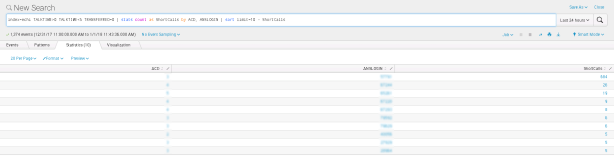
  • Short Duration Top 10 Agents Report
    index=echi TALKTIME>0 TALKTIME<5 TRANSFERRED=0 | stats count as ShortCalls by ACD, ANSLOGIN | sort limit=10 - ShortCalls

Call Profile Reports

  • Call Abandon by Call Profile Report (Split)
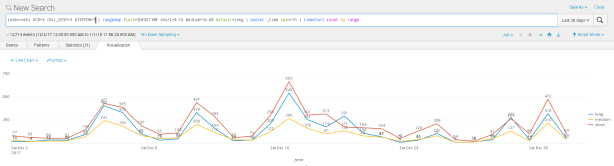
    index=echi ACD=X CALL_DISP=3 DISPSPLIT=Y | rangemap field=QUEUETIME short=0-15 medium=16-60 default=long | bucket _time span=1h | timechart count by range
  • Call Abandon by Call Profile Report (VDN)
    index=echi ACD=X CALL_DISP=3 DISPVDN=Y | rangemap field=QUEUETIME short=0-15 medium=16-60 default=long | bucket _time span=1h | timechart count by range
  • Call Answered by Call Profile Report (Split)
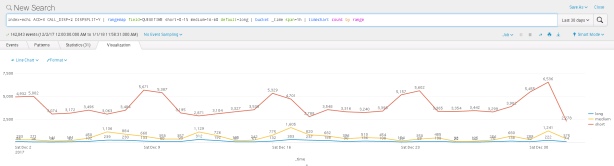
    index=echi ACD=X CALL_DISP=2 DISPSPLIT=Y | rangemap field=QUEUETIME short=0-15 medium=16-60 default=long | bucket _time span=1h | timechart count by range
  • Call Answered by Call Profile Report (VDN)
    index=echi ACD=X CALL_DISP=2 DISPVDN=Y | rangemap field=QUEUETIME short=0-15 medium=16-60 default=long | bucket _time span=1h | timechart count by range

Find All Activity For A Specific Agent

  • index=echi ACD=X (ANSLOGIN=YYYYY OR ORIGLOGIN=YYYYY)

Find Long Or Short Customer Calls

  • index=echi ACD=X TALKTIME<Y CALLING_PTY=* ANSLOGIN=* | table ACD, ANSLOGIN, DISPVDN, DISPSPLIT, CALLING_PTY
  • index=echi ACD=X TALKTIME>Z CALLING_PTY=* ANSLOGIN=* | table ACD, ANSLOGIN, DISPVDN, DISPSPLIT, CALLING_PTY

Find The Destination Of Transfer or Conference Calls

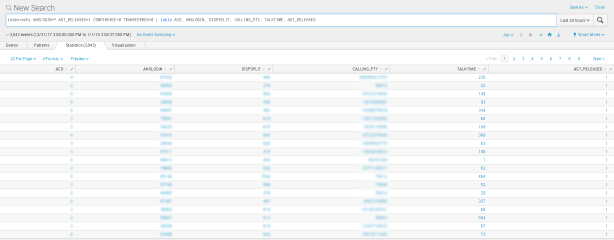
  • index=echi TRANSFERRED=1 OR CONFERENCE=1 ORIGLOGIN=* DIALED_NUM=* | table ACD, ORIGLOGIN, CALLING_PTY, DIALED_NUM

Find Abandoned Calls For A Specific Skill

  • index=echi CALL_DISP=3 DISPSPLIT=X | table CALLING_PTY, DIALED_NUM

Identify Repeat Callers Whether Answered Or Abandoned

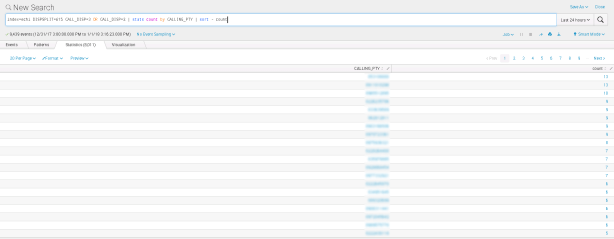
  • index=echi DISPSPLIT=X CALL_DISP=3 OR CALL_DISP=2 | stats count by CALLING_PTY | sort - count

List Last Call Work Codes By Agent

  • index=echi LASTCWC=*

Outbound Calls with Aux Reason Code Reports

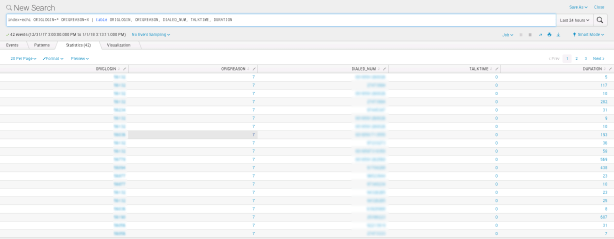
  • index=echi ORIGLOGIN=* ORIGREASON=X | table ORIGLOGIN, ORIGREASON, DIALED_NUM, TALKTIME, DURATION

Agent Disconnects First Reports

  • Agent Disconnects Details Report
    index=echi ANSLOGIN=* AGT_RELEASED=1 CONFERENCE=0 TRANSFERRED=0 | table ACD, ANSLOGIN, DISPSPLIT, CALLING_PTY, TALKTIME, AGT_RELEASED
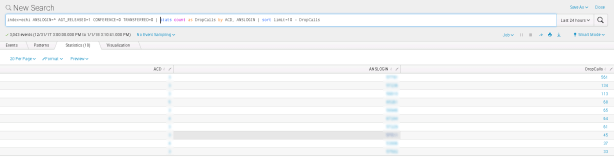
  • Agent Disconnects Top 10 Report
    index=echi ANSLOGIN=* AGT_RELEASED=1 CONFERENCE=0 TRANSFERRED=0 | stats count as DropCalls by ACD, ANSLOGIN | sort limit=10 - DropCalls

Agent Transferred Call to Same VDN Reports

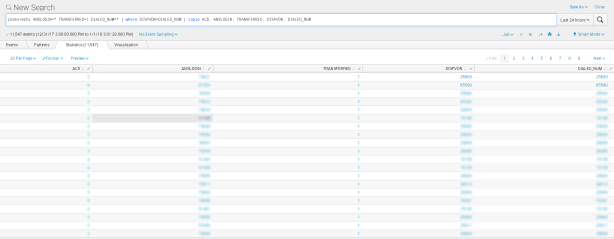
  • Agent Transferred Same VDN Calls Details Report
    index=echi ANSLOGIN=* TRANSFERRED=1 DIALED_NUM=* | where DISPVDN=DIALED_NUM | table ACD, ANSLOGIN, TRANSFERRED, DISPVDN, DIALED_NUM
  • Agent Transferred Same VDN Calls Top 10 Agents Report
    index=echi ANSLOGIN=* TRANSFERRED=1 DIALED_NUM=* | where DISPVDN=DIALED_NUM | stats count as TransferredCalls by ACD, ANSLOGIN | sort limit=10 - TransferredCalls

Calls Answered Skill Level Reports  

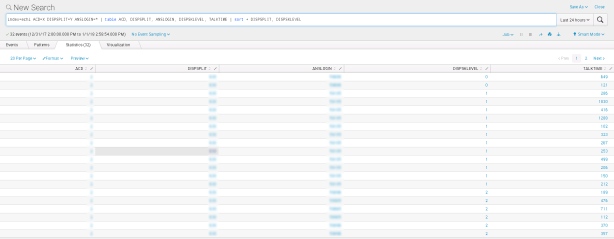
  • Call Answered by Skill Level Details Report 
    index=echi ACD=X DISPSPLIT=Y ANSLOGIN=* | table ACD, DISPSPLIT, ANSLOGIN, DISPSKLEVEL, TALKTIME | sort + DISPSPLIT, DISPSKLEVEL
  • Call Answered by Skill Level Distribution Report 
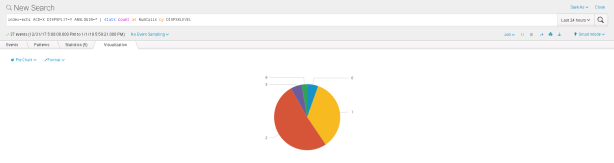
    index=echi ACD=X DISPSPLIT=Y ANSLOGIN=* | stats count as NumCalls by DISPSKLEVEL

Long Wrap-up Time Reports

  • Long Wrap-Up Time Details Report
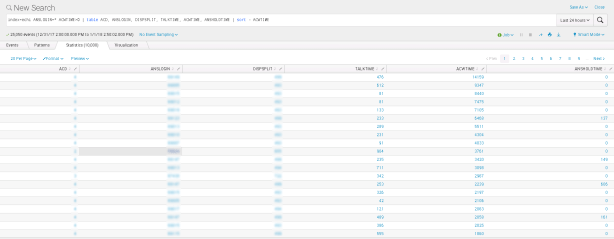
    index=echi ANSLOGIN=* ACWTIME>0 | table ACD, ANSLOGIN, DISPSPLIT, TALKTIME, ACWTIME, ANSHOLDTIME | sort - ACWTIME
  • Long Wrap-Up Time Top 10 Agents Report
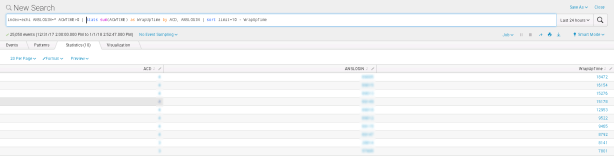
    index=echi ANSLOGIN=* ACWTIME>0 | stats sum(ACWTIME) as WrapUpTime by ACD, ANSLOGIN | sort limit=10 - WrapUpTime

Call Handling Time Reports

  • Call Handling Time Details Report
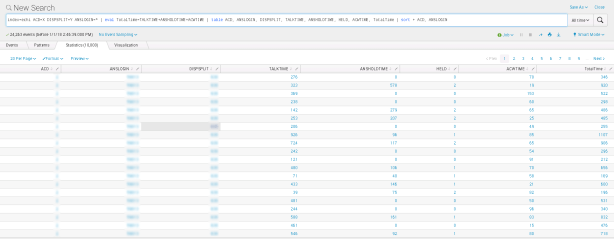
    index=echi ACD=X DISPSPLIT=Y ANSLOGIN=* | eval TotalTime=TALKTIME+ANSHOLDTIME+ACWTIME | table ACD, ANSLOGIN, DISPSPLIT, TALKTIME, ANSHOLDTIME, HELD, ACWTIME, TotalTime | sort + ACD, ANSLOGIN
  • Call Handling Time Distribution Report
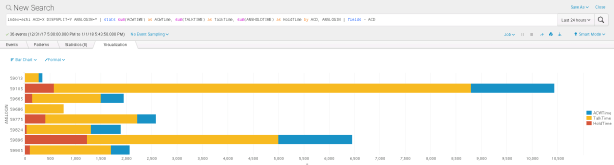
    index=echi ACD=X DISPSPLIT=Y ANSLOGIN=* | stats sum(ACWTIME) as ACWTime, sum(TALKTIME) as TalkTime, sum(ANSHOLDTIME) as HoldTime by ACD, ANSLOGIN | fields - ACD

bcmsSVR 2.0.3 Released

Posted: December 17, 2017 in BCMS

bcmsSVR 2.0.3 just released, this version has the following updates

1. Recomplil Linux version with libssh. The libssh2 has serious bug.
2. Fixed Linux version segmentation fault which caused by function strtok.

Customers who subscribe the annual email support service are entitled to have free update, please contact UPINGET Technologies for the download URL.

CallAnalytics 2.0.5 Released

Posted: December 1, 2017 in News, TSAPI

CallAnalytics 2.0.5 just released. This release has the following updates

1. Add a new parameter called ca_splunklogdir. When it is defined, all Splunk logs are saved in the directory and the log is kept daily basis.
2. Supports logging of clipboard copy data from ClipBoardAgent.
3. Handle CSTA_DIVERTED event for VDN and extension.
4. The REST interface supports QueryACDSplit and new report called qacdsplit can be added to log the data in Splunk.
5. Support multiple objects in the report.
6. Extension call abandon event is logged.
7. Call established caused by playing of vector announcement will be checked.
8. Call connection cleared caused by playing of vector announcement will be checked.
9. Added alert time, answer time, alert duration and answer duration in the database and Splunk interfaces.

clintSVR 1.3.6 Released

Posted: November 16, 2017 in CMS, News

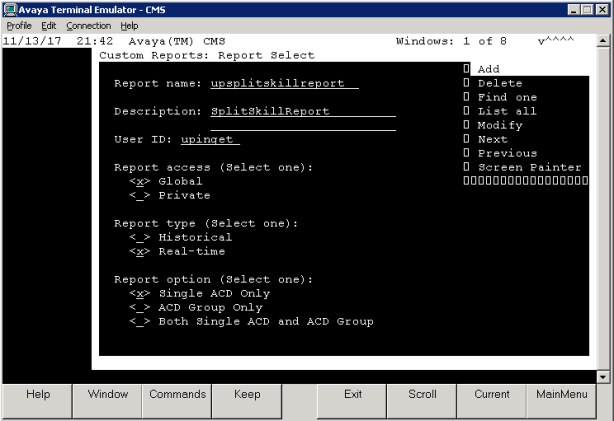
clintSVR 1.3.6 just released, a custom real time report called “upsplitskillreport” which is modified from the standard Split/Skill Report is provided for customers who subscribe the annual email support service from UPINGET Technologies. This report provides additional CMS real time database items such as:

  1. Calls Offered
  2. Service Level in Seconds
  3. Direct Agent Calls Waiting
  4. EWT Top
  5. EWT High
  6. EWT Medium
  7. EWT Low
  8. Percent Within Service Level
  9. Percent Answered
  10. Percent Abandoned

The report template “upsplitskillreport” can be obtained via UPINGET support service. You can follow the procedure below to create and upload the template to your CMS server.

  1. Open CMS Terminal and create a new custom real time report called “upsplitskillreport”
  2. Select Screen Painter from the menu
  3. Select Save design from the menu
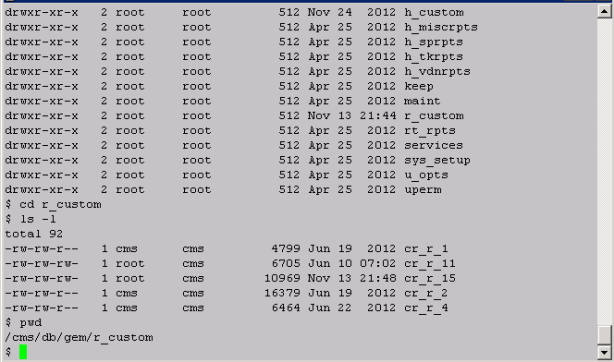
  4. Check the new file name in CMS server directory /cms/db/gem/r_custom
  5. For example, a new file called cr_r_15 is created. Delete the file cr_r_15 and copy the template file upsplitskillreport and rename it as cr_r_15
  6. The report is ready, you can execute it and get the data via clintSVR API, OCX, REST and WebSocket interfaces

Add and Delete Report in TcpGate Console 

  1. The tcpgate console command is
    • add upsplitskillreport 1 123;456;789 mycomment
      • Add upsplitskillreport for ACD 1 and skills 123, 456 and 789
    • delete upsplitskillreport 1 123;456;789
      • Delete upsplitskillreport

REST Interface 

  1. The REST interface to query the report is

bcmsSVR 2.0.2 Released

Posted: November 13, 2017 in BCMS, News

bcmsSVR 2.0.2 just released, this version has the following updates

1. Initialize the report variables before the parsing of OSSI raw output.
2. Fixed lost OSSI connection bug.
3. Fixed bcmslisttrunk malfunction bug.

CtiSVR 1.2.9 Released

Posted: October 10, 2017 in News, TSAPI

CtiSVR 1.2.9 just released. This version has the following updates

1. Increased buffer size from 1024 to 4096 for bigger CSTA and private data events.
2. Fine tuned the stream checking to avoid broken stream false alarm detection.
3. A parameter called ivr_privatedataversion is added, the default value is 6.
4. Supports SingleStepTransfer when the value of ivr_privatedataversion is equal or large than 8.
5. The failed event included the calling device when the ivr_privatedataversion is equal or large than 8.

Customers who subscribed the annual email support service are entitled to software upgrade. Please contact support for the download URL.

This post is about using Nagios plugin check_json to monitor system status. Since CtiSVR can return XML or JSON as payload over the REST interface, we can use the check_json plugin to monitor Avaya resource such as Trunk Group and ACD Hunt Group.

For example, the following command is to query Avaya Trunk Group (TAC) 3491, the result is is WARNING if the used trunks over 15 and CRITICAL if the used trunk over 20. The threshold format for Nagios is here.

check_json.pl --url 'http://$HOSTADDRESS$:9001/querytrunkgroup?tac=3491&payload=json' --attribute '{usedtrunks}' -w15 -c20 --perfvars 'idletrunks,usedtrunks'

To monitor Avaya Hunt Group such as the number of call queued, we can use the following command to monitor ACD Hunt Group 20666, the result is WARNING when the number of call queued over 0 and it is CRITICAL when the number of call queued over 5.

check_json.pl --url 'http://$HOSTADDRESS$:9001/queryacdsplit?split=20666&payload=json' --attribute '{callsqueue}' -w0 -c5 --perfvars 'callsqueue'

AvayaCDR 1.5.17 and CloudCDR 1.1.5 just released, the updates are 

1. Add a parameter cdr_splunklogdir to specify the Splunk log directory. Once this parameter is defined, the Splunk log will be saved in the directory and the parameter to specify Splunk host and port will be ignored.
2. Fine tuned the test SQL command procedure.

bcmsSVR 2.0.1 Released

Posted: August 19, 2017 in BCMS, News

bcmsSVR 2.0.1 just released. The updates are 

1. Compile with libSSH for Windows version.
2. Add parameter bcms_debuglog, set it to true if you want to have debug log.
3. Add parameter bcms_splunk_logdir for storing of splunk log in local files.
4. Bug fixing on bcmsListAgent, bcmsListSplit, bcmsListVdn and bcmsListTrunk Splunk logging.
5. Add report without description.