clintSVR 1.3.7 Released

Posted: May 10, 2018 in CMS

clintSVR 1.3.7 just released, the updates are:

1. Supports new report called “auxagentreport” by REST, API and WebSocket interfaces.
2. Fixed error code extraction failed issue for multiAgentAddSkill, multiAgentDeleteSkill and multiAgentModifySkill functions.

AvayaECHI 1.1.12 Released

Posted: May 10, 2018 in CMS, News

AvayaECHI 1.1.12 just released. The updates are:

1. Recompile Linux distribution to fix segmentation fault that caused by strtok function.
2. Add a converter type called “apsr18” to differentiate the R18 report from converter type “aps”.

Introduction

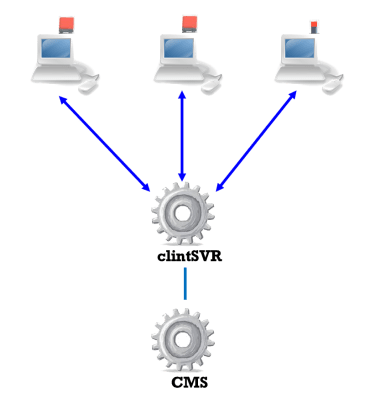
CMSLight is a visual notification software for Avaya CMS. The software is integrated with a USB lighting device and showing critical situation by turning on the lighting device and change the color to RED when the number of waiting calls and the oldest waiting time exceed threshold values. The software is designed for the Avaya CMS, it requires clintSVR which gets the real time data directly from Avaya CMS. The CMSLight provides the following features:

  • Display Split Skill / VDN Real Time Report on supervisor desktops
  • Turn on the USB lighting device and change the color to RED when the number of waiting calls and the oldest waiting time exceed threshold values

Supported USB lighting device

  • Embrava
    • Blynclight PLUS
    • Blynclight Mini
  • Plenom
    • Kuando BUSYLIGHT UC Omega
    • Kuando BUSYLIGHT UC Alpha

Supported platform

  • CMSLight software installed on
    • Windows 7, Windows 8 or Windows 10
    • No license required
  • clintSVR server software installed on
    • Windows 2008 R2 or above
    • CentOS 6.x or above
    • Ubuntu 14.04 or above
    • Server license is required

CMSLight Software Windows Installation

  • CMSLight – Split Skill Real Time Report
  • CMSLight – VDN Real Time Report
  • Download the CMSLight zip file here.
  • Follow the installation steps below to install the software.
    • Extract all the files into directory c:\program files\CMSLight
    • Copy CMSLight.ini from the installation directory to c:\windows directory
    • Edit the _server entry to define the IP address of clintSVR
    • Edit the _port entry to define the port number of clintSVR which provides the REST interface
    • Edit the _reportxx entry to define the real time report which has been added to clintSVR, the syntax is
      • ACD,report description,report type,tag name
        • e.g. 2,mobile,splitskillreport,Mobile
        • 2 is ACD number
        • mobile is the report description which has been added to clintSVR
        • splitskillreport is real time Split Skill Report
        • Mobile is tag name displayed on the CMSLight software

ctiSVR 1.2.10 Released

Posted: April 26, 2018 in News, TSAPI

ctiSVR 1.2.10 just released, this version has the following updates:

1. Change TSAPI event notification method from acsSetESR to acsEventNotify.
2. calltoui.exe supports Microsoft Dynamic CRM generic listener adapter.
3. calltoui.exe supports parameterized URL for inbound call solution.
4. Recompile Linux distribution to fix potential segmentation fault caused by strtok function.

bcmsSVR 2.0.4 Released

Posted: April 26, 2018 in BCMS, News

bcmsSVR 2.0.4 just released, this version has the following update.

1. Add bcmslistsplitday, bcmslistvdnday and listtrunk reports.

Introduction

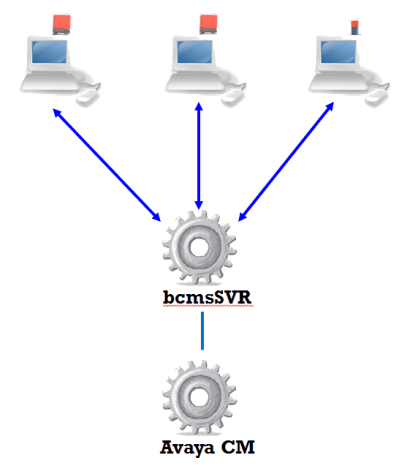
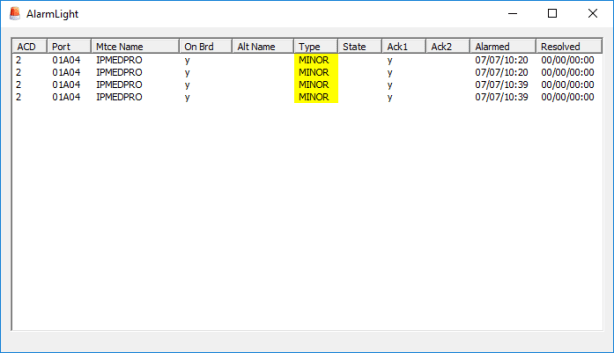
AlarmLight is a system alarm visual notification software for Avaya Aura Communication Manager. The software integrated with a USB lighting device and showing system alarm by turning on the lighting device and change the color to YELLOW or RED when a MINOR or MAJOR alarm is found. The software is designed for the Avaya Aura Communication Manager, it requires bcmsSVR which gets the alarm information by OSSI interface. The AlarmLight provides the following features:

  • Display multiple system alarms on Service Desk or NOC desktops
  • Turn on the USB lighting device and change the color to YELLOW when MINOR alarm is found
  • Turn on the USB lighting device and change the color to RED when MAJOR alarm is found

Supported USB lighting device

  • Embrava
    • Blynclight PLUS
    • Blynclight Mini

Supported platform

  • AlarmLight software installed on
    • Windows 7, Windows 8 or Windows 10
    • No license required
  • bcmsSVR server software installed on
    • Windows 2008 R2 or above
    • CentOS 6.x or above
    • Ubuntu 14.04 or above
    • Server license is required

AlarmLight Supervisor Windows Installation

  • Download the AlarmLight zip file here.
  • Follow the installation steps below to install the software.
    • Extract all the files into directory c:\program files\AlarmLight
    • Copy AlarmLight.ini from the installation directory to c:\windows directory
    • Edit the _urlxx entry to define the REST interface of “display alarms” which provided by bcmsSVR

Thanks Plenom offers us free samples of Kuando Busylight UC, we have enhanced the AgentLight to support Kuando Busylight UC. The new version of AgentLight 1.2.0 is just released, it has the following enhancement.

1. Supports Kuando Busylight UC.
2. A new parameter called _vendor is added in agentlight.ini to specify the busylight vendor. Please input “kuando” for Kuando Busylight UC.
3. Enter the following command using Administrator right to register the Kuando Busylight DLL if you are using Kuando Busylight UC.
cd c:\program files\AgentLight
%windir%\Microsoft.NET\Framework\v4.0.30319\regasm.exe busylightsdk.dll /tlb:busylightsdk.tlb /codebase

AvayaCDR 1.5.18 Released

Posted: March 10, 2018 in Avaya CDR, News

AvayaCDR 1.5.18 just release, the updates are 

1. Supports IP Office added fields 31 to 34. These fields are used to uniquely identify a call made in an IP Office Server Edition solution.

Customers who subscribed the annual email support service are entitled to software upgrade. Please contact support for the download URL.

CallAnalytics 2.0.6 Released

Posted: February 12, 2018 in News, TSAPI

CallAnalytics 2.0.6 just released. This release has the following updates

1. Fixed a minor bug without releasing device in the Splunk and databaes logging.
2. Added a REST interface to query call answer extensions.
3. Fixed a bug to prevent multi-threading dead locking.

QueueLight

Posted: January 28, 2018 in AgentLight

Introduction

QueueLight is a call queue visual notification software for Avaya contact center. The software integrated with a USB lighting device and showing the call queue status by turning on the lighting device and change the color to YELLOW or RED when a warning threshold or critical threshold is reached respectively. The software is designed for the Avaya contact center environment; it integrated with Avaya AES to get the call queue status with TSAPI library. The QueueLight has GUI software installed on supervisor workstations and server software installed on server such as Windows 2008R2 or above. The QueueLight provides the following features:

  • Display multiple queue call status on supervisor desktops
  • Turn on the USB lighting device and change the color to YELLOW when warning threshold is reached
  • Turn on the USB lighting device and change the color to RED when critical threshold is reached

Supported USB lighting device

  • Embrava
    • Blynclight PLUS
    • Blynclight Mini

Supported platform

  • QueueLight supervisor software installed
    • Windows 7, Windows 8 or Windows 10
  • QueueLight server software installed on
    • Windows 2008 R2 or above

Preparation and Password Encryption

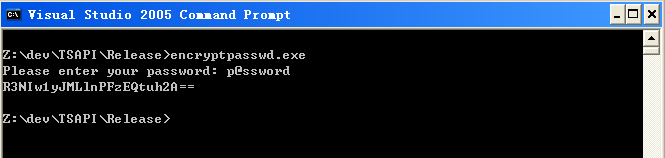
  • The access MDB file stored the username and password of AE server. For security reason, a tool called encryptpasswd.exe is provided to generate an encrypted password for the installation and configuration of the software
  • Execute the program, generate an encrypted passwords for the user of AE server, then paste the encrypted password to parameter ivr_tlink. For example, the encrypted password for “p@ssword” is “R3NIw1yJMLlnPFzEQtuh2A==”
  • encryptpasswd

64 bit Windows System 

  • For 64 bit Windows system, please follow the steps below
    • Configure ODBC System DSN using
      • C:\Windows\SysWOW64\odbcad32.exe
    • Configure the Windows firewall for the application. By default telnet port 15013 and handler port 9002 are required on the QueueLightSVR

QueueLight Server Windows Installation

  • Download and install the TSAPI client for Windows 32-bit from Avaya web site, it contains the library files. DevConnect registration is required before you can access the download page.
  • Download the QueueLightSVR zip file here or backup site.
  • Follow the installation steps below to install the software.
    • Extract all the files into directory c:\program files\QueueLightSVR
    • Open Windows Command Prompt, enter the following commands to register the program as Windows Service
      • cd c:\program files\QueueLightSVR
      • QueueLightSVR -i
    • Open ODBC Setting, create a System DSN called QUEUELIGHTSVRCFG for Microsoft Access Driver and point to QueueLightSVR.mdb which is located in the directory c:\program files\QueueLightSVR
    • Open the Access file, edit the value of parameters ivr_tlink_01 and ivr_tlink_02 to the TLINK of your AES servers in the tParameter table
    • Start the Windows Service QueueLightSVR
    • Telnet to localhost and port number 15013, enter username tcpgate and password tcpgate01 to access the program console
    • Enter the following command to add agentlight handler port
      • add tcp 9002 * * custom queuelightapi
    • Enter the following command to add IP address of supervisor desktop
      • add client 10.1.1.100
    • Enter the following command in the program console, you will receive debug information
      • trace on asc
    • Enter the following command in the program console, you will get the help message
      • help

QueueLight Supervisor Windows Installation

  • Download the QueueLight zip file here.
  • Follow the installation steps below to install the software.
    • Extract all the files into directory c:\program files\QueueLight
    • Copy QueueLight.ini from the installation directory to c:\windows directory
    • Edit the _server entry to point to the QueueLightSVR IP address
    • Edit the _port entry to point to the QueueLightSVR queuelightapi handler port
    • Edit the _warning entry to define the warning threshold
    • Edit the _critical entry to define the critical threshold
    • Edit the _skillxx entry to define the ACD skill number and its name