Introduction

The Avaya Call Center Auto Greeting Server manages call center greetings centrally. It uses Avaya TSAPI and DMCC library to barges in to an agent extension and plays a greeting when there is incoming call of the extension. Multiple greetings can be defined for an agent. For example, different greetings for service, sales and support calls or different greetings based on languages. Also, the server supports streaming of WAV file. Call center function such as T&C playing with customer during sales activities is supported.

The AutoGreeting server can stream WAV file by itself using RTP streaming. If you want to offload the playing of the greeting file by another server, you can setup and configure an Asterisk server. This  required setup of a SIP trunk between your Avaya CM and the Asterisk and prefix codes are required for call routing from CM to the Asterisk.

Before installation of the software, please make sure you have the following Avaya features and licenses are installed:

  • Avaya AES Basic Licenses
  • Avaya DMCC Licenses

Installation  

  • Download and install the TSAPI client for Windows 32-bit / TSAPI client for Windows 64-bit from Avaya web site, it contains the library files.
  • Contact us for the the Avaya Call Center Auto Greeting Server package file.
  • Follow the installation steps below to install the software.
    • Extract all the files into directory c:\program files\autogreeting
    • Open Windows Command Prompt as Administrator, enter the following commands to register the program as Windows Service
      • cd c:\program files\autogreeting
      • autogreeting -i
      • sc description autogreeting “Provides Auto Greeting functions for Avaya CM”
    • Open ODBC Setting, create a System DSN called AUTOGREETINGCFG for Microsoft Access Driver and point to autogreeting.mdb which is located in the directory c:\program files\autogreeting
    • Start the Windows Service autogreeting
    • Telnet to localhost and port number 14002, enter username tcpgate and password tcpgate01 to access the program console
    • Enter the following command to have the basic setup and restart the service
      • setup
    • Enter the following command in the program console to add extensions
      • add extension 61101
      • Hint: 61101 is agent extension
    • Enter the following command in the program console to add ACD monitoring
      • add acd 51101
      • Hint: 51101 is ACD
    • Enter the following command in the program console to add phantom device
      • add phantom 41101 true/false encrypted_passwd
      • Hint: 41101 is phantom device
      • Hint: true/false is for login DMCC
      • Hint: Encrypted password for registration of DMCC extension
    • Enter the following command in the program console to define agents for autogreeting
      • add agent 50001
      • Hint: 50001 is agent ID
      • All agents are in scope for autogreeting by default. Add your specific agents if you want these agents for auto greeting
    • Enter the following command in the program console for VDN or split number to greeting file folder mapping
      • add greetingpath 10001 c:\\greeting\\programA\\
      • Hint: 10001 is VDN or split number, the path c:\\greeting\\programA\\ contains the voice greeting files which is WAV, mono and 8000 Hz format
    • Enter the following command in the program console for wavnumber to file path mapping
      • add wavnumberpath 00001 c:\\voice\\tc00001.wav
    • Enter the following command in the program console to add prefix mapping for VDN or split number (only required when Asterisk is for greeting purpose)
      • add greetingprefix 10001 451
      • Hint: 10001 is VDN or split number, 451 is dialing prefix and together with agent ID to form the final called number (Asterisk extension), you need to create such called number in Asterisk
    • Enter the following command in the program console for debug messages
      • trace on asc
    • Enter the following command in the program console for help menu
      • help

API for Streaming of Wav File

Asterisk Configuration (Required only without DMCC license)

  • Edit the extension_custom.conf, add the dialplan below for auto greeting

  • autogreeting
  • Create the greeting extension in Asterisk and record the unavailable message, the autogreeting server uses the unavailable  message as the greeting for agent
  • Use Asterisk’s advanced mailbox function to record the unavailable message, agent can change his/her greeting easily

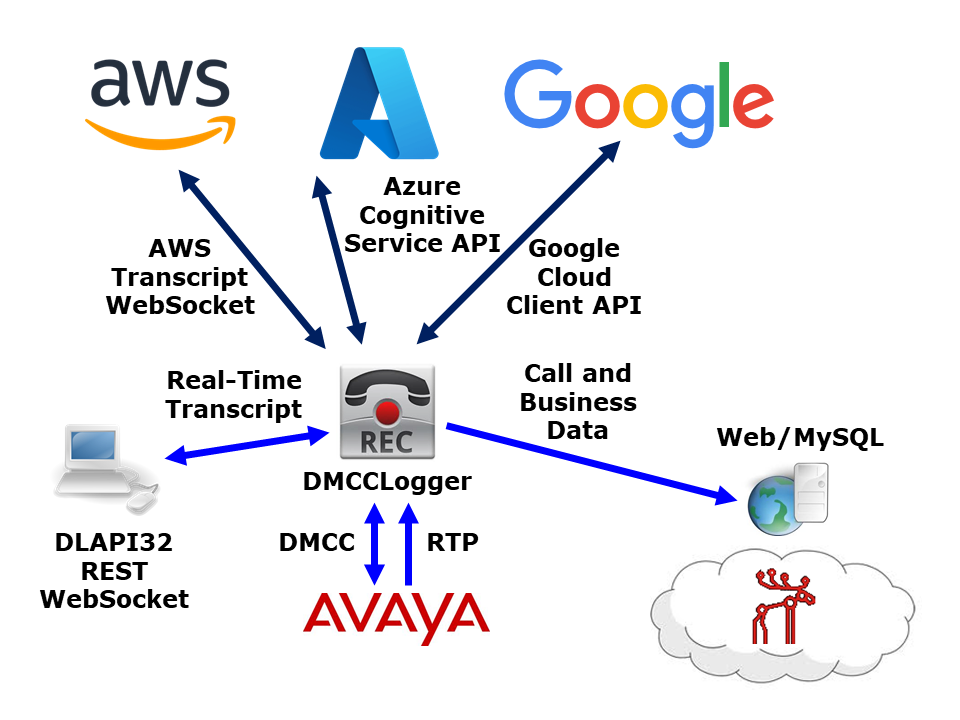
DMCCLogger now supports real-time speech to text transcription. After continuous development, Google is now supported. The integration is implemented directly using the RTP packets captured from the DMCC, therefore transcription process is close to real-time. The transcription text is sent to application by WebSocket or API interface in the format of JSON event.

We will support more vendors in the future. If you want a trial, please contact us by email.

DMCCLogger now supports real-time speech to text transcription. Currently, we have integrated with AWS and Azure. The integration is implemented directly using the RTP packets captured from the DMCC, therefore transcription process is close to real-time. The transcription text is sent to application by WebSocket or API interface in the format of JSON event.

We will support more vendors in the future, Google is planned in next minor release.  If you want a trial, please contact us by email.

AutoBridge for 911 Emergency Call

Posted: July 27, 2024 in News

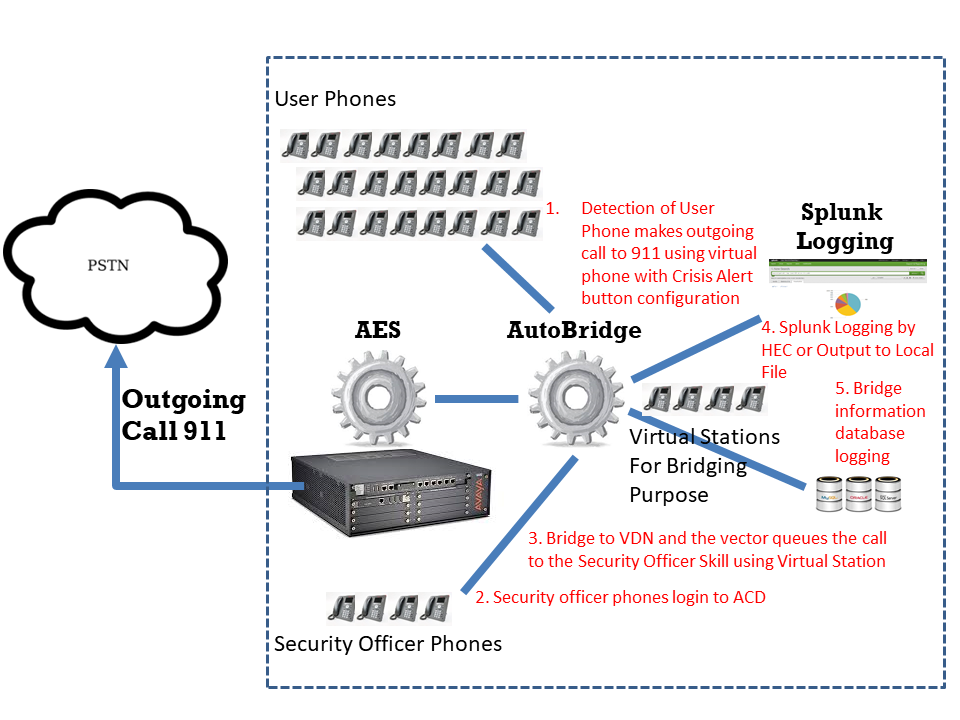
AutoBridge now supports bridging of 911 emergency calls with security officers immediately when user places a 911 call. The security officer can join the call or dispatch a team to assist the user if needed. AutoBridge uses DMCC to monitor a virtual station configured with Crisis Alert button. When user dials 911, the extension which dial the call is reported via the Crisis Alert button and the bridging process can be triggered automatically by the AutoBridge program. The AutoBridge can also use OSSI interface to get the caller who makes emergency call and trigger the process automatically.

The parameters that are specific for Crisis Alert are explained in more details as follows

ab_crisisalertdevice: The virtual station extension number that configured with crisis alert button
ab_crisisalertbridgedestination: The bridge destination after crisis alert is received. Normally, it is VDN or an extension of a security officer.
ab_crisisalertcancelbutton: The button number for the crisis alert. It is for cancellation of the crisis alert
ab_crisisalertcancelbuttonautopress: true or false to auto press the crisis alert button
ab_crisisalertringpattern: The ring pattern for crisis alert which is for determination if the virtual station is in crisis alert.
ab_ossilink: The OSSI link, you can setup by the tcpgate console “setup ossi”
ab_ossitrace: true or false to turn on the tracing.
ab_cmtenant: The CM tenant number to compare for the Auto-Bridging process.

upDialer 1.2.0 Released

Posted: July 3, 2024 in News, TSAPI

upDialer 1.2.0 just released, this version has the following updates:

1. Add “setup”, “setup database”, “setup API” and “setup splunk” commands for program configuration.
2. Add “add dialeruser”, “delete dialeruser” and “disp dialeruser” commands. Before that, the users are defined in the tcpgate admin user database table.
3. A role is associated with each dialeruser. Four standard user roles are defined, they are agent, supervisor, manager and admin. Some functions are limited to supervisor privilege or above only.
4. Add cancelcallitems API to cancel call items of a job.
5. Add listcallcitems API to list call items of a job. The listing supports “active” or “all” call item listing.
6. Add WebSocket “call back start” and “call back cancel” events notification during dialer callback.
7. Support add call items with specific schedule calling time. The dialling will be started after the schedule time (UNIX time stamp).

clintSVR 2.2.1 Released

Posted: June 30, 2024 in CMS, News

clintSVR 2.2.1 just released, this version has the following updates.

1. Supports integration with bcmsSVR to provide number of ACD calls (whole day) of each agent for the API splitskillsla.
2. Change the clint “Exit” command to “logout” for faster logout of clint command.
3. Change the historical report time range from 00:00-23:30 to 00:00-23:59.
4. Add telnet “setup”, “setup database”, “setup api” and “setup aplunk” commands for clintSVR configuration.
5. Add custom historical report “uphisallsplitskillagentsummary” which provides a whole day agent summary data of all split skills. The number of ACD calls (whole day) of each agent for the API splitskillsla is supported.
6. Add custom real-time report “uprtallspskreport” which provides all real-time split skill report of a ACD. This version only provides the data via REST interface.
7. Add custom real-time report “uprtallagentstatus” which provides all real-time agent status of a ACD. This version only provides the data via REST interface.
8. Add a parameter “cs_hisreport_refreshstartpoint” for custom historical report “uphisallsplitskillagentsummary”. Before that start point, the cache result timestamp is updated to keep the cache alive.
9. Replace the parameter “cs_splitskillsla_freezingpoint” with “cs_hisreport_refreshstoppoint”. During the stop point, the cache result timestamp is updated to keep the cache alive.

AvayaCDR 1.7.0 Released

Posted: June 28, 2024 in Avaya CDR, News

Avaya CS1K CDR is now supported by AvayaCDR 1.7.0!

AvayaCDR can capture CS1K CDR from COM port  or network network TCP streaming. This version has the following updates:

1. Supports capture CDR records from serial COM port. Supports generic and cs1klf (Avaya CS1000 with NEW format with line feed records) formats.
2. Supports TCP streaming of CDR from Avaya CS1000 with NEW format with line feed records, the paramcdr template called cs1klf is newly introduced.
3. Add new command rotate to rotate the remote database error log file.

CallAnalytics 2.2.0 Released

Posted: June 17, 2024 in News, TSAPI

CallAnalytics 2.2.0 just released, this version has the following updates.

1. Add “setup”, “setup api”, “setup database” and “setup splunk” commands for program configuration.
2. Fix the “disp tlink” and “disp activetserver” commanads.
3. Fix the Linux 64 bit version “setuserdata” API bug due to basic type size difference in Windows and Linux.
4. Able to set the telnet port by installation parameter -listenport.

AutoBridge 1.2.0 Released

Posted: June 17, 2024 in News, TSAPI

AutoBridge 1.2.0 just released, this version has the following updates:

1. Add a new parameter to control the setup of outbound call bridging when the destination is in alert state. The bridging may fail when the trunk is not supported the conferencing of the called party during alert state. The parameter is called “ab_bridgingstartedbydelivered”.
2. Poll agent phone status regularly and release it to the available pool when no agent is engaging the phone.
3. Add tcpgate console commands “setup” and “setup api” for program configuration.
4. Add inbridge for inbound call bridging based on caller number.
5. Add outbridge fro outbound call bridging based on called number.
6. Add “disp tlink” and “disp activetlink” commands to check TSAPI tlink information.

AvayaECHI 1.2.2 Released

Posted: May 31, 2024 in CMS, News

AvayaECHI 1.2.2 just released, this version has the following updates:

1. Supports multiple instances on the same host machine.
2. Add “setup”, “setup database” and “setup splunk” commands for program configuration.
3. Add -telnetport as installation parameter to override the telnet port for Windows.
4. Add -telnetport as program argument to override the telnet port for Linux.