This release provides OCX control for quick and fast application development. Moreover, a dictionary mapping is provided to map objects such as agentid, splitskill, skill, vdn, etc to user defined string. For details, please refer the support page.
5 February 2014, ScreenPop 1.3.6 just released. This release provides OCX control for CTI application development, both call control and event notification are supported. Moreover, a data server called uuiSVR.exe is provided for passing of user data between applications. An API to query user’s extension is also provided. For details, please refer the support page.
I am developing an OCX control for ScreenPop/CTI application development. The OCX control can be embedded into your application so you can control call very easily. Moreover, OCX events are fired when your phone has state changed. In additional, multiple OCX controls are supported in the same machine so multiple applications can control the phone and received notification events at the same time. Contact me if you are interested.
5 Jan 2013, AstLogger 1.3.8 just released. This release has some enhancements:
- Supports “ondemand” recording mode. New parameters “al_ondemandonfc”, “al_ondemandonfile”, “al_ondemandofffc”, “al_ondemandofffile”, “al_ondemandbuffersize” and “al_ondemandworkersize” are defined for this purpose.
- Supports backup record vdn prefix for asterisk logger resilience. A parameter “al_emergencysplit” is defined for this purpose. When the emergency split is enabled, Astlogger will use the backup record vdn prefix for call recording.
- FAGI buffer size and worker size parameters are now configurable, the parameters “al_fagibuffersize” and “al_fagiworkersize” are defined for this purpose.
- The parameters “al_extension”, “al_acd”, “al_phantomdevice”, “al_recordvdnprefix”, “al_vdngreetingprefix”, “al_splitgreetingprefix” are depreciated.
For details, please refer to the support page.
3 Jan 2014, ScreenPop 1.3.5 just released. This release supports the following:
- Supports license management via a license server. A parameter sp_licsvr is defined for this purpose.
- Supports One-X Communicator softphone. The ScreenPop server will answers ACD call automatically when parameter sp_acdautoanswer is defined.
- Supports alternate call control via the Trnasfer and Conference call dialog of caltoui program.
For details, please refer the support page.
Introduction
When using Avaya One-X Communicator in a call center environment, it is not possible for an agent to have auto answer of ACD calls. This triggered us to write a tool to solve this problem. The target of this tools is simple, it enables agents answer ACD calls automatically without pressing the Answer button. This will improve operation efficiency and reduce ACHT of the call center. With the Auto Answer tool, you can deploy One-X Communicator in a call center or home agent environment.
See Also: AutoBridge / Home Agent Solution for Avaya
See Also: ctiSVR Supports Auto Answer for One-X Communicator
Testing using Docker Image
Please follow this guide to test AutoAnswer using Docker Container.
Testing using OVA File

We also create a OVA file which you can deploy it to VirtualBox or VMware for testing. After deploying the OVA file, please modify the following:
- Reference this guide to delete the file /etc/udev/rules.d/70-persistent-net.rules
- Change the MAC address and IP address of the VM in the file /etc/sysconfig/network-scripts/ifcfg-eth0
- Edit /usr/lib/tslibrc, change 127.0.0.1 to the IP address of your Avaya AES
- Telnet to AutoAnswer console port 14012, update the parameters aa_tlink_01 and aa_tlink_02. The aa_tlink_01 and aa_tlink_02 string contain three fields and they are separated by comma (,). For example “AVAYA#AVAYA_ECS#CSTA#XXXXXX,username,encrypted_password”
- AVAYA#AVAYA_ECS#CSTA#XXXXXX is the tlink, you can get the name by command /usr/lib/tstest
- username is the AES cti user
- encrypted_password can be obtained by tcpgate console command genpass, enter your AES cti user password two times you will get the encrypted password
- Once the changes are completed, reboot the VM
- Contact service@upinget.com for a trial license
The username and password of the OVA VM is
- OS : root/P@ssw0rd
- MySQL: root/P@ssw0rd
- AutoAnswer console: tcpgate/tcpgate01
Windows Installation Preparation and Password Encryption
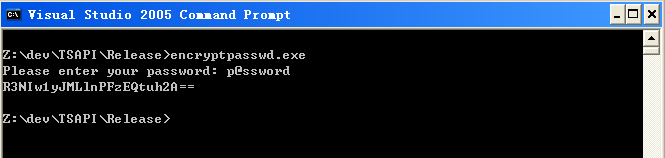
- The access MDB file stored the the username and password of AE server for this software. For security reason, a tool called encryptpasswd.exe is provided to generate encrypted password for the installation and configuration of the software
- Execute the program, generate the encrypted password for a user of AE server, then paste the encrypted password to parameter aa_tlink. For example, the encrypted password for “p@ssword” is “R3NIw1yJMLlnPFzEQtuh2A==”

64 bit Windows System
- For 64 bit Windows system, please follow the steps below
- Configure ODBC System DSN using
- C:\Windows\SysWOW64\odbcad32.exe
- Stop the Windows firewall because it enables by default and telnet port 14012 is required for this application.
- Configure ODBC System DSN using
Windows Installation
- Download the TSAPI client for Windows 32-bit from Avaya web site, it contains the library files. You need to register DevConnect before you can access the download page.
- Download the AutoAnswer zip file file here.
- Follow the installation steps below to install the software.
- Extract all the files into directory c:\program files\autoanswer
- Open Windows Command Prompt, enter the following commands to register the program as Windows Service
- cd c:\program files\autoanswer
- autoanswer -i
- sc description autoanswer “Provides Auto Answer function for Avaya One-X Communicator”
- Open ODBC Setting, create a System DSN called AUTOANSWERCFG for Microsoft Access Driver and point the DB to autoanswer.mdb which is located in the directory c:\program files\autoanswer
- Open the Access file, edit the value of parameters aa_tlink_01 and aa_tlink_02 to the TLINK of your AE servers in the tParameter table, take care the encrypted password for AE server
- Start the Windows Service AutoAnswer
- Telnet to localhost and port number 14012, enter username tcpgate and password tcpgate01 to access the program console
- Enter the following command to add one extension for AutoAnswer
- add extension 41101
- Hint: 41101 is an extension, when the extension is in alerting state and the extension is login in ACD, the AutoAnswer program will issue the answer command for the extension
- Enter the following command in the program console, you will receive debug information.
- trace on asc
- Enter the following command in the program console, you will get the help message
- help
Windows Uninstallation
- Stop the Window Service AutoAnswer
- Open Windows Command Prompt, enter the following commands to uninstall the program from Windows Service
- cd c:\program files\autoanswer
- autoanswer -u
License Pack (10 Licenses)

Unlimited License
16 Dec 2013, ScreenPop 1.3.4 just released. This release supports passing AGENTID to web application. Moreover, web application can perform call controls using CGI interface. For details, please refer the support page.
Release 1.1.3 just released, this release supports the following real time reports:
- Queue Agent Status
- Queue Top Agent Status
- Queue Agent Summary
For details, please reference the support web page.
Release 1.1.2 just released, this release supports the following real time reports:
- Split Skill Call Profile
- VDN Call Profile
- Split Skill Aux Report
- Split Skill Top Agent
- Split Skill Top Agent Status
For details, please reference the support web page.
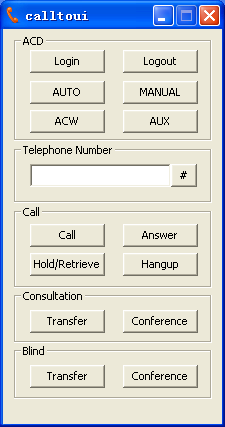
Release 1.3.3 just released, this release supports ACD and DTMF functions. Moreover, a pass through prefix can be defined so ScreenPop will pass the number directly to PBX without any manipulation. The new UI of calltoui is updated as follow:
 UPINGET