Introduction

The clintSVR is a gateway program for the access of Avaya CMS real time and historical reports. It uses a tool called CLINT to retrieve the real time and historical data from Avaya CMS and provides API(s) for you to do application development. Applications such as wallboard and agent map software can be implemented on top of clintSVR. The clintSVR retrieves CMS real time and historical reports at an interval that specified by you, it stores the data in memory and allows multiple access by different programs via REST query API, WebSocket, OCX and C/C++ interfaces. The data is presented in XML / JSON format and the following interfaces and reports are supported:
- REST API to get real time and historical data
- WebSocket API to get real time and historical data
- C++ interface which header, library and DLL files are provided
- OCX interface for VB or ASP.net programming, some users use the OCX directly in Excel and manipulate the real time data using Excel formula
- Supports logging of data to database such as MSSQL, MySQL and Oracle
- Supports logging of data to Kafka
- Supports logging of data to Splunk
- Supports XMPP connection so clintSVR can connect to XMPP server such as Openfire
- Supports the following real time reports
- Agent Report
- Agent Group
- Event Count Summary
- Queue Agent Status
- Queue Top Agent Status
- Queue Agent Summary
- Split Skill Status
- Split Skill Report
- Split Skill Call Profile
- Split Skill Aux Report
- Split Skill Top Agent
- Split Skill Top Agent Status
- Trunk Group Report
- VDN Report
- VDN Call Profile
- VDN Skill Preference
- CustomRTA
- DeviceRTA
- AgentRTA
- Custom Report
- Supports the following historical reports via DLL, OCX and REST interfaces
- Historical Trunk Group Busy Hour
- Historical Trunk Group Summary Interval
- Historical Split Skill Summary Interval
- Historical Agent Summary Interval
- Historical Split Skill Service Level Interval (required additional charging)
- Historical VDN Interval
- Supports the following administration reports via DLL, OCX and REST interfaces
- Multi Agent Add Skill
- Multi Agent Delete Skill
- Multi Agent Modify Skill
- AUX Agent Report
- UPINGET Customized Reports (required additional charging)
- UPINGET Agent Group
- UPINGET Queue Agent Status
- UPINGET Real Time Split Skill Report
- UPINGET Historical All Split Skill Agent Summary
- UPINGET Historical All VDN Report
- UPINGET Real Time Queue Agent Status
- UPINGET Real Time All Split Skill Report
- UPINGET Real Time All Agent Status
- UPINGET Real Time All VDN Report
- UPINGET Split Skill SLA
- UPINGET VDN SLA
- Supports RT-Socket integration
- RT-Socket Split Skill Report
- Free Tool using clintSVR
See Also: bcmsSVR/BCMS Real Time and Historical Report Data
See Also: Call Analytics
Avaya CMS License Requirement
- For CMS 16 – 18, only CLINT license activation is required
- For CMS 19+, CLINT external session license is required. For details, please reference this document.
Prerequisite
- The CMS tool CLINT is activated
- A login ID with login shell such as /bin/ksh is created
- To verify your environment ready for the tool, please follow the steps below
- Download a tool called plink from web site which is the official site of putty
- Execute the following command to test if you can run clint from your machine
- plink -pw yourCmsPassword -ssh YourCmsUsername@YourCmsIP /cms/toolsbin/clint -u cmssvc
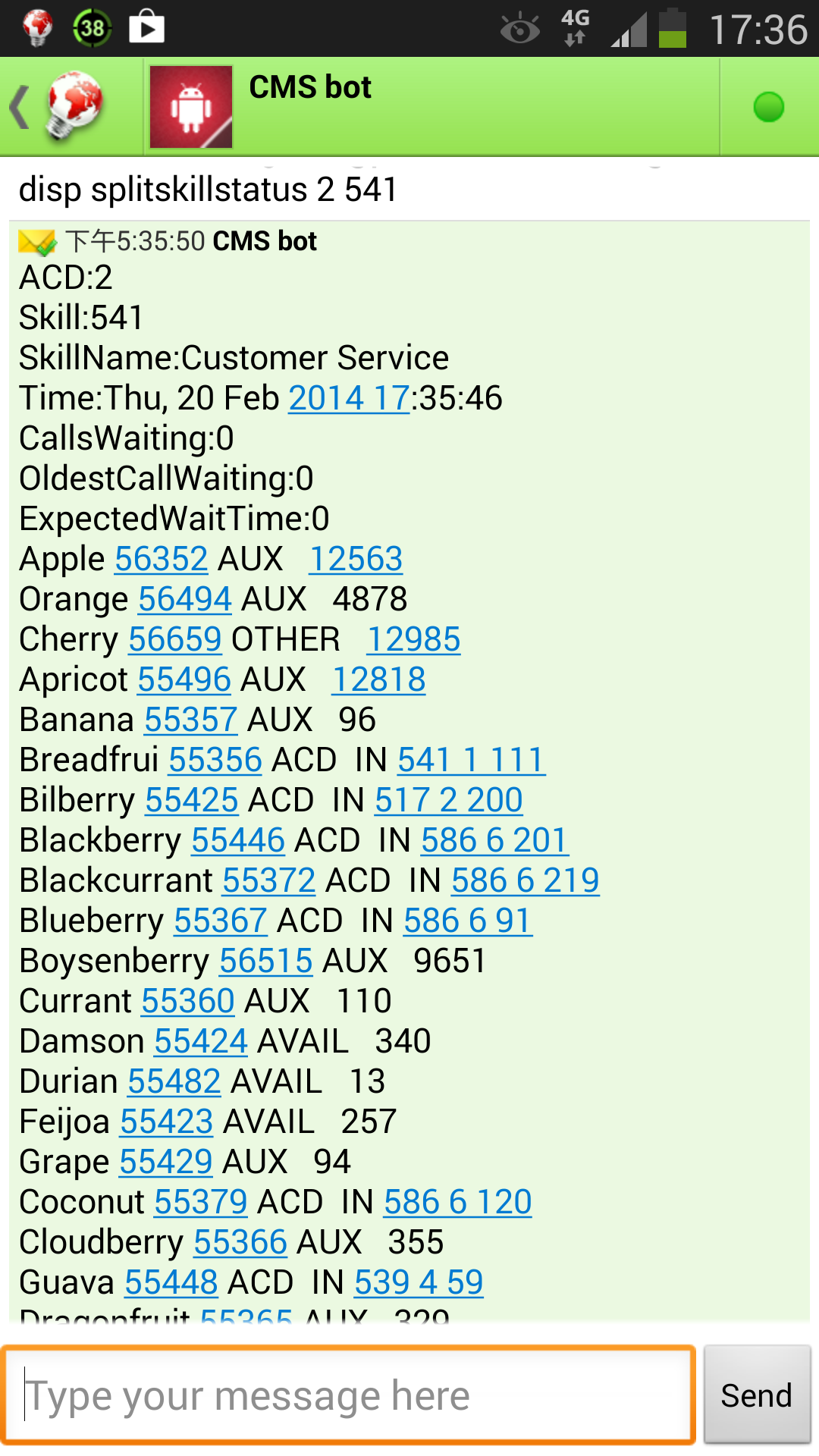
- You are ready to install the tool if you see the following output screen
Preparation and Password Encryption
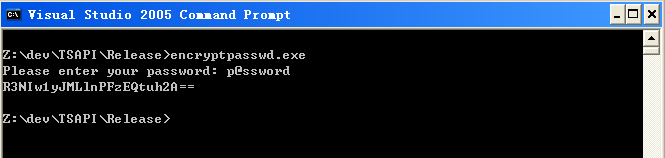
- The access MDB file stored username and password used by the clintSVR program. For security reason, a tool called encryptpasswd.exe is provided to generate encrypted password for the installation and configuration of the software.
- Execute the program, generate an encrypted password for the CMS user which is specific for the tool, then paste the encrypted password to parameter cs_cmspasswd. For example, the encrypted password for “p@ssword” is “R3NIw1yJMLlnPFzEQtuh2A==”

Testing using Docker Image
Please follow this guide to test ClintSVR using Docker Container.
Testing using OVA File

Please contact us for a latest version of OVA image. After deploying the OVA file, please modify the following for your own environment.
- Reference this guide to delete the file /etc/udev/rules.d/70-persistent-net.rules
- Change the MAC address and IP address of the VM in the file /etc/sysconfig/network-scripts/ifcfg-eth0
- Telnet to clintSVR console port 14011, update parameters such as cs_cmsip, cs_cmsusername and cs_cmspasswd
- Once the changes are completed, reboot the VM
The username and password of the OVA VM is
- OS : root/P@ssw0rd
- MySQL: root/P@ssw0rd
- clintSVR console: tcpgate/tcpgate01
- Splunk URL: http://newIP:8000/
64 bit Windows System
- For 64 bit Windows system, please follow the steps below
- Configure ODBC System DSN using C:\Windows\SysWOW64\odbcad32.exe
- Stop the Windows firewall because it enables by default. ClintSVR use TCP port 14011 for telnet console, open it in firewall so you can configure the program remotely.
- If your system does not have the 64bit version of Access driver, please download and install Microsoft Access Database Engine 2016 Redistributable.
Installation
- We have recorded a video for Windows 2012 installation, please watch the video before the installation.
- Download the clintSVR zip file here or backup site.
- Follow the steps below to install the software.
- Extract all the files into directory c:\program files\clintSVR
- Open Windows Command Prompt, and enter the following commands to register the program as Windows Service, you need to run command prompt as Administrator when you run Windows 7 or above
- cd c:\program files\clintSVR
- clintSVR -i
- sc description clintSVR “Provides real-time report functions for Avaya CMS”
- If you found the following screen, please install Visual C++ Redistributable Packages for Visual Studio 2013, select the vcredist_x86.exe file, please
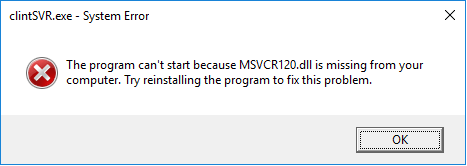
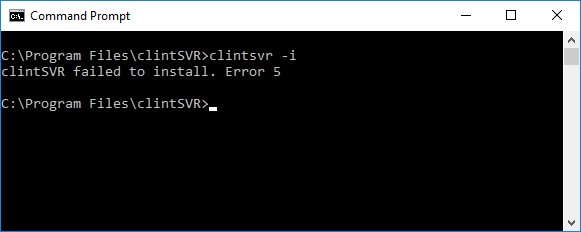
- If you found the following screen, please make sure you run the command prompt as Administrator
- Open ODBC Setting, create System DSN called CLINTSVRCFG for Microsoft Access Driver and select clintSVR.mdb which is located in the directory c:\program files\clintSVR
- Version 2.2.1 or above
- Start the Windows Service clintSVR
- Telnet to the tcpgate console and enter the following commands for program configuration
- setup
- setup database
- setup api
- setup splunk
- Version 2.2.0 or below
- Open the Access file, and edit the value of parameters cs_cmsip which is the IP address of the CMS server
- Edit the value of parameter cs_cmsport which is the SSH port number, default value is 22
- Edit the value of parameter cs_cmsusername which is the username in the CMS server for the clintSVR program, create one when necessary, don’t use CMS application user because CMS application user by default has no shell and SSH connection is disabled
- Edit the value of parameter cs_cmspasswd, and use the encrypted password generated by the encryptpasswd.exe program
- Start the Windows Service clintSVR
Add Reports
- To get real time report data, you need to add your report to clintSVR. The clintSVR will build a connection with CMS after you have added the report. CMS will push the real time report to clintSVR at an interval that specified by you
- Telnet to the IP and port number 14011 where clintSVR is installed, enter username tcpgate and password tcpgate01 to access the program console
- To add Split Skill Status Report, enter the following command
- add splitskillstatus 2 45 10 programA
- Hint: 2 is ACD number
- Hint: 45 is skill number
- Hint: 10 is refresh rate in seconds
- Hint: programA is a description
- Hint: CMS will push the Split Skill Status report to clintSVR every 10 seconds
- To add Spit Skill AUX Report, enter the following command
- add splitskillauxreport 2 45 10 programA
- Hint: multiple skills parameter is supported, the skills are inputted in ascending order and separated by “;”. For example, 1;2;3;4;5;6;7;8;9;10 are splits in ascending order
- To add Split Skill Top Agent report, enter the following command
- add splitskilltopagent 2 45 10 programA
- Hint: multiple skills parameter is supported, the skills are inputted in ascending order and separated by “;”. For example, 1;2;3;4;5;6;7;8;9;10 are splits in ascending order
- To add Split Skill Top Agent Status report, enter the following command
- add splitskilltopagentstatus 2 45 10 programA
- To add Split Skill Report, enter the following command
- add splitskillreport 2 45 10 programA
- Hint: multiple skills parameter is supported, the skills are inputted in ascending order and separated by “;”. For example, 1;2;3;4;5;6;7;8;9;10 are splits in ascending order.
- To add Split Skill Call Profile Report, enter the following command
- add splitskillcallprofile 2 45 10 programA
- To add VDN Report, enter the following command
- add vdnreport 3 21101 10 programA
- Hint: multiple vdns parameter is supported, the vdns are input in ascending order and separated by “;”. For example, 1001;1002;1003 are vdns in ascending order
- To add VDN Skill Preference report, enter the following command
- add vdnskillpreference 2 21101 10 programA
- Hint: multiple vdns parameter is supported, the vdns are input in ascending order and separated by “;”. For example, 1001;1002;1003 are vdns in ascending order
- To add VDN Call Profile report, enter the following command
- add vdncallprofile 2 21101 10 programA
- To add Agent Report, enter the following command
- add agentreport 2 45 10 programA
- To add Agent Group report, enter the following command
- add agentgroup 2 Apple 10 programA
- Hint: Apple is agent group name. Name with space is supported and the space is encoded as %20. E.g. If you agent group is called “Apple team”, the encoded name is “Apple%20team”. To get the report via REST, provide the name in encoded format. But it is not required when using the C++ or OCX interface.
- To add Event Count Summary report, enter the following command
- add eventcountsummary 2 45 10 programA
- To add Queue Agent Status report, enter the following command
- add queueagentstatus 2 45 10 programA
- To add Queue Top Agent Status report, enter the following command
- add queuetopagentstatus 2 45 10 programA
- To add Queue Agent Summary report, enter the following command
- add queueagentsummary 2 45 10 programA
- To add Trunk Group Report, enter the following command
- add trunkgroupreport 2 41 10 programA
- To add Custom RTA report, enter the following command
- add customrta 2 1-999;1000-2000 10 rta
- To turn on trace, enter the following command
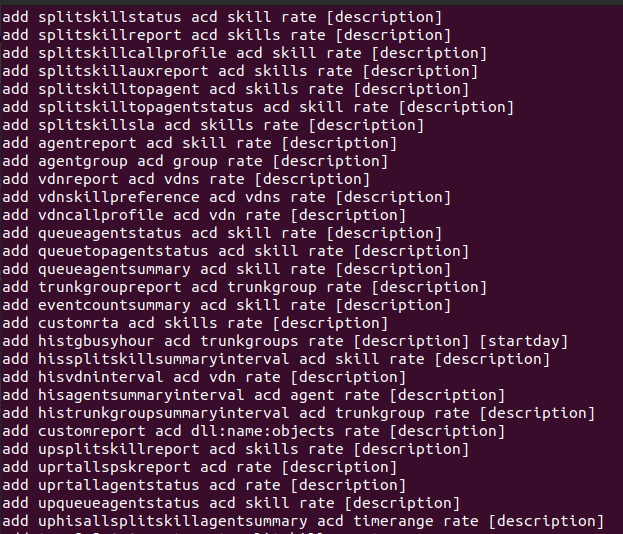
- To get help message, enter the following command
Uninstallation
- Stop the Window Service clintSVR
- Open Windows Command Prompt, enter the following commands to uninstall the program from Windows Service
- cd c:\program files\clintSVR
- clintSVR -u
RedHat/CentOS 7.x Installation Procedure

- The following is for RedHat/CentOS 7 64 bit OS only, other Linux distribution is similar
- Login as root and execute the following commands
- Disable SELINUX and stop firewall
-
sed -i 's/\(^SELINUX=\).*/\SELINUX=disabled/' /etc/selinux/config
-
systemctl disable firewalld
-
systemctl stop firewalld
-
reboot
- Install the MySQL 8.x
-
sudo rpm -Uvh https://dev.mysql.com/get/mysql80-community-release-el7-1.noarch.rpm
sudo yum --enablerepo=mysql80-community install mysql-community-server
sudo service mysqld start
grep "A temporary password" /var/log/mysqld.log
mysql_secure_installation
- Install the following packages
-
yum install telnet ntp
-
yum install libssh2 mysql-connector-odbc unixODBC
- Config and start MySQL
-
systemctl enable mysqld
-
systemctl start mysqld
- Config and start ntpd
-
systemctl enable ntpd
-
systemctl start ntpd
- Create database and user
-
mysql -u root -p
-
> create database clintsvr;
-
> create database clintrtdb;
-
> create user 'tcpgate'@'localhost' identified by 'P@ssw0rd';
-
> grant all on clintsvr.* to 'tcpgate'@'localhost';
-
> grant all on clintrtdb.* to 'tcpgate'@'localhost';
-
> flush privileges;
-
> quit
-
mysql -h localhost -u tcpgate -p clintsvr < clintsvr.sql
-
mysql -h localhost -u tcpgate -p clintrtdb < clintrtdb.sql
- Copy the following to /etc/odbc.ini file
- [CLINTSVRCFG]
Description = MySQL connection to clintSVR
Driver =MySQL ODBC 8.0 ANSI Driver
Server = localhost
Port = 3306
Database = clintsvr
- [CLINTRTDBCFG]
Description = MySQL connection to clintSVR RTDB
Driver =MySQL ODBC 8.0 ANSI Driver
Server = localhost
Port = 3306
Database = clintrtdb
- Create user and copy files
-
useradd clintsvr
-
mkdir /usr/local/clintsvr
-
cp clintSVR64 /usr/local/clintsvr
-
chmod +x /usr/local/clintsvr/clintSVR64
-
chown -R clintsvr.clintsvr /usr/local/clintsvr
-
mkdir -p /var/log/clintsvr
-
chown -R clintsvr.clintsvr /var/log/clintsvr
- Auto start the daemon after server reboot
-
echo "rm /tmp/clintsvr.log" >> /etc/rc.local
-
echo "su clintsvr -c '/usr/local/clintsvr/clintSVR64 -u tcpgate -p 40UIt9O3PqtwsSn+Wx6pig=='" >> /etc/rc.local
-
chmod +x /etc/rc.local
Ubuntu 14.04 Installation Guide

- The following is for Ubuntu 14.04 only, the commands can be found in the ubuntu/installation.txt file
- The executable file of 32 bit version is “clintSVR”, the 64 bit version is “clintSVR64”
- Install the following packages
-
sudo apt-get install mysql-server mysql-client
-
sudo apt-get install libmyodbc unixodbc unixodbc-bin
-
sudo apt-get install libssh2-1 libssh-4 openssl unrar
- Create database and user
-
mysql -u root -p
-
create database clintsvr;
-
create user 'tcpgate'@'localhost' identified by 'tcpgate';
-
grant all on clintsvr.* to 'tcpgate'@'localhost';
-
flush privileges;
-
quit
-
mysql -h localhost -u tcpgate -p clintsvr < clintsvr.sql
- Copy the following to /etc/odbcinst.ini file for Ubunt 64bit
- [MySQL]
Description = ODBC for MySQL
Driver = /usr/lib/x86_64-linux-gnu/odbc/libmyodbc.so
Setup = /usr/lib/x86_64-linux-gnu/odbc/libodbcmyS.so
UsageCount = 1
- Copy the following to /etc/odbcinst.ini file for Ubunt 32bit
- [MySQL]
Description = ODBC for MySQL
Driver = /usr/lib/i386-linux-gnu/odbc/libmyodbc.so
Setup = /usr/lib/i386-linux-gnu/odbc/libodbcmyS.so
UsageCount = 1
- Install the ODBC driver
-
sudo odbcinst -i -d -f /etc/odbcinst.ini
- Copy the following to /etc/odbc.ini file
- [CLINTSVRCFG]
Description = MySQL connection to clintSVR
Driver = MySQL
Server = localhost
Port = 3306
Socket = /var/run/mysqld/mysqld.sock
Database = clintsvr
- [CLINTRTDBCFG]
Description = MySQL connection to clintSVR RTDB
Driver = MySQL
Server = localhost
Port = 3306
Socket = /var/run/mysqld/mysqld.sock
Database = clintrtdb
- Install your system DSN
-
sudo odbcinst -i -s -l -f /etc/odbc.ini
- Create user and copy files
-
sudo useradd clintsvr
-
sudo mkdir /usr/local/clintsvr
-
sudo cp clintSVR /usr/local/clintsvr
-
sudo chmod +x /usr/local/clintsvr/clintSVR
-
sudo chown -R clintsvr.clintsvr /usr/local/clintsvr
-
sudo mkdir -p /var/log/clintsvr
-
sudo chown -R clintsvr.clintsvr /var/log/clintsvr
- Auto start the daemon after server reboot, add the following before ‘exit 0’ to /etc/rc.local file
-
rm -f /tmp/clintsvr.log
-
su clintsvr -c '/usr/local/clintsvr/clintSVR'
Ubuntu 16.04 Installation Notes
- Follow this guide to install MySQL ODBC driver “libmyodbc” on Ubuntu 16.04
Ubuntu 18.04 Installation Notes
- Follow this guide to install MySQL ODBC driver “libmyodbc” on Ubuntu 18.04
- Follow this guide to create the /etc/rc.local file
Dictionary
- The program supports dictionary mapping for objects such as agentID, split/skill, vdn so your mapped name are presented in the resulting XML string.
- To add new dictionary, enter the following command
- add dict
- Hint: Enter the acd, id and mappedName when they are prompted
REST Query API
- To enable REST query API, enter the following command in the program console
- add tcp 8088 * * custom clintcgi
- Hint: 8088 is the port number for the REST query API, choose one that fits your environment
- The URL syntax for VDN Report is
- The URL syntax for Split Skill Status Report is
- http://clintSVRIP:8088/splitskillstatus?acd=2&skill=45
- http://clintSVRIP:8088/splitskillstatus?acd=2&description=programA
- Hint: 2 is ACD number
- HInt: 45 is the skill number
- Hint: The report is searchable by skill and description parameters, make sure the description value is unique identified
- Hint: The following XML is for example of Split Skill Report for skill 532

- The URL syntax for Split Skill Call Profile report is
- http://clintSVRIP:8088/splitskillcallprofile?acd=2&skill=45
- http://clintSVRIP:8088/splitskillcallprofile?acd=2&description=programA
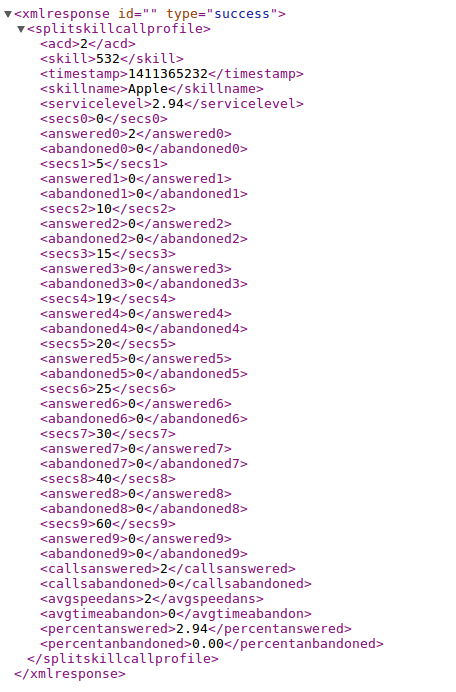
- Hint: The following XML is for example of Split Skill Call Profile reports for skill 532
- The URL syntax for Split Skill AUX report is
- http://clintSVRIP:8088/splitskillauxreport?acd=2&skills=45
- http://clintSVRIP:8088/splitskillauxreport?acd=2&description=programA
- Hint: The following XML is for example of Split Skill AUX Reports for skills 532 and 533

- The syntax for Split Skill Top Agent report is
- http://clintSVRIP:8088/splitskilltopagent?acd=2&skills=45
- http://clintSVRIP:8088/splitskilltopagent?acd=2&description=programA
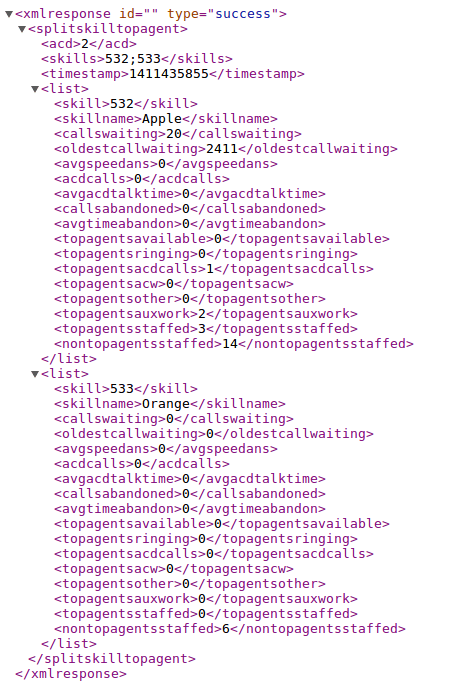
- Hint: The following XML is for example of Split Skill Top Agent report for skills 532 and 533
- The URL syntax for Split Skill Top Agent Status report is
- http://clintSVRIP:8088/splitskilltopagentstatus?acd=2&skill=45
- http://clintSVRIP:8088/splitskilltopagentstatus?acd=2&description=programA
- Hint: The following XML is for example of Split Skill Top Agent Status report for skills 532
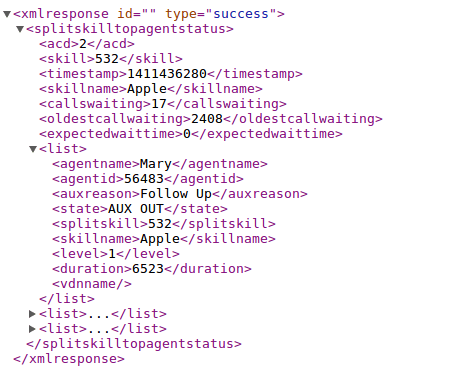
- The URL syntax for Split Skill Report is
- http://clintSVRIP:8088/splitskillreport?acd=2&skills=45
- http://clintSVRIP:8088/splitskillreport?acd=2&description=programA
- Hint: The following XML is for example of Split Skill Reports for skills 532 and 533
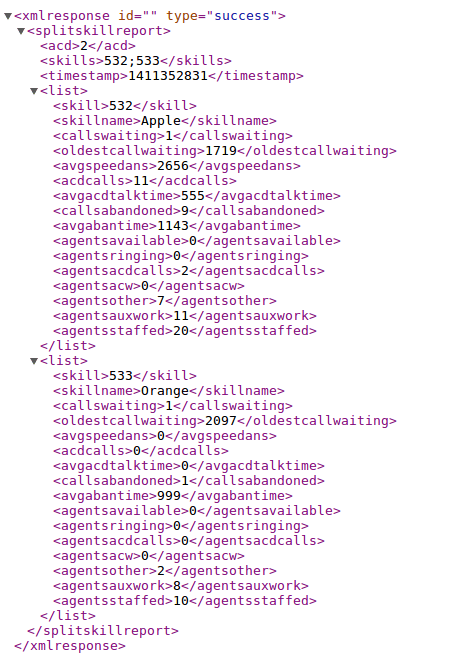
- The URL syntax for Split Skill SLA is
- The URL syntax for VDN Skill Preference is
- http://clintSVRIP:8088/vdnskillpreference?acd=2&vdns=21101
- http://clintSVRIP:8088/vdnskillpreference?acd=2&description=programA
- Hint: The following XML is for example of VDN Skill Preference report for vdns 45790 and 45791
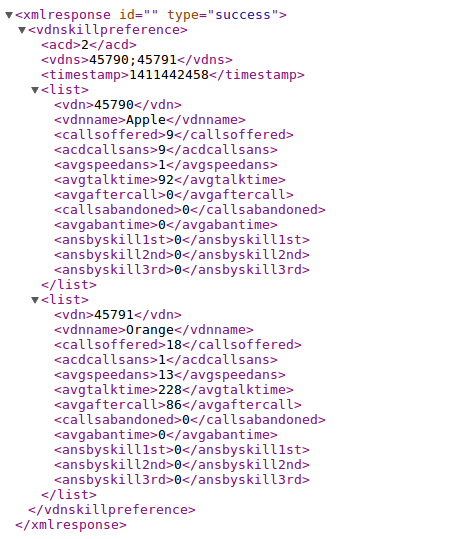
- The URL syntax for VDN Call Profile report is
- The URL syntax for Agent Report is
- http://clintSVRIP:8088/agentreport?acd=2&skill=45
- http://clintSVRIP:8088/agentreport?acd=2&description=programA
- Hint: The following XML is for example of Agent Reports for skill 532

- The URL syntax for Agent Group is
- http://clintSVRIP:8088/agentgroup?acd=2&groupname=Apple
- http://clintSVRIP:8088/agentgroup?acd=2&description=programA
- Hint: The following XML is for example of Agent Group report for groupname Apple
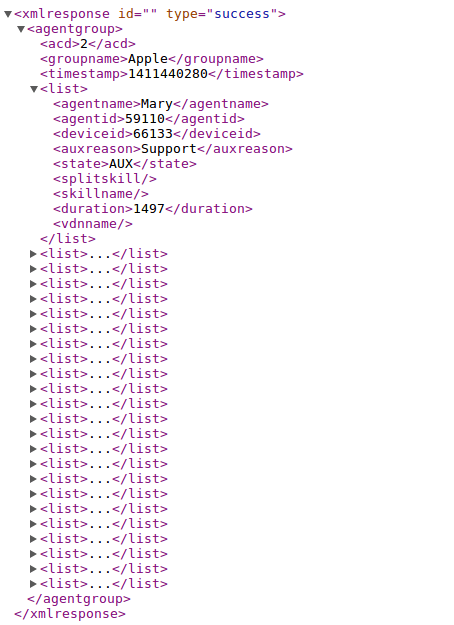
- The URL syntax for Aux Agent Report is
- http://clintSVRIP:8088/auxagentreport?acd=2&skill=45
- Hint: No need to add the report into clintSVR, you can get the output directly via the REST interface.

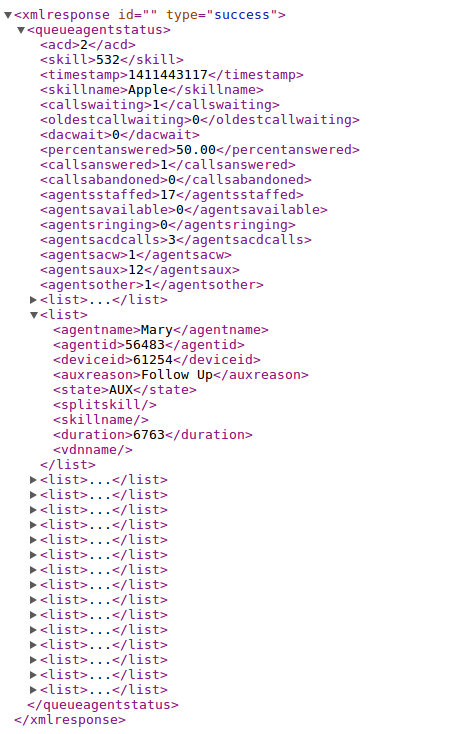
- The URL syntax for Queue Agent Status is
- http://clintSVRIP:8088/queueagentstatus?acd=2&skill=45
- http://clintSVRIP:8088/queueagentstatus?acd=2&description=programA
- Hint: The following XML is for example of Queue Agent Status report for skill 532

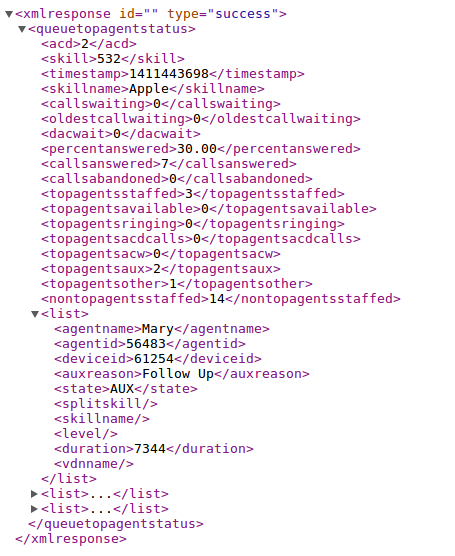
- The URL syntax for Queue Top Agent Status is
- http://clintSVRIP:8088/queuetopagentstatus?acd=2&skill=45
- http://clintSVRIP:8088/queuetopagentstatus?acd=2&description=programA
- Hint: The following XML is for example of Queue Top Agent Status report for skill 532

- The URL syntax for Queue Agent Summary is
- http://clintSVRIP:8088/queueagentsummary?acd=2&skill=45
- http://clintSVRIP:8088/queueagentsummary?acd=2&description=programA
- Hint: The following XML is for example of Queue Agent Summary report for skill 532

- The URL syntax for Event Count Summary is
- http://clintSVRIP:8088/eventcountsummary?acd=2&skill=45
- http://clintSVRIP:8088/eventcountsummary?acd=2&description=programA
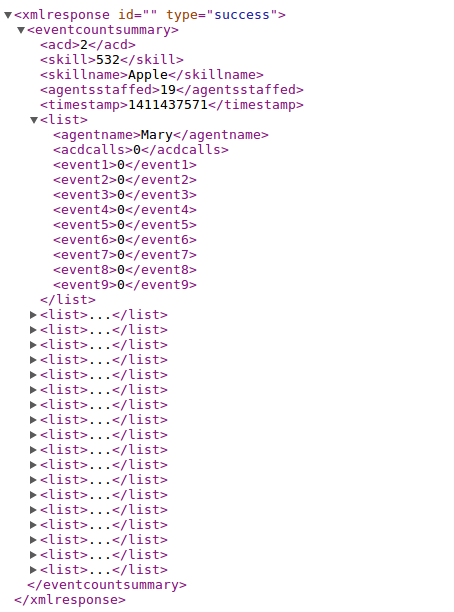
- Hint: The following XML is for example of Event Count Summary report for skill 532
- The URL syntax for Trunk Group Report is
- http://clintSVRIP:8088/trunkgroupreport?acd=2&trunkgroup=45
- http://clintSVRIP:8088/trunkgroupreport?acd=2&description=programA
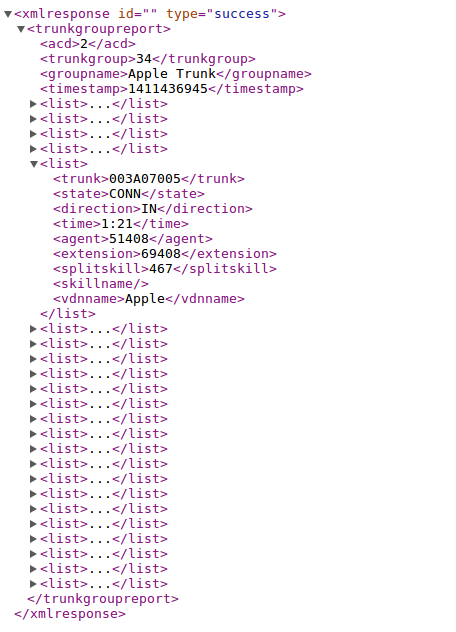
- Hint: The following XML is for example of Trunk Group Reports for trunk group 34
- The URL syntax for RTA report
- http://clintSVRIP:8088/customrta?acd=2&skills=1-999;1000-2000
- http://clintSVRIP:8088/customrta?acd=2&description=rta
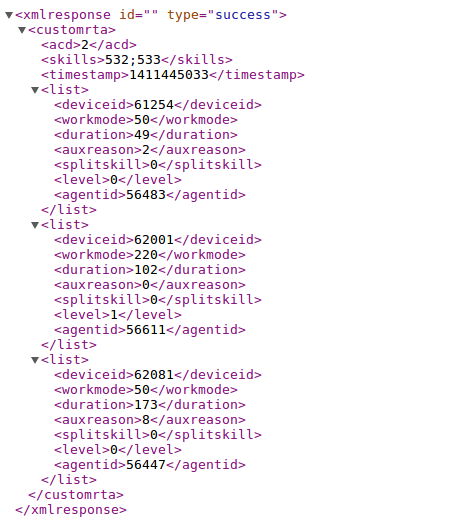
- Hint: The following XML is for example of Custom RTA report for skills 532 and 533
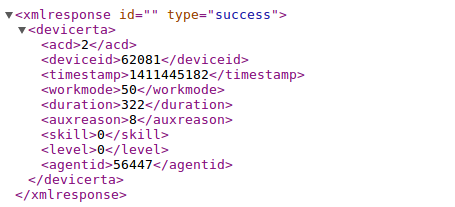
- The URL syntax for RTA data on one specific device
- http://clintSVRIP:8088/devicerta?acd=2&deviceid=62081

- The URL syntax for RTA data on one specific agent
- http://clintSVRIP:8088/agentrta?acd=2&agentid=56447

- The URL syntax for Historical Agent Summary Interval
- The URL syntax for Historical Trunk Group Busy Hour
- The URL syntax for Historical Trunk Summary Interval
- The URL syntax for Historical Split Skill Summary Interval
- The URL syntax for Historical Split Skill Service Level Interval
- The URL syntax for Historical VDN Interval
- The URL syntax for RTS Split Skill Report
- The URL syntax for Multi Agent Add Skill
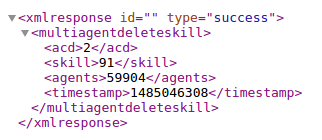
- The URL syntax for Multi Agent Delete Skill
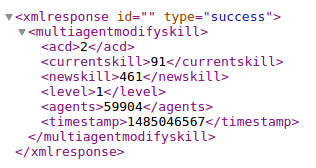
- The URL syntax for Multi Agent Modify Skill
Logging real time data to Database
- The following configuration is for MySQL only
- Create database and user
-
mysql -u root -p
-
> create database clintrtdb;
-
> create user 'tcpgate'@'localhost' identified by 'tcpgate';
-
> grant all on clintrtdb.* to 'tcpgate'@'localhost';
-
> grant all on clintrtdb.* to 'tcpgate'@'%';
-
> flush privileges;
-
> quit
-
mysql -h localhost -u tcpgate -p clintrtdb < clintrtdb.sql
- For Windows installation, open ODBC Setting, create a System DSN called CLINTRTDBCFG for MySQL database
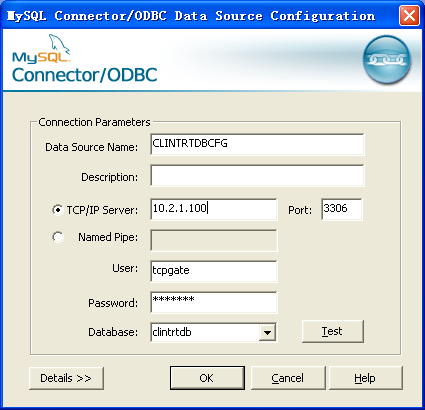
- For CentOS installation, copy the following to /etc/odbc.ini file
- Open clintSVR.mdb file and edit the following parameters
- cs_rtdb_dsn
- Hint: The ODBC System DSN, enter the value is CLINTRTDBCFG
- cs_rtdb_username
- Hint: The username used to connect the database, enter the value tcpgate
- cs_rtdb_passwd
- Hint: The encrypted password of the database users, enter the value 9wkWfxiBlM1L9qsJaDWwAA==
- cs_rtdb_table
- Hint: One of the table for real time data, enter the value tAgentGroup by default
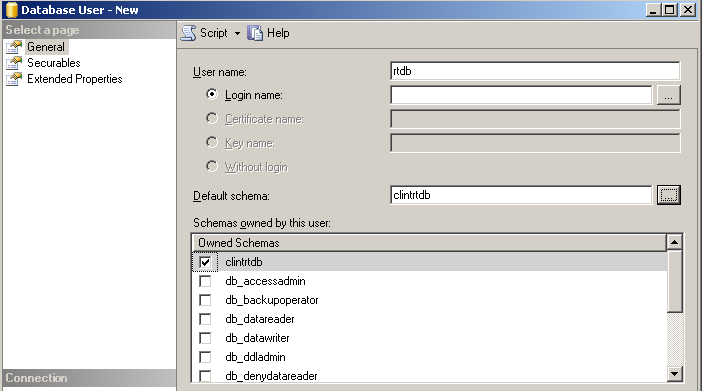
- For MSSQL, please set the default Schema of the database user
WebSocket Interface
- To enable WebSocket interface, enter the following command in the program console
- add tcp 6060 * * custom clintws
- Hint: 6060 is the port number for WebSocket interface, choose one that fits your environment
- The JSON message for AgentGroup report is
- {“id”: “12345678”, “request”: “agentgroup”, “acd”: 1, “groupname”: “Apple”}
- The JSON message for AgentReport report is
- {“id”: “12345678”, “request”: “agentreport”, “acd”: 1, “skill”: “1”}
- The JSON message for EventCountSummary report is
- “id”: “12345678”, “request”: “eventcountsummary”, “acd”: 1, “skill”: “1”}
- The JSON message for QueueAgentStatus report is
- {“id”: “12345678”, “request”: “queueagentstatus”, “acd”: 1, “skill”: “1”}
- The JSON message for QueueAgentSummary report is
- {“id”: “12345678”, “request”: “queueagentsummary”, “acd”: 1, “skill”: “1”}
- The JSON message for QueueTopAgentStatus report is
- {“id”: “12345678”, “request”: “queuetopagentstatus”, “acd”: 1, “skill”: “1”}
- The JSON message for SplitSkillAuxReport report is
- {“id”: “12345678”, “request”: “splitskillauxreport”, “acd”: 1, “skills”: “1;2”}
- The JSON message for SplitSkillCallProfile report is
- {“id”: “12345678”, “request”: “splitskillcallprofile”, “acd”: 1, “skill”: “1”}
- The JSON message for SplitSkillReport report is
- {“id”: “12345678”, “request”: “splitskillreport”, “acd”: 1, “skills”: “1;2”}
- The JSON message for SplitSkillStatus report is
- {“id”: “12345678”, “request”: “splitskillstatus”, “acd”: 1, “skill”: “1”}
- The JSON message for SplitSkillTopAgent report is
- {“id”: “12345678”, “request”: “splitskilltopagent”, “acd”: 1, “skills”: “1;2”}
- The JSON message for SplitSkillTopAgentStatus report is
- {“id”: “12345678”, “request”: “splitskilltopagentstatus”, “acd”: 1, “skill”: “1”}
- The JSON message for TrunkGroupReport report is
- {“id”: “12345678”, “request”: “trunkgroupreport”, “acd”: 1, “trunkgroup”: “10”}
- The JSON message for VdnCallProfile report is
- {“id”: “12345678”, “request”: “vdncallprofile”, “acd”: 1, “vdn”: “10000”}
- The JSON message for VdnReport report is
- {“id”: “12345678”, “request”: “vdnreport”, “acd”: 1, “vdns”: “10000;10001;10002”}
- The JSON message for VdnSkillPreference report is
- {“id”: “12345678”, “request”: “vdnskillpreference”, “acd”: 1, “vdns”: “10000;10001;10002”}
- The JSON message for CustomRTA report is
- {“id”: “12345678”, “request”: “customrta”, “acd”: 1, “skills”: “1-999;1000-2000”}
- The JSON message for AgentRTA report is
- {“id”: “12345678”, “request”: “agentrta”, “acd”: 1, “agentid”: “51234”}
- The JSON message for DeviceRTA report is
- {“id”: “12345678”, “request”: “devicerta”, “acd”: 1, “deviceid”: “61234”}
- The JSON message for HisSplitSkillSummaryInterval report is
- {“id”: “12345678”, “request”: “hissplitskillsummaryinterval”, “acd”: 1, “skill”: “1”, “date”: “yesterday”}
- The JSON message for HisTgBusyHour report is
- {“id”: “12345678”, “request”: “histgbusyhour”, “acd”: 1, “trunkgroups”: “10;11”, “date”: “yesterday”}
- The JSON message for QueueTopAgentStatus report is
- {“id”: “12345678”, “request”: “hisvdninterval”, “acd”: 1, “vdn”: “10000”, “date”: “yesterday”}
C++ API Interface
- To enable C++ API interface, enter the following command in the program console
- add tcp 5050 * * custom clintapi
- Hint: 5050 is the port number for the C++ API interface, choose one that fits your environment
- Sample code is provided
//
// clintApp.cpp
//

#include "clint.h"
#include <string>
#include <vector>
#include <iostream>
using namespace std;

int main(int argc, char** argv)
{
    CLINT_HANDLE handle;
    CLINTLogin_t login;
    CLINTSplitSkillStatus_t splitSkillStatus;
    CLINTSplitSkillReport_t splitSkillReport;
    CLINTSplitSkillCallProfile_t splitSkillCallProfile;
    CLINTSplitSkillTopAgent_t splitSkillTopAgent;
    CLINTSplitSkillTopAgentStatus_t splitSkillTopAgentStatus;
    CLINTAgentReport_t agentReport;
    CLINTAgentGroup_t agentGroup;
    CLINTVDNReport_t vdnReport;
    CLINTVDNSkillPreference_t vdnSkillPreference;
    CLINTVDNCallProfile_t vdnCallProfile;
    CLINTQueueAgentStatus_t queueAgentStatus;
    CLINTQueueTopAgentStatus_t queueTopAgentStatus;
    CLINTQueueAgentSummary_t queueAgentSummary;
    CLINTTrunkGroupReport_t trunkGroupReport;
    CLINTEventCountSummary_t eventCountSummary;
    CLINTCustomRTA_t customRTA;
    CLINTDeviceRTA_t deviceRTA;
    CLINTAgentRTA_t agentRTA;
    CLINTHisTrunkGroupBusyHour_t tgBusyHour;
    CLINTHisSplitSkillSummaryInterval_t spskSummaryInterval;
    CLINTHisVDNInterval_t vdnInterval;
    unsigned int bufferSize;

    memset(&login, 0x00, sizeof(CLINTLogin_t));
    strcpy(login.username, "app");
    strcpy(login.passwd, "app");
    if (ClintLogin(&handle, "127.0.0.1", 5050, &login)==CLINTRC_SUCC) {
        // Event Count Summary
        memset(&eventCountSummary, 0x00, sizeof(CLINTEventCountSummary_t));
        eventCountSummary.acd = 2;
        strcpy(eventCountSummary.skill, "541");
        if (ClintEventCountSummary(handle, &eventCountSummary, &bufferSize)==CLINTRC_SUCC) {
            vector<unsigned char> buffer(bufferSize);
            if (ClintGetResultXML(handle, &buffer[0], bufferSize)==CLINTRC_SUCC) {
                cout << &buffer[0] << endl;
            }
        }
        // Trnk Group Report
        memset(&trunkGroupReport, 0x00, sizeof(CLINTTrunkGroupReport_t));
        trunkGroupReport.acd = 2;
        strcpy(trunkGroupReport.trunkGroup, "34");
        if (ClintTrunkGroupReport(handle, &trunkGroupReport, &bufferSize)==CLINTRC_SUCC) {
            vector<unsigned char> buffer(bufferSize);
            if (ClintGetResultXML(handle, &buffer[0], bufferSize)==CLINTRC_SUCC) {
                cout << &buffer[0] << endl;
            }
        }
        // Split Skill Status
        memset(&splitSkillStatus, 0x00, sizeof(CLINTSplitSkillStatus_t));
        splitSkillStatus.acd = 2;
        strcpy(splitSkillStatus.skill, "514");
        if (ClintSplitSkillStatus(handle, &splitSkillStatus, &bufferSize)==CLINTRC_SUCC) {
            vector<unsigned char> buffer(bufferSize);
            if (ClintGetResultXML(handle, &buffer[0], bufferSize)==CLINTRC_SUCC) {
                cout << &buffer[0] << endl;
            }
        }
        // Split Skill Report
        memset(&splitSkillReport, 0x00, sizeof(CLINTSplitSkillReport_t));
        splitSkillReport.acd = 2;
        strcpy(splitSkillReport.skills, "514;541");
        if (ClintSplitSkillReport(handle, &splitSkillReport, &bufferSize)==CLINTRC_SUCC) {
            vector<unsigned char> buffer(bufferSize);
            if (ClintGetResultXML(handle, &buffer[0], bufferSize)==CLINTRC_SUCC) {
                cout << &buffer[0] << endl;
            }
        }
        // Split Skill Call Profile
        memset(&splitSkillCallProfile, 0x00, sizeof(CLINTSplitSkillCallProfile_t));
        splitSkillCallProfile.acd = 2;
        strcpy(splitSkillCallProfile.skill, "541");
        if (ClintSplitSkillCallProfile(handle, &splitSkillCallProfile, &bufferSize)==CLINTRC_SUCC) {
            vector<unsigned char> buffer(bufferSize);
            if (ClintGetResultXML(handle, &buffer[0], bufferSize)==CLINTRC_SUCC) {
                cout << &buffer[0] << endl;
            }
        }
        // Split Skill Top Agent
        memset(&splitSkillTopAgent, 0x00, sizeof(CLINTSplitSkillTopAgent_t));
        splitSkillTopAgent.acd = 2;
        strcpy(splitSkillTopAgent.skills, "541;514");
        if (ClintSplitSkillTopAgent(handle, &splitSkillTopAgent, &bufferSize)==CLINTRC_SUCC) {
            vector<unsigned char> buffer(bufferSize);
            if (ClintGetResultXML(handle, &buffer[0], bufferSize)==CLINTRC_SUCC) {
                cout << &buffer[0] << endl;
            }
        }
        // Split Skill Top Agent
        memset(&splitSkillTopAgentStatus, 0x00, sizeof(CLINTSplitSkillTopAgentStatus_t));
        splitSkillTopAgentStatus.acd = 2;
        strcpy(splitSkillTopAgentStatus.skill, "541");
        if (ClintSplitSkillTopAgentStatus(handle, &splitSkillTopAgentStatus, &bufferSize)==CLINTRC_SUCC) {
            vector<unsigned char> buffer(bufferSize);
            if (ClintGetResultXML(handle, &buffer[0], bufferSize)==CLINTRC_SUCC) {
                cout << &buffer[0] << endl;
            }
        }
        // Agent Report
        memset(&agentReport, 0x00, sizeof(CLINTAgentReport_t));
        agentReport.acd = 2;
        strcpy(agentReport.skill, "514");
        if (ClintAgentReport(handle, &agentReport, &bufferSize)==CLINTRC_SUCC) {
            vector<unsigned char> buffer(bufferSize);
            if (ClintGetResultXML(handle, &buffer[0], bufferSize)==CLINTRC_SUCC) {
                cout << &buffer[0] << endl;
            }
        }
        // Agent Group
        memset(&agentGroup, 0x00, sizeof(CLINTAgentGroup_t));
        agentGroup.acd = 3;
        strcpy(agentGroup.groupName, "Apple");
        if (ClintAgentGroup(handle, &agentGroup, &bufferSize)==CLINTRC_SUCC) {
            vector<unsigned char> buffer(bufferSize);
            if (ClintGetResultXML(handle, &buffer[0], bufferSize)==CLINTRC_SUCC) {
                cout << &buffer[0] << endl;
            }
        }
        // VDN report
        memset(&vdnReport, 0x00, sizeof(CLINTVDNReport_t));
        vdnReport.acd = 3;
        strcpy(vdnReport.vdns, "25512;25513");
        if (ClintVDNReport(handle, &vdnReport, &bufferSize)==CLINTRC_SUCC) {
            vector<unsigned char> buffer(bufferSize);
            if (ClintGetResultXML(handle, &buffer[0], bufferSize)==CLINTRC_SUCC) {
                cout << &buffer[0] << endl;
            }
        }
        // VDN Skill Preference
        memset(&vdnSkillPreference, 0x00, sizeof(CLINTVDNSkillPreference_t));
        vdnSkillPreference.acd = 3;
        strcpy(vdnSkillPreference.vdns, "25512;25513");
        if (ClintVDNSkillPreference(handle, &vdnSkillPreference, &bufferSize)==CLINTRC_SUCC) {
            vector<unsigned char> buffer(bufferSize);
            if (ClintGetResultXML(handle, &buffer[0], bufferSize)==CLINTRC_SUCC) {
                cout << &buffer[0] << endl;
            }
        }
        // VDN Call Profile
        memset(&vdnCallProfile, 0x00, sizeof(CLINTVDNCallProfile_t));
        vdnCallProfile.acd = 3;
        strcpy(vdnCallProfile.vdn, "25512");
        if (ClintVDNCallProfile(handle, &vdnCallProfile, &bufferSize)==CLINTRC_SUCC) {
            vector<unsigned char> buffer(bufferSize);
            if (ClintGetResultXML(handle, &buffer[0], bufferSize)==CLINTRC_SUCC) {
                cout << &buffer[0] << endl;
            }
        }
        // QueueAgentStatus
        memset(&queueAgentStatus, 0x00, sizeof(CLINTQueueAgentStatus_t));
        queueAgentStatus.acd = 2;
        strcpy(queueAgentStatus.skill, "541");
        if (ClintQueueAgentStatus(handle, &queueAgentStatus, &bufferSize)==CLINTRC_SUCC) {
            vector<unsigned char> buffer(bufferSize);
            if (ClintGetResultXML(handle, &buffer[0], bufferSize)==CLINTRC_SUCC) {
                cout << &buffer[0] << endl;
            }
        }
        // QueueTopAgentStatus
        memset(&queueTopAgentStatus, 0x00, sizeof(CLINTQueueTopAgentStatus_t));
        queueTopAgentStatus.acd = 2;
        strcpy(queueTopAgentStatus.skill, "541");
        if (ClintQueueTopAgentStatus(handle, &queueTopAgentStatus, &bufferSize)==CLINTRC_SUCC) {
            vector<unsigned char> buffer(bufferSize);
            if (ClintGetResultXML(handle, &buffer[0], bufferSize)==CLINTRC_SUCC) {
                cout << &buffer[0] << endl;
            }
        }
        // QueueAgentSummary
        memset(&queueAgentSummary, 0x00, sizeof(CLINTQueueAgentSummary_t));
        queueAgentSummary.acd = 2;
        strcpy(queueAgentSummary.skill, "541");
        if (ClintQueueAgentSummary(handle, &queueAgentSummary, &bufferSize)==CLINTRC_SUCC) {
            vector<unsigned char> buffer(bufferSize);
            if (ClintGetResultXML(handle, &buffer[0], bufferSize)==CLINTRC_SUCC) {
                cout << &buffer[0] << endl;
            }
        }
        // customRTA
        memset(&customRTA, 0x00, sizeof(CLINTCustomRTA_t));
        customRTA.acd = 2;
        strcpy(customRTA.skills, "1-999;1000-2000");
        if (ClintCustomRTA(handle, &customRTA, &bufferSize)==CLINTRC_SUCC) {
            vector<unsigned char> buffer(bufferSize);
            if (ClintGetResultXML(handle, &buffer[0], bufferSize)==CLINTRC_SUCC) {
                cout << &buffer[0] << endl;
            }
         }
         // deviceRTA
         memset(&deviceRTA, 0x00, sizeof(CLINTDeviceRTA_t));
         deviceRTA.acd = 2;
         strcpy(deviceRTA.deviceID, "69948");
         if (ClintDeviceRTA(handle, &deviceRTA, &bufferSize)==CLINTRC_SUCC) {
             vector<unsigned char> buffer(bufferSize);
             if (ClintGetResultXML(handle, &buffer[0], bufferSize)==CLINTRC_SUCC) {
                 cout << &buffer[0] << endl;
             }
          }
          // agentRTA
          memset(&agentRTA, 0x00, sizeof(CLINTAgentRTA_t));
          agentRTA.acd = 2;
          strcpy(agentRTA.agentID, "51170");
          if (ClintAgentRTA(handle, &agentRTA, &bufferSize)==CLINTRC_SUCC) {
              vector<unsigned char> buffer(bufferSize);
              if (ClintGetResultXML(handle, &buffer[0], bufferSize)==CLINTRC_SUCC) {
                  cout << &buffer[0] << endl;
              }
          }
          // historical trunk group busy
          memset(&tgBusyHour, 0x00, sizeof(CLINTHisTrunkGroupBusyHour_t));
          tgBusyHour.acd = 2;
          strcpy(tgBusyHour.tgs, "26;27");
          strcpy(tgBusyHour.date, "yesterday");
          if (ClintHisTrunkGroupBusyHour(handle, &tgBusyHour, &bufferSize)==CLINTRC_SUCC) {
              vector<unsigned char> buffer(bufferSize);
              if (ClintGetResultXML(handle, &buffer[0], bufferSize)==CLINTRC_SUCC) {
                  cout << &buffer[0] << endl;
              }
          }
          // historical split skill summary interval
          memset(&spskSummaryInterval, 0x00, sizeof(CLINTHisSplitSkillSummaryInterval_t));
          spskSummaryInterval.acd = 2;
          strcpy(spskSummaryInterval.skill, "541");
          strcpy(spskSummaryInterval.date, "yesterday");
          if (ClintHisSplitSkillSummaryInterval(handle, &spskSummaryInterval, &bufferSize)==CLINTRC_SUCC) {
              vector<unsigned char> buffer(bufferSize);
              if (ClintGetResultXML(handle, &buffer[0], bufferSize)==CLINTRC_SUCC) {
                  cout << &buffer[0] << endl;
              }
          }
          // historical vdn interval
          memset(&vdnInterval, 0x00, sizeof(CLINTHisVDNInterval_t));
          vdnInterval.acd = 2;
          strcpy(vdnInterval.vdn, "45712");
          strcpy(vdnInterval.date, "today");
          if (ClintHisVDNInterval(handle, &vdnInterval, &bufferSize)==CLINTRC_SUCC) {
              vector<unsigned char> buffer(bufferSize);
              if (ClintGetResultXML(handle, &buffer[0], bufferSize)==CLINTRC_SUCC) {
                  cout << &buffer[0] << endl;
              }
          }
          ClintLogout(handle);
     }
     return 0;
}
XMPP Connection

- Modify the following parameters in clintSVR.mdb in order to enable XMPP feature
- cs_xmpp_jid
- jid such as “yourname@company.com”
- cs_xmpp_username
- use this if jid is not used for authentication
- cs_xmpp_passwd
- use the utility encryptpasswd.exe to generate your encrypted password
- cs_xmpp_server
- xmpp server IP or hostname
- cs_xmpp_port
- cs_xmpp_saslmethod
- authentication methods such as plain, digestmd5 and crammd5
- Supported XMPP servers
Splunk Connection
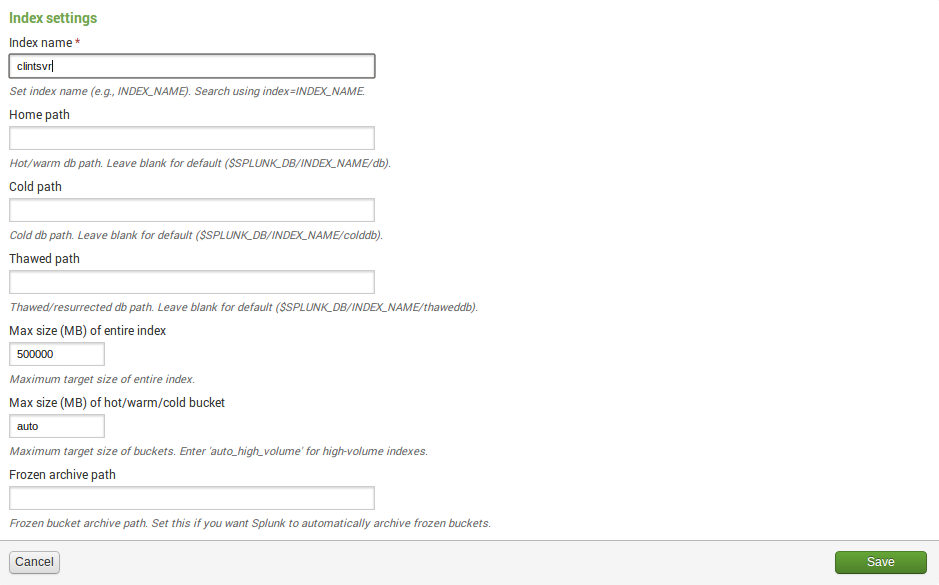
- Create index for clintSVR

- Create TCP input for clintSVR

- Login clintSVR program console and update two parameters
- update parameter cs_splunkhost 10.10.10.123
- Hint: 10.10.10.123 is the IP address of Splunk
- update parameter cs_splunkport 14011
- Hint: 14011 is the port number that defined in Spunk for CMS real time data
- reload
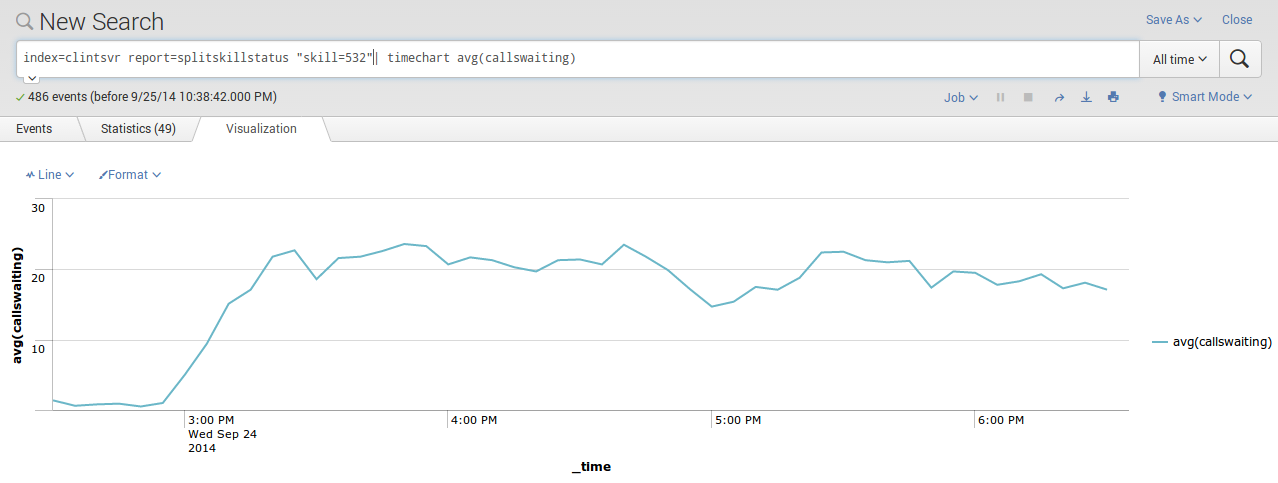
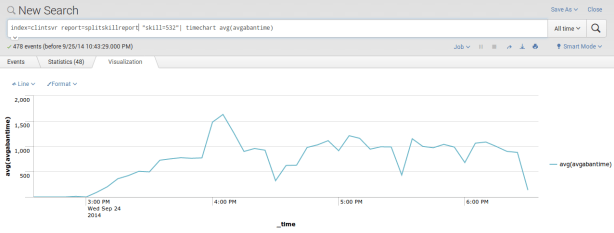
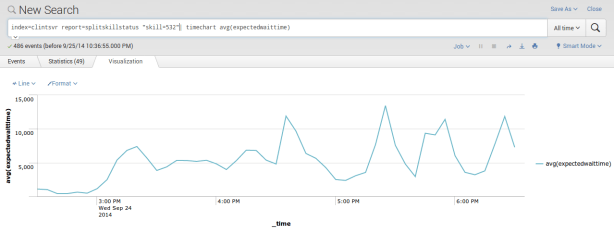
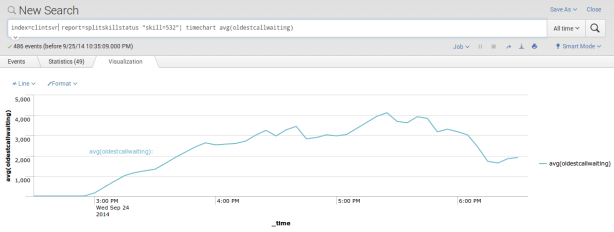
- Search the reports in Splunk

- Graphs can be plotted easily using the report data, for example


Splunk Integration using HTTP Event Collector
- Follow this guide to enable HTTP Event Collector in Splunk
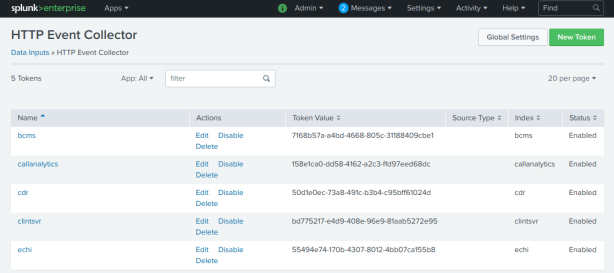
- Create a token specific for clintSVR application, copy the token after its creation, it is suggested to create a token for each specific application and link the token to it’s index
- Update the parameter cs_splunk_hectoken using the newly created token
- update parameter cs_splunk_hectoken new_created_token
- Update the parameter cs_splunk_hecurl using your site specific Splunk url
- Update the parameter cs_splunk_protocol to use HTTP Event Collector
- update parameter cs_splunk_protocol hec
- Update the parameter cs_splunk_hecchannel using the newly create token
- update parameter cs_splunk_hecchannel new_created_token
- Update the parameter cs_splunk_dataformat to use JSON format
- update parameter cs_splunk_dataformat json
- Reload the configuration
System Notification Email
- The program sends email notification when error occurred. Errors included DB down, DB resume, etc.
- Edit the value of parameter tg_emailserverip to define the IP address of your email server.
- Edit the value of parameter tg_emailsmtpport to define the SMTP port number of your email server. The default value is 25.
- Edit the value of parameter tg_emailusername to define the username of email agent which is responsible to send notification emails.
- Telnet to localhost and port number 14011, enter username tcpgate and password tcpgate01 to access the program console. Type genpass in the program console to generate an encrypted password string for the email agent, copy the string for later use.
- Edit the value of parameter tg_emailpasswd to define the password of the email agent. The password should be in encrypted format, you can use console command genpass to generate the encrypted password.
- Edit the value of parameter tg_emailsenderdisplay to define the display name of the email agent.
- Edit the value of parameter tg_emailauth to define whether authentication is required between your clintSVR machine and the email server. When your email server trust your machine, set it to false, otherwise set it to true.
- Edit the value of parameter tg_emailssl to define whether SSL communication is required for the SMTP session. The default value is false, set it to true when SSL is required.
- Enter the following command in the program console to add your email address
- add email service@upinget.com
- Hint: Replace your email address for notification
- Enter the following command to test the configuration
Know Problem
- Users feedback that they can add report successfully but without data returned. This problem is probably caused by the wrong login shell for the CMS user which provided to clintSVR. The shell /usr/bin/cms is for standard CMS Supervisor, please use standard shell such as /bin/ksh.
- Users feedback that the AgentGroup Report did not refresh with new added agents. This problem is well known to CLINT and you need to delete the report and add it back for the updated report. a console command “rerun” is provided to refresh the report.
- The clintSVR may not compatible with new version of putty, please use Windows “telnet” program in case you encounter this problem. This is fixed by version 1.2.6.
- When real time report contains non-ASCII characters, the browser cannot display the XML content correctly.
- Agent name is truncated when length exceed CLINT tool’s standard size. This can be workaround by using the dictionary feature.
- Multiple skill or vdn objects are accepted for some reports and each object should be separated by “;”. Please limit the total length of the “objects” string to 255 characters because CMS CLINT is malfunction when the object length exceed this limit.
- Multiple skill or vdn objects are accepted for some reports and range can be specified by character “-“. However, when the number of input and output object mismatched, the skill number or vdn number will be missing in the result XML because the original raw report without the skill or vdn number and the clintSVR cannot match that number from the input and output objects when they are mismatched.
- During the restart process of Splunk, clintSVR is unable to send raw data to Splunk and missing data will be anticipated.
- A user feedback that agent ID and skill ID is displayed as ***** and *** when they use 6 digits agent ID and 3 digits skill ID. This appeared in the SplitSkillStatus report. Solution was found and modification of CLINT report template/cms/db/gem/rt_rpts/sk_stat_eac is required. Please change the digit length from 5 to 6 according to the following screen dump.

- Custom report is supported by implementation of customized DLL. However, the dictionary feature is not supported currently.
Support and License