Avaya Asterisk Logger

Posted: October 16, 2012 in Asterisk, TSAPI

Introduction

The Avaya Asterisk Logger (AstLogger) is a server application that triggers call recording on Asterisk side for Avaya CM. The software uses Avaya TSAPI library, it makes Single Step Conference (SSC) call to an Avaya agent extension and bridges the voice path between Avaya and Asterisk. After the voice path is established, Asterisk is responsible for call recording. Call details information is stored in MySQL database, a web based software called AstLoggerWeb is developed for searching of call records based on information such as calling number, called number, agent ID, etc. The software can also act as an auto-greeting server for call center agents, multiple greetings can be defined for an agent. 

Before installation of the software, you need to make sure a IP trunk is setup between Avaya and Asterisk. I have tested successfully using Asterisk 11 and OOH323 or SIP trunks between Asterisk and Avaya. Moreover, ask your Avaya administrator the dialing prefix to access Asterisk from Avaya, normally it is the combination of AAR FAC plus the route pattern.

Prerequisites

Please make sure you have the following Avaya features and systems enabled or installed:

  • AVAYA ASAI CTI STATION SFTW LIC or few idle phones as phantom devices
  • AVAYA ASAI PHANTOM CALLS SFTW LIC or few idle phones as phantom devices
  • MySQL Database Server
  • Asterisk Server

System Architecture

  • AstLogger triggers the bridging of voice path between Avaya and Asterisk via TSAPI and FastAGI.
  • Asterisk is responsible for call recording.
  • Asterisk writes all voice files to a distributed network file system such as MooseFS so voice files can be consolidated in one place such as data center and the files can be shared among different application. For example, AstLoggerWeb.
  • AstLogger writes call details information and business data (via AstLogger API) to MySQL database.
  • AstLoggerWeb retrieves call records based on user provided data such as calling number, called number, agent ID, etc.
  • The architecture supports multiple Asterisk servers for redundancy and load sharing.

Preparation and Password Encryption

  • A Microsoft Access MDB file is used to store the username and password of Avaya AES for this software. For security reason, a tool called encryptpasswd.exe is provided to generate encrypted password for the installation and configuration of the software.
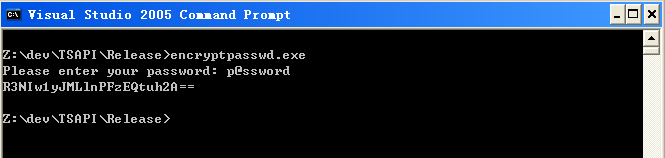
  • Execute the program, generate the encrypted password for the CTI user of Avaya AES, then use the encrypted password keyword for parameter al_tlink_01 and al_tlink_02. For example, the encrypted password for “p@ssword” is “R3NIw1yJMLlnPFzEQtuh2A==”.
  • encryptpasswd

64 bit Windows System 

  • For 64 bit Windows system, please follow the steps below
    • Configure ODBC System DSN using
      C:\Windows\SysWOW64\odbcad32.exe
    • Stop the Windows firewall because it enables by default which may block the communication between Asterisk and AstLogger.

OVA File for Testing

centos

We also create a OVA file which you can deploy it to VirtualBox or VMware Workstation or Player for testing.  After deploying the OVA file, please modify the following for your own environment

  • IP address of the VM
  • Edit /usr/lib/tslibrc, change 127.0.0.1 to the IP address of your Avaya AES
  • Telnet to AstLogger console port 14005, update the parameters called al_tlink_01, al_tlink_02 and other parameters
  • Once the changes are completed, reboot the VM

The username and password of the OVA VM is

  • OS : root/P@ssw0rd
  • MySQL: root/P@ssw0rd
  • AstLogger console: tcpgate/tcpgate01
  • uuiSVR console: tcpgate/tcpgate01
  • alarchived console: tcpgate/tcpgate01

Windows Installation Procedure 

  • Download and install the TSAPI client for Windows 32-bit from Avaya web site, it contains the TSAPI run-time library files. You need to register DevConnect before you can access the download page.
  • Download the Avaya Asterisk Logger zip file here or backup site. 
  • Follow the installation steps below to install the AstLogger software.
    • Extract all files into a directory c:\program files\astlogger
    • Open Windows Command Prompt, enter the following commands to register the program as Windows Service
      • cd c:\program files\astlogger
      • astlogger -i
    • Open ODBC Setting, create a System DSN called ASTLOGGERCFG for Microsoft Access Driver and point to astlogger.mdb which is located in the directory c:\program files\astlogger
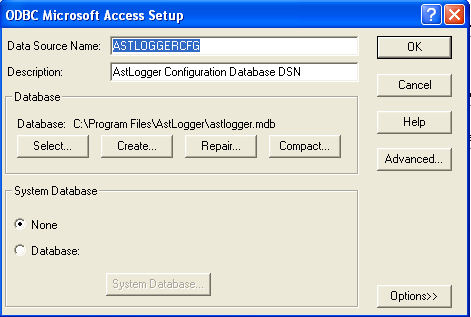
    • Open the tParameter table of the Microsoft Access database, edit the value of parameters al_tlink_01 and al_tlink_02 to the TLINK names exported by your  Avaya AES. If you have only one Avaya AES, modify the parameter al_tlink_01 only, leave al_tlink_02 blank.
    • Edit the value of parameter al_phantomdigits to define the number of digits of your phantom device. If your Avaya use 5 digits dialing plan, the value is 5.
    • Edit the value of parameter al_phantomthreadsize to define the number of threads that are responsible to trigger call recording simultaneously, the default value is 10.
    • Edit the value of parameter al_recordformat to define the call recording format such as wav, mp3 or ogg, etc. The mp3 and ogg format is now supported if you compiled sox with mp3 and ogg supported. Edit the parameter al_cmdsoxmp3 when your SOX UNIX path is different than the default “/usr/local/bin/sox -r 8000 -c 1“. Also edit the parameter al_cmdrm because Asterisk will record voice file in .wav format first, then convert it to mp3 or ogg and finally delete the .wav file. The default value for al_cmdrm is “/bin/rm“. Or you can use the lame command directly for al_cmdsoxmp3 parameter, the parameter value is “/usr/bin/lame –silent” by default.
    • Edit the value of parameter al_cmdchownchmod enable other application such as apache reads the stored voice files. The command will be executed after a record file is created, the default value is “/bin/chmod o+r“.
    • Edit the value of parameter al_recordmode to define the technology such as Single Step Conference (ssc) or Service Observation (so) is used to trigger call recording. Only ssc is support currently.
    • Edit the value of parameter al_appendphantomvdnprefix to append the phantom device extension number to the record vdn prefix (dialing prefix to Asterisk) when callerid and callername variables can not be exchanged between Avaya and Asterisk, the phantom device extension number will be used as a bridge for information exchange between Avaya and Asterisk. The default value is “yes“.
    • Edit the value of parameter al_fagiport to define the port number for FastAGI interface, the default value is 4573. To increase the FAGI worker and buffer size, edit the parameters al_fagiworkersize and al_fagibuffersize.
    • Edit the value of parameter al_ueventbuffersize to define the internal TSAPI Unsolicited Event buffer size, the default value is 256.
    • Edit the value of parameter al_ueventworkersize to define the internal TSAPI Unsolicted Event worker size, the default value is 10.
    • Edit the value of parameter al_greetingenable to enable or disable auto-greeting module, the default value is “no“.
    • Edit the value of parameter al_greetingtimelimit to limit the time to trigger auto greeting. The default value is 2 seconds.
    • Edit the value of parameter al_greetingpath to define the path where agent greeting voice files are stored, the default value is “/var/spool/asterisk/voicemail/device/“.
    • Edit the value of parameter al_uuisvr to define uuiSVR IP and listening port. The default value is “127.0.0.1,5100“.
    • Follow the section Installation of AstLogger Database to install the call record database.
    • Follow this link to download MySQL ODBC driver and install the ODBC driver.
    • Open ODBC Setting, create a System DSN called ASTLOGGERCINFOCFG for MySQL ODBC Driver, MySQL is used to store call details information such as calling number, called number, record path, etc. User is “astlogger” and Password is “astavaya”.  If you want to use different DSN, username and password. Edit the three parameters follow:
      • al_callinfodsn, this is the name of the ODBC System DSN.
      • al_callinfousername, this is the username used to connect the AstLogger Database.
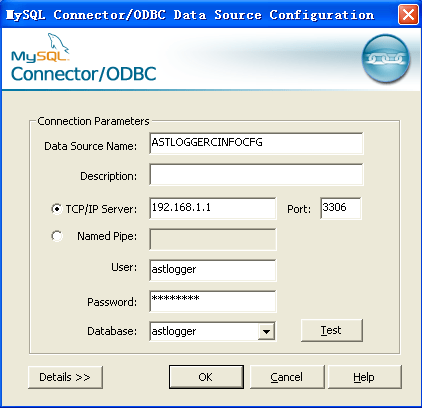
      • al_callinfopasswd, this is the password used to connect the AstLogger Database.
    • astloggercinfocfg
    • Start the Windows Service astlogger
    • Telnet to localhost and port number 14005, enter username tcpgate and password tcpgate01 to access the program console
    • Enter the following command in the program console to add monitored ACD number. E.g. 10001 is split number
      • add acd 10001
    • Enter the following command to add phantom device which is responsible to trigger call recording. E.g. 20001 is phantom device number
      • add phantom 20001
    • Enter the following command to add your target agent extension for call recording. E.g. 30001 is agent extension
      • add extension 30001
    • Enter the following command to add dialing prefix to access Asterisk for specific Avaya VDN or split numbers. E.g. 40001 is VDN number in Avaya and 459 is dialing prefix to access Asterisk dialplan X for program X.
      • add recordvdnprefix 40001 459 469
      • Hint: 469 is secondary prefix which will be used when an emergency split has login agent. To specify the emergency split, assign a split to the parameter al_emergencysplit
    • Enter the following command to add call recording location for specific Avaya VDN or split number. E.g. 40001 is VDN number and all record files stored in location “/tmp/X/“.
      • add recordpath 40001 /tmp/X/
    • Enter the following command to define Music On Hold mapping. E.g. 40001 is VDN number and use music on hold class orange.
      • add moh 40001 orange
    • Enter the following command in the program console, you will receive debug information.
      • trace on asc
    • Enter the following command in the program console, you will get the help message.
      • help
    • Enter the following command in the program console, you will get current recording information.
      • disp callinfo
  • Follow the installation steps below to install the uuiSVR software.
    • Open Windows Command Prompt, enter the following commands to register the program as Windows Service
      • cd c:\program files\astlogger
      • uuiSVR -i
    • Open ODBC Setting, create System DSN called UUISVRCFG for Microsoft Access Driver and point to uuiSVR.mdb which is located in the directory c:\program files\astlogger
    • Start the service uuiSVR

RedHat/CentOS 6.x Installation Procedure

  • centosredhat
  • The following is for RedHat/CentOS 6 32bit only, other Linux distributions are not supported
  • Avaya provides only 32bit version of TSAPI SDK, the executable filename provided by AstLogger is called “uuiSVR” and “AstLogger”.
  • Login as root and execute the following commands
  • Install the following packages for 64bit OS
  • yum install yum install libstdc++.i686 expat.i686 openssl.i686 unixODBC.i686 mysql-libs.i686
  • wget http://mirror.centos.org/centos/6/os/i386/Packages/mysql-connector-odbc-5.1.5r1144-7.el6.i686.rpm
  • rpm -ivh mysql-connector-odbc-5.1.5r1144-7.el6.i686.rpm
  • Download Avaya Aura AE Services 7.0 TSAPI Client for RHEL 6 from DevConnect
  • chmod +x tsapi-client-linux-7.0.0-131.bin
  • Execute the installation file tsapi-client-linux-7.0.0-131.bin
    • ./tsapi-client-linux-7.0.0-131.bin
  • Edit /usr/lib/tslibrc, change 127.0.0.1 to the IP address of your Avaya AES
  • Install the following packages for 32bit and 64bit OS
  • yum install mysql-server mysql
  • yum install mysql-connector-odbc unixODBC
  • Config and start MySQL
  • chkconfig mysqld on
  • service mysqld start
  • Create database and user
  • mysql -u root -p
  • > create database astlogger;
  • > create database uuisvr;
  • > create database alarchived;
  • > create user 'tcpgate'@'localhost' identified by 'tcpgate';
  • > create user 'astlogger'@'localhost' identified by 'astavaya';
  • > grant all on astlogger.* to 'tcpgate'@'localhost';
  • > grant all on astlogger.* to 'astlogger'@'localhost';
  • > grant all on uuisvr.* to 'tcpgate'@'localhost';
  • > grant all on alarchived.* to 'tcpgate'@'localhost';
  • > flush privileges;
  • > quit
  • mysql -h localhost -u astlogger -p astlogger < astlogger.sql
  • mysql -h localhost -u tcpgate -p uuisvr < uuisvr.sql
  • mysql -h localhost -u tcpgate -p alarchived < alarchived.sql
  • Copy the following to /etc/odbc.ini file
    • [ASTLOGGERCFG]
      Description = MySQL connection to AstLogger
      Driver = MySQL
      Server = localhost
      Port = 3306
      Database = astlogger
    • [ASTLOGGERCINFOCFG]
      Description = MySQL connection to AstLogger
      Driver = MySQL
      Server = localhost
      Port = 3306
      Database = astlogger
    • [ALARCHIVEDCFG]
      Description = MySQL connection to AstLogger Archive Daemon
      Driver = MySQL
      Server = localhost
      Port = 3306
      Database = alarchived
    • [UUISVRCFG]
      Description = MySQL connection to uuiSVR
      Driver = MySQL
      Server = localhost
      Port = 3306
      Database = uuisvr
  • Create user and copy files
  • mkdir /usr/local/astlogger
  • cp AstLogger /usr/local/astlogger
  • cp alarchived /usr/local/astlogger
  • cp uuiSVR /usr/local/astlogger
  • chmod +x /usr/local/astlogger/AstLogger
  • chmod +x /usr/local/astlogger/uuiSVR
  • chmod +x /usr/local/astlogger/alarchived
  • chown -R asterisk.asterisk /usr/local/astlogger
  • mkdir -p /var/log/astlogger
  • mkdir -p /var/log/uuisvr
  • mkdir -p /var/log/alarchived
  • chown -R asterisk.asterisk /var/log/astlogger
  • chown -R asterisk.asterisk /var/log/uuisvr
  • chown -R asterisk.asterisk /var/log/alarchived
  • Auto start the daemon after server reboot
  • echo "rm /tmp/astlogger.log" >> /etc/rc.local
  • echo "su asterisk -c '/usr/local/astlogger/AstLogger'" >> /etc/rc.local
  • echo "rm /tmp/uuisvr.log" >> /etc/rc.local
  • echo "su asterisk -c '/usr/local/astlogger/uuiSVR'" >> /etc/rc.local
  • echo "rm /tmp/alarchived.log" >> /etc/rc.local
  • echo "su asterisk -c '/usr/local/astlogger/alarchived'" >> /etc/rc.local

Advanced Features 

  • To enable call log centralization, assign IP address and listening port of the centralized log server for the parameter al_callloghost and al_calllogport.
  • To enable trunk side record, assign “yes” to parameter al_trunkrecording.
  • To enable scanning of configuraiotn database for addition or deletion of devices, assign “yes” to parameter al_scandbconfig and al_scandbconfiginterval by interval of seconds.

Asterisk Configuration for Default Recording Mode

  • Add a dialplan under the context of the trunk that you setup between Avaya and Asterisk, e.g.
  • agi
  • For FastAGI host, enter the IP address of the AstLogger machine. For example, the IP address 10.10.1.111.
  • Next to the IP address is the FastAGI network_script, the AstLogger called it application. Enter “recording” for default recording mode.
  • Next to the application name is the target extension number of this dialplan. Phantom device extension is appended in case callerid or callername variables cannot be exchange between Avaya and Asterisk.

Asterisk Configuration for Meeting Recording Mode

  • Add a dialplan under the context of the trunk that you setup between Avaya and Asterisk, e.g.
  • meeting
  • For FastAGI host, enter the IP address of the AstLogger machine. For example, the IP address 10.10.1.111.
  • Next to the IP address is the FastAGI network_script, the AstLogger called it application. Enter “meeting” for meeting recording mode.
  • Next to the application name is the target extension number of this dialplan. Phantom device extension is appended in case callerid or callername variables cannot be exchange between Avaya and Asterisk.

Installation of AstLogger Database

  • Download the Avaya Asterisk Logger zip file, unzip it and there is a SQL script file called astlogger.sql
  • Follow the steps below to create the required database and user
    • Create a database called “astlogger”, the SQL statement as follow:
    • CREATE DATABASE astlogger;
    • Create a user called “astlogger” and password “astavaya”
    • CREATE USER 'astlogger'@'localhost' IDENTIFIED BY 'astavaya';
    • CREATE USER 'astlogger'@'%'  IDENTIFIED BY 'astavaya';
    • GRANT ALL ON astlogger.* TO 'astlogger'@'localhost';
    • GRANT ALL ON astlogger.* TO 'astlogger'@'%';
    • FLUSH PRIVILEGES;
    • Use mysql to import table definitions
    • mysql -h localhost -u astlogger -p astlogger < astlogger.sql

AstLogger API

  • AstLogger API is for logging of application data related to a voice record, 10 data fields are supported. API is provided as OCX and DLL formats, the library files and sample applications are provided in the zip file.
  • To enable API support, enter the following command in the program console
    • add tcp 5002 * * custom alapi
    • Hint: API server will be listen on port 5002.
  • Call info record will be deleted immediately after agent call hangup, to enable agent write application data after call end, edit the parameter al_recorddeletedelay in the astlogger.mdb.  If you want agent can write record in 30 seconds after call hangup, set the value to 30.

AstLogger REST interface

AstLogger WebSocket interface

  • AstLogger WebSocket interface is for Web application integration
  • To add WebSocket interface port, enter the following command
    • add tcp 9090 * * custom alws 
  • WebSocket interface accepts JSON request, returns JSON response and delivers unsolicited JSON evens
  • The JSON strings for Connect request and response are
    • {id: “1”, request: “connect”, extension: “12345”, agentid: “56789”}
    • {msgtype: “response”, id: “1”, result: “success”}
  • The JSON strings for Disconnect request and response are
    • {id: “2”, request: “disconnect”}
    • {msgtype: “response”, id: “2”, result: “success”}
  • The JSON strings for SaveData request and response are
    • {id: “3”, request: “savedata”, extension: “12345”, recordkey: “12345.6789”, data0: “hello”, data9: “world”}
    • {msgtype: “response”, id: “3”, result: “success”}
  • The JSON string for RecordStart event is
    • {msgtype: “event”, eventtype: “recordstart”, extension: “12345”, recordkey: “12345.6789”, ucid: “00001094861421138402”, calling: “12345”, called: “12346”}
  • The JSON string for  RecordEnd event is
    • {msgtype: “event”, eventtype: “recordend”, extension: “12345”, recordkey: “12345.6789”}

AstLogger Web

  • AstLogger Web is a web based application for searching of call recording based on parameters such as date time, extension number, agent ID, calling number, etc.
  • AstLogger Web 1.3 is released. The screen dump is follow:

astlogger

  • Follow the steps below for the installation and configuration of AstLogger Web for CentOS. The steps for other Linux distribution are similar.
    • yum install httpd
    • chkconfig httpd on
    • service httpd start
      • Hint: if you do not install httpd before
    • cp astlogger.tar.gz /var/www/html
      • Hint: the astlogger.tar.gz is within the astlogger-x.x.rar file
    • cd /var/www/html
    • tar xzvf astlogger.tar.gz
    • cd /var/www/html/astlogger
    • ln -sf /mnt .
      • Hint: to symbolic link voice record directory to AstLogger Web directory
    • chown -R asterisk.asterisk /var/www/html/astlogger
      • Hint: change the ownership to asterisk
    • yum install php
    • yum install php-mysql
    • service httpd restart
    • vi config.php
      • Hint: change the $mysqlHost in config.php to the ip address of your sql server
    • http://ip-of-astlogger-web/astlogger/
      • Hint: default admin username is admin and password P@ssw0rd

AstLogger Desktop

  • Follow this link to find the details of the application

Monitor AstLogger Status

  • AstLogger supports monitoring of AstLogger status via the AstLogger Web
  • In the program console of AstLogger, enter the following command to enable this feature
    • add tcp 5002 * * custom alxml
  • From the AstLogger Web, select the Add Logger

addlogger

  • After the logger is added, select the Logger Status from menu to view the logger status

CentOS 6.x AstLogger Archive Daemon Installation

  • Prerequisite
    • The AstLogger uses MySQL configuration database instead of astlogger.mdb.
    • The AstLogger configuration database should be installed on the same MySQL that used by AstLogger Archive Daemon.
  • The AstLogger Archive Daemon is for archiving of voice files to backup directory and deletion of voice files which over retention period set by the program.
  • The executable file of AstLogger Archive Daemon 32bit version is “alarchived”, the 64bit version is “alarchived64”.
  • Install the following packages
  • yum install mysql-server mysql 
  • yum install mysql-connector-odbc unixODBC
  • Config and start MySQL
  • chkconfig mysqld on
  • service mysqld start
  • Create database and user
  • mysql -u root -p
  • create database alarchived;
  • create user 'tcpgate'@'localhost' identified by 'tcpgate';
  • grant all on alarchived.* to 'tcpgate'@'localhost';
  • flush privileges;
  • quit
  • mysql -h localhost -u tcpgate -p alarchived < alarchived.sql
  • Copy the following to /etc/odbc.ini file
    • [ASTLOGGERCINFOCFG]
      Description = MySQL connection to AstLogger
      Driver = MySQL
      Server = localhost
      Port = 3306
      Database = astlogger
    • [ALARCHIVEDCFG]
      Description = MySQL connection to AstLogger Archive Daemon
      Driver = MySQL
      Server = localhost
      Port = 3306
      Database = alarchived
  • Create user and copy files
  • mkdir /usr/local/astlogger
  • cp alarchived /usr/local/astlogger
  • chmod +x /usr/local/astlogger/alarchived
  • chown -R asterisk.asterisk /usr/local/astlogger
  • mkdir -p /var/log/alarchived
  • chown -R asterisk.asterisk /var/log/alarchived
  • Auto start the daemon after server reboot for 32bit version
  • echo "rm -f /tmp/alarchived.log" >> /etc/rc.local
  • echo "su asterisk -c '/usr/local/astlogger/alarchived'" >> /etc/rc.local
  • Auto start the daemon after server reboot for 64bit version
  • echo "rm -f /tmp/alarchived64.log" >> /etc/rc.local
  • echo "su asterisk -c '/usr/local/astlogger/alarchived64'" >> /etc/rc.local
  • Telnet to the program console, the console port number is 14020, enter username tcpgate and password tcpgate01
  • If your archive directory mount point is /archive/, execute the following command to add archive directory
    • add archivepath /archive/
    • Hint: make sure the /archive/ directory is writable by user asterisk
    • Hint: archiving interval can be fine tuned by a parameter called al_archiveschedulerinterval which the default value is 30 seconds.
  • The program monitors the recordpath usage and deletes voice files in the record paths automatically when the usage  reached a defined level. The threshold parameter is called al_hddthreshold, by default it it set to 90 percent, meaning of deletion old files when the usage level reached 90%. The monitor interval can be fine tuned by a parameter called al_hddcleanerinterval which the default value is 10 seconds. Also, a parameter called al_purgewithoutarchive to control file deletion can be performed without archiving, the default value is “no”.
  • If you have retention period requuirement on recordpath or archivepath, execute the following command to add retention rule. Please pay attention to this command because voice files may be deleted before they are archived when the archiving function is failed longer than the retention period.
    • add retentiondir /mnt/ 90 90DaysRetentionPeriod
    • Hint: the program deletes files in directory /mnt/ when its creation time is over 90 days
    • Hint: retention thread execution interval can be fine tuned by a parameter called al_retentionschedulerinterval, the default value is 30 seconds.

Alarm Notification

  • Alarm notification via email is supported, you need to config the following parameters:
    • al_emailserverip, this is the IP address of your email server.
    • al_emailsmtpport, this is the smtp port of email server, default value is 25.
    • al_emailusername, the uesrname to login email server.
    • al_emailpasswd, the encrypted password. The database only store encrypted password due to security reason, to generate an encrypted password, enter the following command in the program console and paste the encrypted password for the parameter al_emailpasswd.
      • genpass yourpasswordfollow
    • al_emailsenderaddress, the email address used to send notification emails.
    • al_emailauth, if authentication is required, set the value to “yes“. The default value is “no” when your mail server trust your astlogger server.
    • al_emailauth, if SSL is required, set the value to “yes“. The default value is “no“.
  • Enter the following command to add email address for the receive of alarm notification, e.g.
    • add email service@upinget.com

Known Issues

  • The AstLogger triggers call recording via Avaya AES. When Avaya AES down, there will be no recording. Please provide at least two TLINK(s) so AstLogger can re-established the Avaya AES link as quickly as possible. The parameter to configure multiple TLINK(s) is called “al_tlink_xx“.
  • When using Avaya Single Step Conference to bridge Avaya and Asterisk for call recording, three parties conference will be established between agent, customer and Asterisk. When agent holds the call, the music on hold is triggered by AstLogger and played by Asterisk instead of Avaya. Please follow the Music On Hold section to configure your music source for different VDN or split number.
  • When agent initiates a consultation call during the call recording, the agent will have two calls on Avaya side (one is OLD call, the other is NEW call). There is no recording for the NEW call until the agent complete the conference.
  • If your Asterisk version > 1.6 and using OOH323 trunk, the Asterisk answers call is longer than default 2 seconds, please adjust the parameter al_waitloggeranswer and set a value longer than default 2 seconds
  • If your Asterisk SIP trunk with Avaya sometimes timeout because of network issue, please adjust the parameter al_waitloggerretry with value “yes” for retry connection between Avaya and Asterisk.
  • The Single Step Conference failed when agent extension connected to an announcement. This explains the root cause of the problem.
  • The calling number display of Avaya phone is replaced by a word “conference 2” after recording is started. This is produced by the phantom device which bridge the Avaya and Asterisk.

Music On Hold

  • The Music On Hold class is defined and mapped by Avaya VDN or SPLIT numbers. Use the following command to map the music on hold class. E.g. 40001 is VDN number and use music on hold class orange.
    • add moh 40001 orange
  • Please follow your Asterisk manual to add music on hold files. For example, follow this music on hold to add the music on hold files.
  • For a BPO company, this feature is useful because you can play different music on hold for different company.

Support and License

Routing Manager for Avaya

Posted: August 31, 2012 in TSAPI

Introduction

This tool use Avaya TSAPI library, it registers itself as call routing server for Avaya VDNs. When there is call comes in, Avaya sends the request to this routing server and asks for routing decision. Currently, the routing server supports the features below:

  • Blocks calls when WHITELIST table is not empty and calling numbers are not defined in the table
  • Blocks calls or route the calls to a default destination when calling numbers are defined in the BLACKLIST table
  • Routes calls based on User Entered Digits which defined in the UED table
  • Routes calls directly to a specific agent based on calling number or called number which is defined in the DAC table, routes calls to agent mailbox when he/she is unavailable
  • Routes calls based on calling number or called number which defined in the MAIN table
  • Routes calls based on Asterisk queue object and value which defined in the AMI table

Wish List

  • Routes calls based on user provided SQL statement and trigger condition

Preparation and Password Encryption

  • The access MDB file stored the the username and password of Avaya AES. For security reason, a tool called encryptpasswd.exe is provided to generate encrypted password for the installation and configuration of the software
  • Execute the program, generate the encrypted password for the user of Avaya AES, then enter the encrypted password for parameter rm_tlink_01. For example, the encrypted password for “p@ssword” is “R3NIw1yJMLlnPFzEQtuh2A==”
  • encryptpasswd

64 bit Windows System 

  • For 64 bit Windows system, please follow the steps below
    •  Download and install the Microsoft Visual C++ 2005 Service Pack 1 Redistributable Package MFC Security Update, http://www.microsoft.com/en-us/download/details.aspx?id=26347
    • Configure ODBC System DSN using
      C:\Windows\SysWOW64\odbcad32.exe
    • Stop the Windows firewall because it enables by default and I don’t have time to figure out what ports are required to open, you need to find it out yourself.

Installation

  • Download the TSAPI client for Windows 32-bit from Avaya web site, it contains the run-time library files to access the Avaya AES. You need to register DevConnect before you can access the download page.
  • Download the Avaya Route Manager zip file here.
  • Follow the installation steps below to install the software.
    • Extract all the files into directory c:\program files\routemgr
    • Open Windows Command Prompt, enter the following commands to register the program as Windows Service
      • cd c:\program files\routemgr
      • routemgr -i
    • Open ODBC Setting, create System DSN called ROUTEMGRCFG for Microsoft Access Driver and point to routemgr.mdb which is located in the directory c:\program files\routemgr
    • Open the Access file, assign the TLINK of your AES servers to parameters rm_tlink_01 and rm_tlink_02 which can be found in the tParameter table. E.g.
      • AVAYA#AVAYA_ECS#CSTA#XXXXXX,username,encrypted_password
    • Start the Windows Service routemgr
    • Telnet to localhost and port number 14005, enter username tcpgate and password tcpgate01 to access the program console
    • Enter the following command, you will receive debug information
      • trace on asc
    • You can get help by the following command
      • help
    • You can add vdn and calling number to the WHITELIST table
      • add route whitelist 11100 12345678
      • Hint: VDN 11100 will be monitored and calling number 12345678 will not be blocked
    •  You can add vdn, calling number and route destination to the BLACKLIST table
      • add route blacklist 11100 12345678 ENDCALL 
      • Hint: Blocks the number 12345678 from VDN 11100
    • You can add vdn, user entered digits and route destination to the UED table
      • add route ued 11100 123 22200
      • Hint: Routes call to destination 22200 when user entered 123 digits for VDN 11100
    •  You can add vdn, calling/called number,  agent ID and mailbox to the DAC table
      • add route dac 11100 12345678 68001 3145168001
      • Hint: Routes call for calling/called number 12345678 to available agent 68001 when it reached VDN 11100
      • Hint: The call will be routed to 3145168001 (mailbox) when the agent is unavailable
    •  You can add vdn, calling/called number and route destination to the MAIN table
      • add route main 11100 12345678 22200
      • Hint: Routes call for calling/called number 12345678 to VDN 22200 when the it reached VDN 11100

Uninstallation

  • Stop the Window Service routemgr
  • Open Windows Command Prompt, enter the following commands to uninstall the program from Windows Service
    • cd c:\program files\routemgr
    • routemgr -u


CDR Capturing Tool for Avaya

Posted: August 7, 2012 in Avaya CDR

Introduction

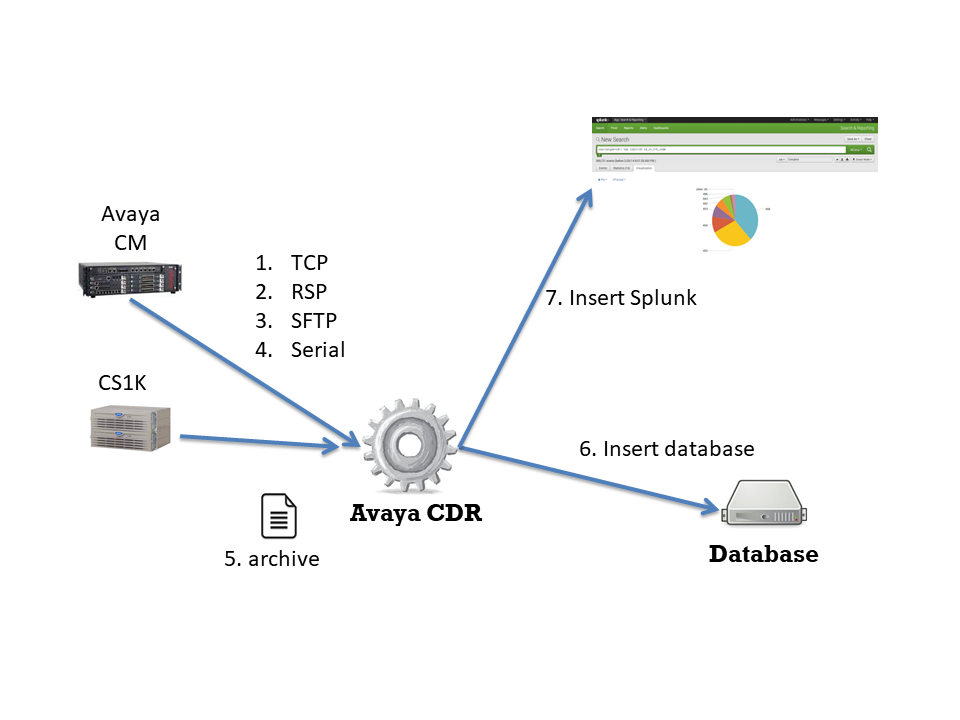
The AvayaCDR tool captures Avaya CDR data over a TCP/IP connection or a serial port (for CS1K) and stores the data in a file. Then the data file is daily archived and moved to a directory at a time that is defined by you. The program can convert the CDR data into CSV format or import them into the database. Since the tool uses ODBC, databases such as MySQL, PostgreSQL, MariaDB and MSSQL are supported. Moreover, the program can send the CDR data to Splunk which enables you to search CDR records by specific field name and generate reports and dashboards very easily. AvayaCDR supports the following features:

  • Writes CDR data to a local file, rotates to a new file by daily or monthly
  • Writes CDR data to MySQL, PostgreSQL, MariaDB and MSSQL database 
  • Writes CDR data to a CSV file, rotates to a new file every day
  • Writes CDR data to Splunk
  • Writes charge information for each CDR record
  • Supports Names Lookup and logging
  • Supports TCP and Reliable Session Protocol (RSP) connections 
  • Downloads and Imports CDR data via Communication Manager or Session Manager SFTP interface 
  • Imports archived CDR data files and send the data to the database or Splunk
  • Sends alert email to the administrator when CDR link up down, DB up down or Splunk up down events
  • Sends alert email to the administrator when a blacklisted number or country code is found in the CDR data
  • Sends alert email to the administrator when CDR data is received after office hour
  • Acts as System Printer for Avaya Aura
  • Supports Avaya Aura and IP Office
  • Supports the latest version of Windows, CentOS, RedHat, Ubuntu, Debian

See Also: CloudCDR for Avaya CM/Aura and IP Office

See Also: ECHI Capturing Tool for Avaya

See Also: Call Analytics

See Als: Splunk App AvayaCDR

Pricing Details

Check the pricing from this URL

Testing using Docker Image

Please follow this guide to test the AvayaCDR using Docker container.

Testing using OVA File

centos

Please contact us for a latest version of OVA image. After deploying the OVA file, please modify the following for your own environment.

  • Reference this guide to delete the file /etc/udev/rules.d/70-persistent-net.rules
  • Change the MAC address and IP address of the VM in the file /etc/sysconfig/network-scripts/ifcfg-eth0
  • Telnet to AvayaCDR console port 14004, update the program parameters for your environment
  • Once the changes are completed, reboot the VM

The username and password of the OVA VM is

  • OS: root/P@ssw0rd
  • MySQL: root/P@ssw0rd
  • AvayaCDR console: tcpgate/tcpgate01
  • Splunk URL: http://newIP:8000/

Windows Installation

  • We have recorded a video for Windows 2012 and Windows 7, please watch the video for Windows 2012 (64-bit) and Windows 7 (32-bit) before the installation
  • Download the Avaya CDR Capturing Tool zip file here or backup site.
  • Follow the steps below to install the software.
    • Extract all the files into the directory c:\program files\avayacdr
    • Open Windows Command Prompt (run as System Administrator if you are using Windows 7 or above), enter the following commands to register the program as Windows Service
      • cd c:\program files\avayacdr
      • avayacdr -i
      • sc description avayacdr “Captures CDR data for Avaya CM”
    • Open ODBC Data Source Administrator, create a System DSN called AVAYACDRCFG for Microsoft Access Driver (*.mdb) and select avayacdr.mdb which is located in the directory c:\program files\avayacdr
      • Hint: make sure to create a System DSN instead of a User DSN, otherwise the program will startup without proper parameters
      • If you are using 64-bit Windows OS, please use 32-bit ODBC Data Source Administrator
      • avayacdrcfg
    • Open the Access file, and edit the value of parameter cdr_archive_dir, which is the location for archived files. E.g. c:\\avayacdr\\
      • Hint: for the archive directory, make sure the format of double backslash (\\) is used because the backslash is an escape character in C++.
      • You can also edit the value of this parameter via the telnet console, the command is
        • update cdr_archive_dir c:\\avayacdr\\
    • Edit the value of parameter cdr_archive_time to specify the time for the file archive. E.g. 01:00
      • Hint: you can edit the value of this parameter via the telnet console, the command is
        • update cdr_archive_time 01:00
    • Start the Windows Service avayacdr
    • Telnet to localhost and port number 14004, enter username tcpgate and password tcpgate01 to access the program console
    • Enter the following command in the program console to add a listening port for Avaya CDR. E.g. add port 5001
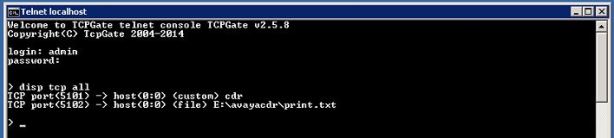
      • add tcp 5001 * * custom cdr
      • Hint: You need to configure Avaya to send CDR to this host and port number 5001
      • Hint: If your Avaya sends data by Reliable Session Protocol, enter the following command
      • add tcp 5001 * * custom rsp
    • Enter the following command, and you will receive debug information
      • trace on asc
    • Enter the following command, and you will get the help message
      • help
    • Enter the following command, and you can perform the file archive immediately
      • archive now

Install Multiple Instances of AvayaCDR on the Same Windows Server

  • Follow the steps below if you want to install multiple copies of AvayaCDR on the same Windows server
    • Copy the AvayaCDR files to a different directory
    • Rename the AvayaCDR.exe file to a different name, say AvayaCDR2.exe
    • Create a new DSN for the local Access MDB file
    • Create a new DSN for remote DB
    • Open Windows Command Prompt, enter the following command to register the program as a Windows service with a startup argument
      • AvayaCDR2 -i -a AVAYACDRCFG2
      • sc description avayacdr2 “Captures CDR data for Avaya CM”
      • Hint: register AvayaCDR2 as a Windows service and use AVAYACDRCFG2 DSN
    • Stop all instances of AvayaCDR and start the new AvayaCDR instance
    • Telnet to localhost and port number 14004, enter username tcpgate and password tcpgate01 to access the program console
    • Change the telnet port by the following command
      • update telnetport 14005
    • Restart the new AvayaCDR instance and update other parameters accordingly to your environment
    • The following parameters must be changed for the new instance of AvayaCDR to work properly
      • cdr_archive_dir
      • cdr_remotedb_dsn
        • Hint: if you want to store CDR data in another DB, you need to modify the cdr_remotedb_dsn

64-bit Windows System 

  • For 64 bit of Windows system, please follow the steps below
    • Configure ODBC System DSN using
      C:\Windows\SysWOW64\odbcad32.exe
    • Stop the Windows firewall because it enables by default. AvayaCDR uses 14004 for telnet port. If you defined 5001 for CDR data, you need to open this port in firewall as well.

Windows Uninstallation

  • Stop the Window Service avayacdr
  • Open Windows Command Prompt, enter the following commands to uninstall the program from Windows Service
    • cd c:\program files\avayacdr
    • avayacdr -u

Import CDR via SFTP interface 

  • Open the Access file, edit the following parameters
    • cdr_archive_dirsftp
      • Hint: The archive directory for sftp CDR files. The default value is c:\\avayacdrsftp\\
    • cdr_sftpdir
      • Hint: The remote directory contains the CDR files. The default value is /var/home/ftp/CDR/
      • Hint: For a chroot sftp directory, the value is ./
    • cdr_sftpfilenameprefix (depreciated)
      • Hint: The filename prefix for CDR files. The default value is S
    • cdr_sftplicensekey
      • Hint: The license key to activate this feature
  • Open the program console, add your SFTP host by the following command
    • add sftp host port username password dir
      • Hint: host can be a hostname or IP address
      • Hint: default port of SSH is 22
      • Hint: the username that created by your administrator for CDR retrieval over SFTP protocol
      • Hint: encrypted password for the SFTP user. Use genpass command to generate an encrypted password
      • Hint: if the dir is empty, the program uses the directory specified in cdr_sftpdir
  • Input the following command to test the connectivity of SFTP
    • sftptest
      • Hint: Test SFTP login using the parameters provided by the add sftp command
  • The program will connect to your SFTP hosts by every 30 seconds and import the data to a file or database

Writes CDR Data to MySQL or MSSQL Database

  • We have recorded a video for this section, please watch this video for the setup on the AvayaCDR side and this for the database side
  • The AvayaCDR is a 32-bit application, make sure you use a 32-bit ODBC driver and use 32-bit ODBC admin tool to create the DSN
  • In order to store CDR data directly to MYSQL or MSSQL, you need to define the following parameters
    • update parameter cdr_remotedb_dsn AVAYACDRDBCFG
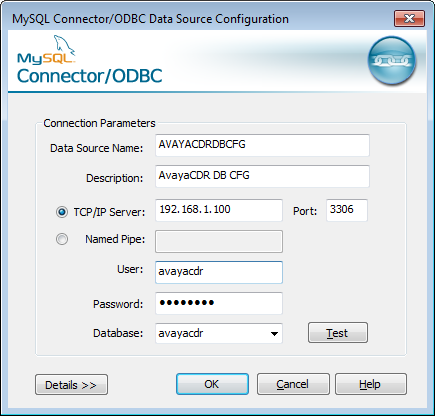
      • Hint: the string AVAYACDRDBCFG is the system DSN for the remote CDR database
      • Hint: the following screen dump is an example for MySQL system DSN
      • avayacdrdbcfg
    • update parameter cdr_remotedb_username avayacdr
      • Hint: the string avayacdr is the username used to access the CDR database
    • genpass
      • Hint: use this command to generate an encrypted password
    • update  parameter cdr_remotedb_passwd encrypted-password-generated-from-genpass-command
      • Hint: copy the encrypted password from the genpass command
    • update parameter cdr_remotedb_table tAvayaCDR
      • Hint: the string tAvayaCDR is the table name of the CDR database that stored the CDR data
  • You also need to define the mapping of CDR data items to the table column names of your database. If you use a “customized” CDR format, add paramcdr definitions according to your format. If you use the “unformatted” format, please refer to this document to define the paramcdr definitions.
    • add paramcdr 1 date 6 id_date text
      • Hint: this command maps Avaya CDR data item 1 (date) which is 6 characters long to CDR database table column name (id_date) and its data type is text
      • Hint: use “mmddyy” or “ddmmyy” or “yymmdd” if you want to send the data to Splunk as well.
    • add paramcdr 2 space 1
      • Hint: this command maps Avaya CDR data item 2 (space) which is 1 character long, with no mapping between the CDR database table
    • add paramcdr 3 time 4 id_time text
      • Hint: use “hh:mm” if you want to send data to Splunk as well.
    • add paramcdr 4 space 1
    • add paramcdr 5 duration 4 id_duration number
      • Hint: this command maps Avaya CDR data item 5 (duration) which is 4 characters long to CDR database table column name (id_duration) and its data type is integer
      • Hint: use “seconds” or “minutes” or “6s” if you want to use the duration to calculate the telecom charge
      • Hint: if your paramcdr is sec-dur, use “seconds” to convert the values to the number of seconds
      • Hint: use “h:mm:ss” if you simply want to display a readable string to the user
    • …
      • Hint: use add paramcdr for other mappings.
      • Hint: make sure the Avaya side end with line-feed because the program uses it as the terminator for each CDR record 
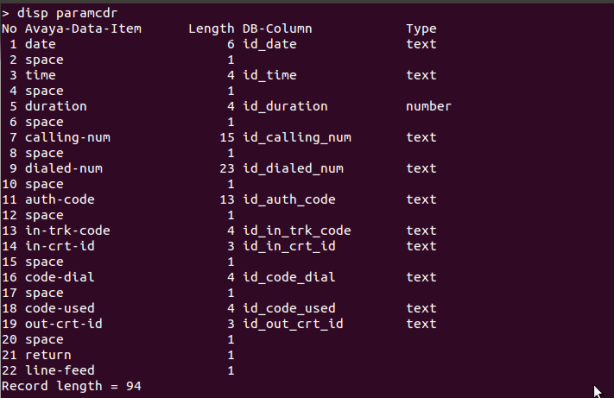
    • disp paramcdr
      • Hint: this command shows the mapping table
      • Hint: the following screen dump is my mapping, yours may be different.
      •  
    • reload
      • Hint: this command will reload the configuration and create the database connection according to the new parameters.
    • trace on asc
      • Hint: this command turns on debug messages for database logging

Convert CDR data into CSV file format 

  • In order to parse the CDR data and convert each record to CSV format, paramcdr must be defined
  • Use the console command add paramcdr to map your Avaya CDR data.  For example,
    • add paramcdr 1 date 6
    • add paramcdr 2 space 1
    • add paramcdr 3 time 4
    • …
  • Check if a parameter called “cdr_convertcsv” is set to “true” in the tParameter table. Or do it via program console
    • update parameter cdr_convertcsv true
    • reload 

Splunk Integration 

  • We have created a video for Splunk Logging, you can watch the video before the configuration
  • Use the console command paramcdr to map your Avaya CDR data.  For example,
    • update parameter cdr_dateformatseparator –
      • Hint: Use the date format separator to separate day, month and year
      • Hint: Splunk needs to know the date and time in order to index the CDR data
    • add paramcdr 1 date 6 id_date mmddyy 
      • Hint: Tells AvayaCDR the date format of CDR data, when cdr_dateformatsepartor is defined, the value will become “mm-dd-yy” which Splunk can recognize and import into its supported format
    • add paramcdr 2 space 1
    • add paramcdr 3 time 4 id_time hh:mm
      • Hint: Tells AvayaCDR to convert the time to hh:mm format which Splunk can recognize and import into its supported format
    • …
  • Update parameter “cdr_splunkhost”, for example
    • update parameter cdr_splunkhost 192.168.1.100
  • Update parameter “cdr_splunkport”, for example
    • update parameter cdr_splunkport 5100
  • Reload the configuration
    • reload 
  • The latest version of AvayaCDR supports backup Splunk configuration, please edit the following parameters
    • update parameter cdr_splunkbackuphost 192.168.1.101
    • update parameter cdr_splunkbackupport 5200
    • reload

Splunk Integration using HTTP Event Collector 

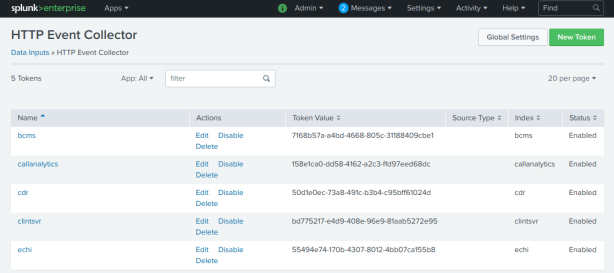
  • Follow this guide to enable HTTP Event Collector in Splunk
  • Create a token specific for the AvayaCDR application, and copy the token after its creation, it is suggested to create a token for each specific application and link the token to its index
  • Update the parameter cdr_splunkhectoken using the newly created token
    • update parameter cdr_splunkhectoken new_created_token
  • Update the parameter cdr_splunkhecurl using your site-specific Splunk URL
    • update parameter cdr_splunkhecurl https://input-SPLUNKCLOUDHOST:PORT/services/collector
    • Hint: Reference this guide to find out the Splunk HEC URL
  • Update the parameter cdr_splunkprotocol to use HTTP Event Collector
    • update parameter cdr_splunkprotocol hec 
  • Update the parameter cdr_splunkhecchannel using the newly created token
    • update parameter cdr_splunkhecchannel new_created_token
  • Update the parameter cdr_splunkdataformat to use JSON format
    • update parameter cdr_splunkdataformat json 
  • Reload the configuration
    • reload
  • If insert to Splunk failure, the data will be written to a local file called splunk_err.txt. You can upload the data to Splunk manually using curl command

Charge Logging 

  • To turn on Charge Logging, you should define the following parameters
    • cdr_charge_ditem_duration
      • Hint: this is the Avaya duration data item name in the CDR string
    • cdr_charge_dbcol_subtotal
      • Hint: this is the database column/field name for the charge total
    • cdr_charge_dbcol_currency
      • Hint: this is the database column/field name for the charge currency
    • cdr_charge_dbcol_writetime
      • Hint: this is the database column/field name for the time of the charge record
    • cdr_charge_dbcol_description
      • Hint: this is the database column/field name for the description of the charge rate
  • Add your rate one by one by the “add rate” command, for example
    • add rate 186 dialed-num 0.1 usd minute mobile call 
      • Hint: if dialed-num matched pattern 186, calculate the charge by 0.1/minute
    • add rate 354 code-used 186 dialed-num 0.3 usd minute fixed line 
      • Hint: multiple data items will be matched to calculate the charge

Names Lookup

  • AvayaCDR can lookup CDR data items and logs the mapped names to the database and Splunk
  • To enable names lookup, firstly define the mapping of the target data item name to the database or Splunk field name, and use the “add paramdict” command for the definition
    • add paramdict calling-num calling_name
    • add paramdict called-num called_name 
  • To define the mapping of a number to its naming, use the “add dict” command
    • add dict * 52001 David 
    • add dict * 50002 John

Extended Logging 

  • Extended Logging is supported by the latest version of AvayaCDR, please add/update the following parameters to enable extended logging.
    • update parameter cdr_extlog_sourceip pbxIP 
      • Hint: The IP address of PBX that sends the CDR will be logged and the field name id database or Splunk is called “pbxIP”
    • update parameter cdr_extlog_timestamp timestamp
      • Hint: The time at which the CDR data is received is logged to the database or Splunk. This parameter specifies the field name of the time stamp in the database or Splunk.
    • Update parameter cdr_extlog_sourceinfo true
      • Hint: Information in the remark field of the command “add tcp…” are sent to the database or Splunk.

AvayaCDR as Avaya System Printer

  • You can configure AvayaCDR as System Printer for Avaya, thanks Patrick Prevoo sharing the following screens
  • CDR-1
  • CDR-4

Imports CDR Data to Database or Splunk from Archived File or Directory 

  • Follow the section of Writes CDR Data to MySQL or MSSQL Database or Splunk Integration to define the necessary parameters first
  • Open the program console and enter the following command to import archived data
    • import cdrfile c:\\avayacdr\\cdr20141027001.txt 
      • Hint: import single file
    • import cdrdir c:\\avayacdr\\
      • Hint: import whole directory

System Notification Email

  • The program sends email notifications when an error occurred. Errors included CDR link down, remote DB down, etc.
  • Edit the value of parameter tg_emailserverip to define the IP address of your email server.
  • Edit the value of parameter tg_emailsmtpport to define the SMTP port number of your email server. The default value is 25.
  • Edit the value of parameter tg_emailusername to define the username of the email agent which is responsible to send notification emails.
  • Telnet to localhost and port number 14004, and enter username tcpgate and password tcpgate01 to access the program console. Type genpass in the program console to generate an encrypted password string for the email agent, and copy the string for later use.
  • Edit the value of parameter tg_emailpasswd to define the password of the email agent. The password should be in an encrypted format, you can use the console command genpass to generate the encrypted password.
  • Edit the value of parameter tg_emailsenderdisplay to define the display name of the email agent.
  • Edit the value of parameter tg_emailauth to define whether authentication is required between your AvayaCDR machine and the email server. When your email server trust your machine, set it to false, otherwise set it to true.
  • Edit the value of parameter tg_emailssl to define whether SSL communication is required for the SMTP session. The default value is false, set it to true when SSL is required.
  • Enter the following command in the program console to add your email address
    • add email service@upinget.com
    • Hint: Replace my email address with yours
  • Enter the following command to test the configuration
    • test email

Email Alert for Blacklisted Number 

  • This feature is supported by AvayaCDR version >=1.3.1
  • To define dialed number in the blacklist number pattern, enter the following command in the program console
    • add blacklistnumber 911 dialed-num AlertWhoDial911
      • Hint: The number 911 is the pattern that we defined as a blacklisted number
      • Hint: The dialed-num is the data item name that we defined in the paramcdr table
      • Hint: AlertWhoDial911 is the description text for this number pattern
  • To define calling number in the blacklist number pattern, enter the following command in the program console
    • add blacklistnumber 24682468 calling-num Competitor
      • Hint: The number 24682468 is defined as a blacklisted number
      • Hint: The calling-num is the data item name that we defined in the paramcdr table
      • Hint: Competitor is the description text for this number pattern
  • To add a blacklist country code, enter the following command
    • add blacklistnumber +123 called-number Blacklist Country +123
    • add dialprefix 001
      • When country code is defined, the dial prefix will be compared
  • You need to define email function parameters, please refer to the section “System Notification Email” for more information.

Email Alert for Non-Office Hour Calls 

  • To enable this feature, enter the following command in the program console
    • update parameter cdr_nonofficehouralert true
    • update parameter cdr_officehourstart 9 
    • update parameter cdr_officehourend 21 
    • reload

CentOS 7.x Installation Guide

  • centos
  • The following is for RedHat/CentOS 7 64-bit OS only, other Linux distribution is similar
  • Login as root and execute the following commands
  • Disable SELINUX and stop the firewall
  • sed -i 's/\(^SELINUX=\).*/\SELINUX=disabled/' /etc/selinux/config
  • systemctl disable firewalld
  • systemctl stop firewalld
  • reboot
  • Install MySQL 8.x
  • sudo rpm -Uvh https://dev.mysql.com/get/mysql80-community-release-el7-1.noarch.rpm
    sudo yum --enablerepo=mysql80-community install mysql-community-server
    sudo service mysqld start
    grep "A temporary password" /var/log/mysqld.log
    mysql_secure_installation
  • Install the following packages
  • yum install telnet libssh2
  • yum install mysql-connector-odbc unixODBC
    
  • Config and start MySQL
  • systemctl enable mysqld
  • systemctl start mysqld
  • Create a database and user
  • mysql -u root -p
  • create database avayacdr;
  • create user 'tcpgate'@'localhost' identified by 'P@ssw0rd';
  • grant all on avayacdr.* to 'tcpgate'@'localhost';
  • flush privileges;
  • quit
  • mysql -h localhost -u tcpgate -p avayacdr < avayacdr.sql
  • Copy the following to /etc/odbc.ini file
    • [AVAYACDRCFG]
      Description = MySQL connection to AvayaCDR
      Driver =MySQL ODBC 8.0 ANSI Driver
      Server = localhost
      Port = 3306
      Database = avayacdr
    • [AVAYACDRDBCFG]
      Description = MySQL connection to AvayaCDR
      Driver =MySQL ODBC 8.0 ANSI Driver
      Server = localhost
      Port = 3306
      Database = avayacdr
  • Create user and copy files
  • useradd avayacdr
  • mkdir /usr/local/avayacdr
  • cp AvayaCDR64 /usr/local/avayacdr
  • chmod +x /usr/local/avayacdr/AvayaCDR64
  • chown -R avayacdr.avayacdr /usr/local/avayacdr
  • mkdir -p /var/log/avayacdr/archive/sftp
  • chown -R avayacdr.avayacdr /var/log/avayacdr
  • Enable auto startup script
  • sudo cp startupscript/*.sh /usr/local/avayacdr
    sudo chmod +x /usr/local/avayacdr/*.sh 
    sudo cp cdr.* /etc/systemd/system
    sudo systemctl enable cdr.timer
    sudo systemctl start cdr.timer

Ubuntu 22.04 Installation Guide

  • We have recorded a video for Ubuntu installation, you can watch the video before the installation
  • Install the following packages
  • sudo apt install mysql-server telnet unixodbc
  • sudo systemctl start mysql.service
    
  • download mysql-connector-odbc-8.0.32-linux-glibc2.28-x86-64bit.tar.gz from https://dev.mysql.com/downloads/connector/odbc/
  • gunzip mysql-connector-odbc-8.0.32-linux-glibc2.28-x86-64bit.tar.gz
    tar xvf mysql-connector-odbc-8.0.32-linux-glibc2.28-x86-64bit.tar
    cd mysql-connector-odbc-8.0.32-linux-glibc2.28-x86-64bit
    sudo cp bin/* /usr/local/bin
    sudo cp -R lib/* /usr/local/lib
    sudo myodbc-installer -a -d -n "MySQL ODBC 8.0 Unicode Driver" -t "Driver=/usr/local/lib/libmyodbc8w.so"
    sudo myodbc-installer -a -d -n "MySQL ODBC 8.0 ANSI Driver" -t "Driver=/usr/local/lib/libmyodbc8a.so"
    myodbc-installer -d -l
  • Create a database and user
  • mysql -u root -p
  • create database avayacdr;
  • create user 'tcpgate'@'localhost' identified by 'P@ssw0rd';
  • grant all on avayacdr.* to 'tcpgate'@'localhost';
  • flush privileges;
  • quit
  • mysql -h localhost -u tcpgate -p avayacdr < avayacdr.sql
  • Copy the following to /etc/odbc.ini file
    • [AVAYACDRCFG]
      Description = MySQL connection to AvayaCDR
      Driver = MySQL ODBC 8.0 ANSI Driver
      Server = localhost
      Port = 3306
      Database = avayacdr
    • [AVAYACDRDBCFG]
      Description = MySQL connection to AvayaCDR
      Driver = MySQL ODBC 8.0 ANSI Driver
      Server = localhost
      Port = 3306
      Database = avayacdr
  • Create user and copy files
  • sudo useradd avayacdr
  • sudo mkdir /usr/local/avayacdr
  • sudo cp AvayaCDR64 /usr/local/avayacdr
  • sudo chmod +x /usr/local/avayacdr/AvayaCDR64
  • sudo chown -R avayacdr.avayacdr /usr/local/avayacdr
  • sudo mkdir -p /var/log/avayacdr/archive/sfp
  • sudo chown -R avayacdr.avayacdr /var/log/avayacdr
  • Enable auto startup script
  • sudo cp startupscript/*.sh /usr/local/avayacdr
    sudo chmod +x /usr/local/avayacdr/*.sh 
    sudo cp cdr.* /etc/systemd/system
    sudo systemctl enable cdr.timer
    sudo systemctl start cdr.timer

Debian 10.x Installation Guide

  • The following is for Debian 10.x only
  • Install the following packages
  • sudo apt-get install mariadb-server mariadb-client
  • sudo apt-get install unixodbc unixodbc-bin
  • sudo apt-get install libssh-4 libssh2-1 openssl
  • mkdir odbc_package
  • cd odbc_package
  • wget https://downloads.mariadb.com/Connectors/odbc/latest/mariadb-connector-odbc-3.1.9-debian-buster-amd64.tar.gz
  • tar xzvf mariadb-connector-odbc-3.1.9-debian-buster-amd64.tar.gz
  • cd mariadb-connector-odbc-3.1.9-debian-buster-amd64
  • sudo install lib/mariadb/libmaodbc.so /usr/lib64/
  • sudo install -d /usr/lib64/mariadb/
  • sudo install -d /usr/lib64/mariadb/plugin/
  • sudo install lib/mariadb/plugin/auth_gssapi_client.so /usr/lib64/mariadb/plugin/
  • sudo install lib/mariadb/plugin/caching_sha2_password.so /usr/lib64/mariadb/plugin/
  • sudo install lib/mariadb/plugin/client_ed25519.so /usr/lib64/mariadb/plugin/
  • sudo install lib/mariadb/plugin/dialog.so /usr/lib64/mariadb/plugin/
  • sudo install lib/mariadb/plugin/mysql_clear_password.so /usr/lib64/mariadb/plugin/
  • sudo install lib/mariadb/plugin/sha256_password.so /usr/lib64/mariadb/plugin/
  • Create a database and user
  • sudo mysql -u root -p
  • create database avayacdr;
  • create user 'tcpgate'@'localhost' identified by 'tcpgate';
  • grant all on avayacdr.* to 'tcpgate'@'localhost';
  • flush privileges;
  • quit
  • mysql -h localhost -u tcpgate -p avayacdr < avayacdr.sql
  • Create a template file  MariaDB_odbc_driver_template.ini
    • [MariaDB ODBC 3.0 Driver]
      Description = MariaDB Connector/ODBC v.3.0
      Driver = /usr/lib64/libmaodbc.so
  • Install the ODBC driver
  • sudo odbcinst -i -d -f MariaDB_odbc_driver_template.ini
  • Create a template file avayacdr_template.ini
    • [AVAYACDRCFG]
      Description = MariaDB connection to AvayaCDR configuration
      Driver = MariaDB ODBC 3.0 Driver
      Server = localhost
      Port = 3306
      Socket = /var/run/mysqld/mysqld.sock
      Database = avayacdr
  • Install your system DSN
  • sudo odbcinst -i -s -l -f avayacdr_template.ini
  • Create user and copy files
  • sudo useradd avayacdr
  • sudo mkdir /usr/local/avayacdr
  • sudo cp AvayaCDR64 /usr/local/avayacdr
  • sudo chmod +x /usr/local/avayacdr/AvayaCDR64
  • sudo chown -R avayacdr.avayacdr /usr/local/avayacdr
  • sudo mkdir -p /var/log/avayacdr
  • sudo chown -R avayacdr.avayacdr /var/log/avayacdr
  • Follow this guide to create /etc/rc.local file
  • Auto start the daemon after a server reboot, add the following before ‘exit 0’ to /etc/rc.local file
  • rm -f /tmp/avayacdr.log
  • su avayacdr -c '/usr/local/avayacdr/AvayaCDR64'

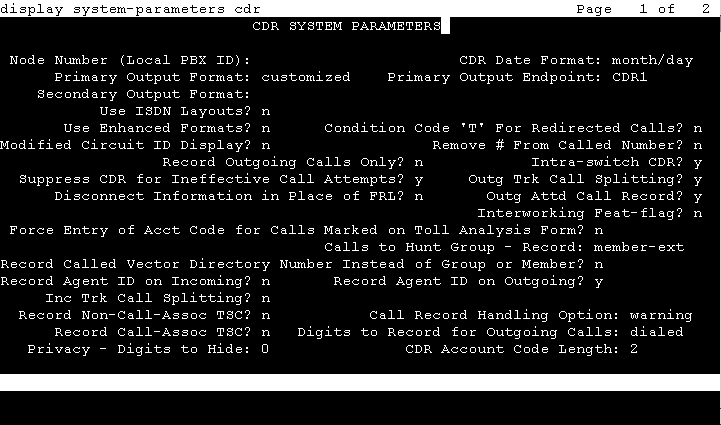
Avaya (PBX side) CDR System Parameters Screen (Reference ONLY)

  • The following screen dumps are cdr configuration of my site, yours maybe different.
  • cdr1
  • cdr2
  • cdr3
  • Make sure Reliable Protocol is set to n if you simply use TCP to transmit CDR data
  •  disablereliable
  • I use standard 5331 port, so I enter the following command in the program console
    • add tcp 5331 * * custom cdr
  • If you want to use Reliable Session Protocol, enter the following command
    • add tcp 5331 * * custom rsp

Support and License

TcpGate

Posted: July 30, 2012 in TCP Gateway

Introduction

TcpGate is a proxy server that proxies client request to backend server. It plays as a port forwarding server between client and server. It has the following features:

  • Proxies TCP and UDP requests to backend server
  • Act as a simple HTTP proxy server
  • Maintains a whitelist and a blacklist for IP address pass through or blocking
  • Offers a telnet console for user, port mapping, whitelist and blacklist administration
  • Trace message contents between the clients and server
  • Log message contents in a file

Testing using Docker Image

Please follow this guide to test TcpGate using Docker Container.

Installation  (Win32)

  • Download the TcpGate zip file Win32 version here and Unix version here.
  • Follow the steps below to install the software.
    • Extract all the files into directory c:\program files\tcpgate
    • Open Windows Command Prompt, enter the following commands to register the program as Windows Service
      • cd c:\program files\tcpgate
      • tcpgate -i
    • Open ODBC Setting, create System DSN called TCPGATECFG for Microsoft Access Driver and point to tcpgate.mdb which is located in the directory c:\program files\tcpgate
    • Start the Windows Service tcpgate
    • Telnet to localhost and port number 14001, enter username tcpgate and password tcpgate01 to access the program console
    • Enter the following command in the program console, you will receive debug information
      • trace on asc
    • Enter the following command in the program console, you will get the help message
      • help

Usage

  • Proxies TCP request to backend server, type the command in the telnet console
    • add tcp 8000 10.10.10.10 8001
    • Hint: Listen port 8000, when traffics via 8000 will finally redirect to IP address 10.10.10.1o port 8001
  • Proxies TCP request to backup server when first server failed
    • add tcp 8000 10.10.10.10 8001 bkup 10.10.10.11 8001 10.10.10.12 8001
    • Hint: Two backup servers defined, they are 10.10.10.11 and 10.10.10.12
  • Act as a simple HTTP proxy server
    • add tcp 8080 * * http
  • Allows white listed IP address connect to the server
    • add whitelist 10.10.11.11 ClientMachine11
    • Hint: IP address 10.10.11.11 CAN connect to the server ports that defined by the server
  • Blocks black listed IP address
    • add blacklist 10.10.11.12 BadMachine12
    • Hint: IP address 10.10.11.12 CANNOT connect to the server ports that defined by the server
  • Log client and server messages to a file
    • log on c:\debug.txt
    • Hint: The file will be using by the program until the following command is entered
    • log off

Uninstallation

  • Stop the Window Service tcpgate
  • Open Windows Command Prompt, enter the following commands to uninstall the program from Windows Service
    • cd c:\program files\tcpgate
    • tcpgate -u