16 March 2016, AvayaECHI 1.1.7 just released. This version fixed a bug that missing data is happened when the ASAI_UUI contains delimiter character such as comma or “|”.
12 Mar 2016, bcmsSVR 1.1.10 just released. This version supports “change agent password” and “display agent” commands. Also, list reports at 30 minutes interval is also supported.
28 Jan 2016, ivrSVR 1.1.7 just released. This version supports additional call control functions such as clearCall, snapshot and queryACDSplit. This version also supports get, set and update of user data by hex-encoded UUI. I recently found that the TSAPI UUI field can be passed between Avaya and Asterisk and it is in the form of hex-encoded UUI. In Asterisk IVR call flow, user data can be retrieved by calling ivrSVR REST interface with the hex-encoded UUI as parameter. When Asterisk IVR transfers the call back to agent who sits on the Avaya side, the IVR can update the user data by the ivrSVR REST interface. By using this way, we can pass user data between Avaya and Asterisk very easily.
23 Dec 2015, AstCTI 1.1.0 just released. This version only supports start or stop monitoring agent extensions and delivers the channel events by ActiveX and WebSocket interfaces. I plan to implement a my queue using ARI so all incoming calls will go into my queue, then all calls can be controlled by my supported interfaces such as ActiveX, REST and WebSocket. I guess it will take a very long time to implement.
Introduction
The astCTI is a CTI server for Asterisk. The astCTI uses ARI to monitor agent extensions, it hides the technical details of ARI and provides ActiveX, REST and WebSocket interfaces for front end application development. Currently, the astCTI program only supports the following functions:
- StartMonitor – Start monitor of agent extension
- StopMonitor – Stop monitor of agent extension
- MakeCall – Make a call
- Hangup – Hangup a call
- Snapshot – Snapshot a device
Testing Program
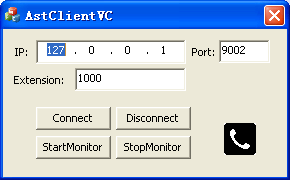
- I have prepared a testing program called “AstClientVC.exe” which uses the ActiveX to connect to the astCTI, the screenshot of the program is
Preparation and Password Encryption
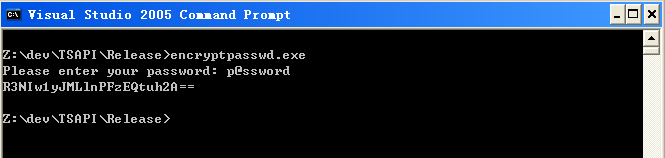
- The access MDB file stored the ARI username and password of Asterisk server. For security reason, a tool called encryptpasswd.exe is provided for you to generate an encrypted password for the installation and configuration of the software
- Execute the program, generate an encrypted password for the ARI user of Asterisk server, then paste the encrypted password to the parameter ivr_tlink. For example, the encrypted password for “p@ssword” is “R3NIw1yJMLlnPFzEQtuh2A==”

64 bit Windows System
- For 64 bit Windows system, please follow the steps below
- Configure ODBC System DSN using
- C:\Windows\SysWOW64\odbcad32.exe
- Stop the Windows firewall because it enables by default and telnet port 14021 is required for this application.
- Configure ODBC System DSN using
Installation
- Download the astCTI zip file here.
- Follow the installation steps below to install the software.
- Extract all the files into directory c:\program files\astCTI
- Open Windows Command Prompt, enter the following commands to register the program as Windows Service
- cd c:\program files\astCTI
- astCTI -i
- Open ODBC Setting, create a System DSN called ASTCTICFG for Microsoft Access Driver and point to astcti.mdb which is located in the directory c:\program files\astCTI
- Open the Access file, edit the value of parameters acti_tlink_01 and acti_tlink_02 to define the ARI parameters of your Asterisk servers in the tParameter table. The format is ip#port#app,username,encryptpasswd. For example, my setting is 192.168.1.124#8088#astcti,astcti,R3NIw1yJMLlnPFzEQtuh2A==
- Start the Windows Service astCTI
- Telnet to localhost and port number 14021, enter username tcpgate and password tcpgate01 to access the program console
- Enter the following command to add extension and monitored by astCTI
- add extension 101 PJSIP
- Hint: add extension 101 and monitored by astCTI
- Hint: extension 101 is using technology PJSIP, you can use technology SIP
- Enter the following command in the program console to modify the default technology type of added extension
- update parameter acti_defaultexttype PJSIP
- Enter the following command in the program console, you will receive debug information
- trace on asc
- Enter the following command in the program console, you will get the help message
- help
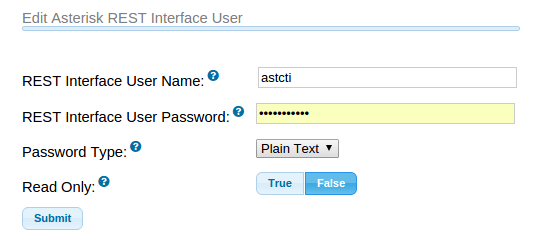
Add Asterisk REST Interface User
- The following screenshot is for FreePBX only

REST Interface
- Enter the following command in the program console to add an ActiveX interface port
- add tcp 9001 * * custom astctirest
- ACD Login
- ACD Logout
- ACD SetState
- MakeCall
- Answer
- Hangup
- Hold
- Retrieve
- Transfer
- Conference
- Consultation
- Reconnect
- Alternate
- DTMF
- UserData
- Snapshot
ActiveX Interface
- Enter the following command in the program console to add an ActiveX interface port
- add tcp 9002 * * custom astctiapi
WebSocket Interface
- Enter the following command in the program console to add a WebSocket interface port
- add tcp 9003 * * custom astctiws
- WebSocket interface accepts JSON request, returns JSON response and delivers unsolicited JSON events
- The JSON strings for MakeCall request and response are
- {id: “1”, request: “makecall”, extension: “101”, destination: “102”, data: “hello”}
- {msgtype: “response”, id: “1”, result: “success”, channel: {name: “channelname”, id: “channelid”}}
- The JSON strings for Hold call request and response are
- The JSON strings for Retrieve call request and response are
- The JSON strings for Hangup call request and response are
- {id: “2”, request: “hangup”, extension: “101”, data: “world”}
- {msgtype: “response”, id: “2”, result: “success”, channel: {name: “channelname”, id: “channelid”}}
- The JSON strings for Answer call request and response are
- The JSON strings for Consultation call request and response are
- The JSON strings for Reconnect call request and response are
- The JSON strings for Alternate call request and response are
- The JSON strings for Transfer call request and response are
- The JSON strings for Conference call request and response are
- The JSON strings to send DTMF request and response are
- The JSON strings for ACD Login request and response are
- The JSON strings for ACD Logout request and response are
- The JSON strings for ACD SetState request and response are
- The JSON strings for StartMonitor extension
- {id: “15”, request: “startmonitor”, extension: “101”}
- {msgtype: “response”, id: “15”, result: “success”, error: “”}
- The JSON strings for StopMonitor extension
- {id: “16”, request: “stopmonitor”, extension: “101”}
- {msgtype: “response”, id: “16”, result: “success”, error: “”}
- The JSON strings for Alert UserData request and response are
- The JSON strings for Hangup UserData request and response are
- Please refer this post for JSON events
Uninstallation
- Stop the Window Service astCTI
- Open Windows Command Prompt, enter the following commands to uninstall the program from Windows Service
- cd c:\program files\astCTI
- astCTI -u
Support and License
- Please contact upinget.com for support and license
18 Dec 2015, bcmsSVR 1.1.9 just released. This version supports CentOS 6.x and Ubuntu 14.04. For details, please refer to the support page.
The Asterisk CTI implementation has some progress. I have developed a CTI server called AstCTI which connects to Asterisk using ARI and accepts client connections by interfaces such as WebSocket, OCX and REST. I just developed the OCX interface, currently the OCX interface only supports Connect, Disconnect, StartMonitor and StopMonitor methods. Also, it has an OCX event interface called OnJSONEvent for JSON events which are delivered from Asterisk.
The AstCTI is a Windows Service program, it uses tcpgate console for program configuration and message tracing
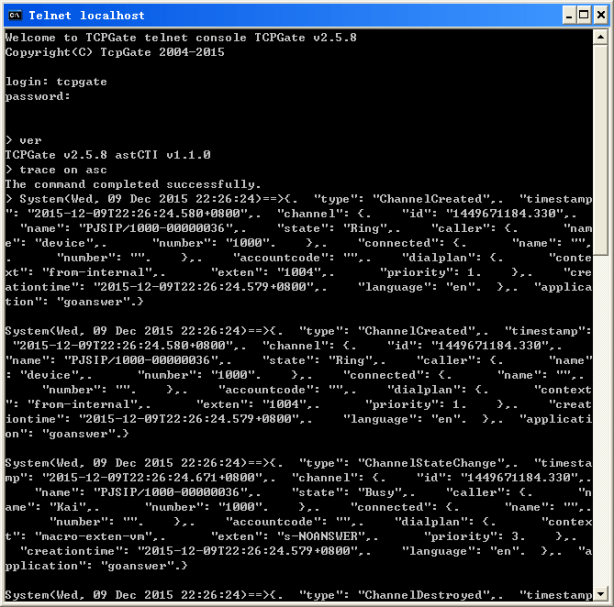
I also developed a VC program for testing. The telephony icon on the VC program is the OCX that I mentioned above.
Next I will develop the WebSocket interface and study the call control functions such as MakeCall, Hangup, Transfer and Conference, etc.
11 Nov 2015, AstLogger 1.4.7 just released. A new module called AstLogger Archive Daemon is introduced, it supports the following features:
- Archiving of recording files for AstLogger.
- Deletion of recording files when harddisk utilization reached a predefined level
- Deletion of recording files when files are created before a retention period
The AstLoggerWeb is modified to search archive path when the recording file is delete from the working path. This version also fixed a bug on the websocket mask bit and mask key handling.
I am going to implement my Asterisk CTI class using the Asterisk REST Interface (ARI). The CTI class has different class objects, for example, a reactor object for websocket event notification, a websocket event handler object for receiving of Asterisk telephony events, a thread with a circular buffer to handle the telephony events, also a thread pool to deliver each telephony event to the calling application.
To get telephony events notification from Asterisk, we need to subscribe endpoint eventsource first. For testing #1, I have setup two extensions 1000 and 1002 in FreePBX, I subscribed evens for the two extensions using my class. I dialed 1002 from 1000, answered the call then hangup the call. I found a lot of events were generated from Asterisk and it seems there is no way to filter the number events from Asterisk. So I wrote a function to filter some unwanted events and remained the following events that are useful in my class
- ChannelCreated
- ChannelConnectedLine
- ChannelDestroyed
- ChannelStateChange
- ChannelHold
- ChannelUnhold
- ChannelTalkingStarted
- ChannelTalkingFinished
- ChannelEnteredBridge
- ChannelLeftBridge
After the filtering applied, the following events in blue are for extension 1000, while the events in red are for extension 1002.
{ “type”: “ChannelCreated”, “timestamp”: “2015-11-02T22:28:38.776+0800”, “channel”: { “id”: “1446474518.30”, “name”: “PJSIP/1000-00000006”, “state”: “Ring”, “caller”: { “name”: “device”, “number”: “1000” }, “connected”: { “name”: “”, “number”: “” }, “accountcode”: “”, “dialplan”: { “context”: “from-internal”, “exten”: “1002”, “priority”: 1 }, “creationtime”: “2015-11-02T22:28:38.774+0800”, “language”: “en” }, “application”: “goanswer” }
{ “type”: “ChannelConnectedLine”, “timestamp”: “2015-11-02T22:28:38.862+0800”, “channel”: { “id”: “1446474518.30”, “name”: “PJSIP/1000-00000006”, “state”: “Ring”, “caller”: { “name”: “Kai”, “number”: “1000” }, “connected”: { “name”: “Ping”, “number”: “” }, “accountcode”: “”, “dialplan”: { “context”: “macro-dial-one”, “exten”: “s”, “priority”: 40 }, “creationtime”: “2015-11-02T22:28:38.774+0800”, “language”: “en” }, “application”: “goanswer” }
{ “type”: “ChannelCreated”, “timestamp”: “2015-11-02T22:28:38.864+0800”, “channel”: { “id”: “1446474518.32”, “name”: “PJSIP/1002-00000007”, “state”: “Down”, “caller”: { “name”: “device”, “number”: “1002” }, “connected”: { “name”: “”, “number”: “” }, “accountcode”: “”, “dialplan”: { “context”: “from-internal”, “exten”: “s”, “priority”: 1 }, “creationtime”: “2015-11-02T22:28:38.864+0800”, “language”: “en” }, “application”: “goanswer” }
{ “type”: “ChannelConnectedLine”, “timestamp”: “2015-11-02T22:28:38.862+0800”, “channel”: { “id”: “1446474518.30”, “name”: “PJSIP/1000-00000006”, “state”: “Ring”, “caller”: { “name”: “Kai”, “number”: “1000” }, “connected”: { “name”: “Ping”, “number”: “1002” }, “accountcode”: “”, “dialplan”: { “context”: “macro-dial-one”, “exten”: “s”, “priority”: 41 }, “creationtime”: “2015-11-02T22:28:38.774+0800”, “language”: “en” }, “application”: “goanswer” }
{ “type”: “ChannelConnectedLine”, “timestamp”: “2015-11-02T22:28:38.865+0800”, “channel”: { “id”: “1446474518.32”, “name”: “PJSIP/1002-00000007”, “state”: “Down”, “caller”: { “name”: “device”, “number”: “1002” }, “connected”: { “name”: “Kai”, “number”: “1000” }, “accountcode”: “”, “dialplan”: { “context”: “from-internal”, “exten”: “1002”, “priority”: 1 }, “creationtime”: “2015-11-02T22:28:38.864+0800”, “language”: “en” }, “application”: “goanswer” }
{ “type”: “ChannelStateChange”, “timestamp”: “2015-11-02T22:28:39.027+0800”, “channel”: { “id”: “1446474518.32”, “name”: “PJSIP/1002-00000007”, “state”: “Ringing”, “caller”: { “name”: “device”, “number”: “1002” }, “connected”: { “name”: “Kai”, “number”: “1000” }, “accountcode”: “”, “dialplan”: { “context”: “from-internal”, “exten”: “1002”, “priority”: 1 }, “creationtime”: “2015-11-02T22:28:38.864+0800”, “language”: “en” }, “application”: “goanswer” }
{ “type”: “ChannelStateChange”, “timestamp”: “2015-11-02T22:28:45.637+0800”, “channel”: { “id”: “1446474518.32”, “name”: “PJSIP/1002-00000007”, “state”: “Up”, “caller”: { “name”: “device”, “number”: “1002” }, “connected”: { “name”: “Kai”, “number”: “1000” }, “accountcode”: “”, “dialplan”: { “context”: “from-internal”, “exten”: “1002”, “priority”: 1 }, “creationtime”: “2015-11-02T22:28:38.864+0800”, “language”: “en” }, “application”: “goanswer” }
{ “type”: “ChannelStateChange”, “timestamp”: “2015-11-02T22:28:45.637+0800”, “channel”: { “id”: “1446474518.30”, “name”: “PJSIP/1000-00000006”, “state”: “Up”, “caller”: { “name”: “Kai”, “number”: “1000” }, “connected”: { “name”: “Ping”, “number”: “1002” }, “accountcode”: “”, “dialplan”: { “context”: “macro-dial-one”, “exten”: “s”, “priority”: 44 }, “creationtime”: “2015-11-02T22:28:38.774+0800”, “language”: “en” }, “application”: “goanswer” }
{ “type”: “ChannelDestroyed”, “timestamp”: “2015-11-02T22:28:50.080+0800”, “cause”: 16, “cause_txt”: “Normal Clearing”, “channel”: { “id”: “1446474518.30”, “name”: “PJSIP/1000-00000006”, “state”: “Up”, “caller”: { “name”: “Kai”, “number”: “1000” }, “connected”: { “name”: “Ping”, “number”: “1002” }, “accountcode”: “”, “dialplan”: { “context”: “from-internal”, “exten”: “h”, “priority”: 1 }, “creationtime”: “2015-11-02T22:28:38.774+0800”, “language”: “en” }, “application”: “goanswer” }
{ “type”: “ChannelDestroyed”, “timestamp”: “2015-11-02T22:28:50.082+0800”, “cause”: 16, “cause_txt”: “Normal Clearing”, “channel”: { “id”: “1446474518.32”, “name”: “PJSIP/1002-00000007”, “state”: “Up”, “caller”: { “name”: “device”, “number”: “1002” }, “connected”: { “name”: “Kai”, “number”: “1000” }, “accountcode”: “”, “dialplan”: { “context”: “from-internal”, “exten”: “”, “priority”: 1 }, “creationtime”: “2015-11-02T22:28:38.864+0800”, “language”: “en” }, “application”: “goanswer” }
For testing #2, I used three extensions, they are 1000, 1002 and 1006. I initiated a call from 1000 to 1002, answered the call by 1002, then initiated another from 1000 to 1006, answered the call by 1006, the last step transferred the call by 1000, leaving 1002 and 1006 in a call, then ended the call by 1002 finally. The text file is here.
For testing #3, I used three extensions, they are 1000, 1002 and 1006. I initiated a call from 1000 to 1002, answered the call by 1002, then initiated another from 1000 to 1006, answered the call by 1006, the last step conference the call by 1000, and finally hangup the call by 1002. The text file is here.
Next step I will add call control functions such as Originate, Hold, Retrieve, Transfer and Conference, etc. After the implementation of the CTI class, I will port my tools such as ScreenPop, ivrSVR to support Asterisk. Good luck to me.
Introduction

The CloudCDR tool inherits all functions from AvayaCDR, it also has some specific features for cloud based CDR applications. For example, a cloud based CDR accounting software hosted on the internet, it accepts CDR data from different customers around the globe. Once the data for a customer is imported to the accounting software, the software can provide personalized functions and features for that particular customer. The CloudCDR tool enables this kind of application by the following features:
- On Customer Servers
- Receives CDR data from Avaya CM/Aura or IP Office and stores them as local CDR files at configurable interval such as 3 minutes
- Uploads the local CDR files to cloud server by Secured File Transfer Protocol
- Delete local CDR files which over certain period of time, for example 90 days
- On Cloud Server
- Scans each customer directory and imports CDR files to database or Splunk
- Appends additional fields to database or Splunk for identification of each particular customer
- Delete local CDR files which over certain period of time, for example 90 days
Testing using Docker Image
Please follow this guide to test CloudCDR using Docker container.
Windows Installation
- The installation of CloudCDR is similar to AvayaCDR, please refer to the AvayaCDR video files for detail instructions. I have recorded two videos for AvayaCDR installation, please watch the video for Windows 2012 (64 bit) and Windows 7 (32bit) installation.
- Download the CloudCDR file here or backup site.
- Follow the steps below to install the software.
- Extract all the files into directory c:\program files\cloudcdr
- Open Windows Command Prompt (run as System Administrator if you are using Windows 7 or above), enter the following commands to register the program as Windows Service
- cd c:\program files\cloudcdr
- cloudcdr -i
- sc description cloudcdr “Captures Avaya CM CDR and uploads the data to the cloud”
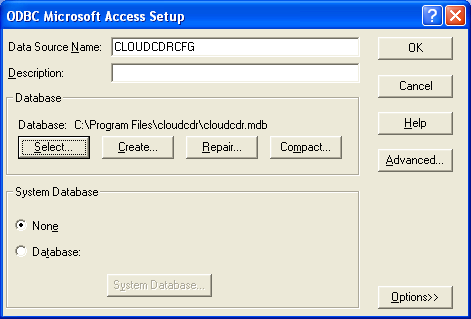
- Open ODBC Data Source Administrator, create a System DSN called CLOUDCDRCFG for Microsoft Access Driver (*.mdb) and select cloudcdr.mdb which is located in the directory c:\program files\cloudcdr
- Hint: make sure to create a System DSN instead of User DSN, otherwise the program will startup without proper parameters
- If you are using 64 bit Windows OS, please use 32 bit ODBC Data Source Administrator

- Open the Access file, edit the value of parameters cdr_archive_dir, that is the location for archived files. E.g. c:\\avayacdr\\
- Hint: for the archive directory, make sure the format of double backslash (\\) is used because back slash is escape character in c++.
- You can edit the value of this parameter via the telnet console, the command is
- update cdr_archive_dir c:\\avayacdr\\
- Edit the value of parameter cdr_archive_time to to specify the time for file archive. E.g. 01:00
- Hint: you can edit the value of this parameter via the telnet console, the command is
- update cdr_archive_time 01:00
- Hint: you can edit the value of this parameter via the telnet console, the command is
- Start the Windows Service cloudcdr
- Telnet to localhost and port number 14004, enter username tcpgate and password tcpgate01 to access the program console
- Enter the following command in the program console to add a listening port for Avaya CDR. E.g. add port 5001
- add tcp 5001 * * custom cdr
- Hint: You need to configure Avaya to send CDR to this host and port number 5001
- Hint: If your Avaya sends data by Reliable Session Protocol, enter the following command
- add tcp 5001 * * custom rsp
- Enter the following command, you will receive debug information
- trace on asc
- Enter the following command, you will get the help message
- help
- Enter the following command, you can perform the file archive immediately
- archive now
Upload Local CDR files to Cloud Server
- Enter the following tcpgate console command to upload local CDR files to cloud server
- add uploadsftp srcdir archivedir host port username passwd destdir description
- Hint: srcdir parameter is the location where local CDR files are stored
- Hint: once local CDR files are transferred to cloud server, the files are moved to the archive directory, the parameter archivedir is for this purpose
- Hint: host is the IP or hostname of the cloud server
- Hint: port is the sftp port number of the cloud server
- Hint: the username parameter is the username for sftp
- Hint: the passwd parameter is the encrypted password for sftp, use genpass command to generate an encrypted password
- Hint: the destdir parameter is where the CDR files are stored on the cloud server
- Hint: the description parameter is for comment of the entry
- add uploadsftp srcdir archivedir host port username passwd destdir description
- To change the file archive interval, change a global parameter in tcpgate console
- update parameter cdr_archive_interval 5
- reload
- Hint: the unit of interval is in minute, minimum interval is 1 minute
- To change the file upload interval, change a global parameter in tcpgate console
- update parameter cdr_upload_interval 5
- reload
- Hint: the unit of interval is in minute, minimum interval is 1 minute
Delete CDR Files over Retention Period
- Enter the following tcpgate command to delete CDR files over retention period
- add retentiondir archivedir day description
- Hint: archivedir parameter is the location where archived CDR files are stored
- Hint: the CDR files are deleted when last modified day over the day parameter compared to current system time
- Hint: the description parameter is for comment of the entry
- add retentiondir archivedir day description
- To change the checking interval, change a global parameter in tcpgate console
- update parameter cdr_retention_interval 5
- reload
- Hint: the unit of interval is in minute, minimum interval is 1 minute
Import CDR files on Cloud Server
- Enter the following tcpgate command to import CDR data to database or Splunk on the cloud server
- add importdir srcdir archivedir description
- Hint: the srcdir parameter is the location where CDR files are stored
- Hint: once the CDR files are imported, the files will be moved to the archive directory, the parameter archivedir is for this purpose
- Hint: the description parameter is for comment of the entry
- add importdir srcdir archivedir description
- To change the file import interval, change a global parameter in tcpgate console
- update parameter cdr_import_interval 5
- reload
- Hint: the unit of interval is in minute, minimum interval is 1 minute
CentOS 6.x Installation Guide
- The installation is similar to AvayaCDR, please refer the AvayaCDR installation video
- The following is for CentOS 6 only, the commands can be found in the centos6/installation.txt file
- The executable file of 32bit version is “cloudcdr”, the 64bit version is “cloudcdr64”
- Install the following packages
-
yum install mysql-server mysql libssh2
-
yum install mysql-connector-odbc unixODBC
- Config and start MySQL
-
chkconfig mysqld on
-
service mysqld start
- Create database and user
-
mysql -u root -p
-
create database cloudcdr;
-
create user 'tcpgate'@'localhost' identified by 'tcpgate';
-
grant all on cloudcdr.* to 'tcpgate'@'localhost';
-
flush privileges;
-
quit
-
mysql -h localhost -u tcpgate -p cloudcdr < cloudcdr.sql
- Copy the following to /etc/odbc.ini file
- [CLOUDCDRCFG]
Description = MySQL connection to CloudCDR
Driver = MySQL
Server = localhost
Port = 3306
Database = cloudcdr - [CLOUDCDRDBCFG]
Description = MySQL connection to CloudCDR
Driver = MySQL
Server = localhost
Port = 3306
Database = cloudcdr
- [CLOUDCDRCFG]
- Create user and copy files
-
useradd cloudcdr
-
mkdir /usr/local/cloudcdr
-
cp cloudcdr /usr/local/cloudcdr
-
chmod +x /usr/local/cloudcdr/cloudcdr -
chown -R cloudcdr.cloudcdr /usr/local/cloudcdr
-
mkdir -p /var/log/avayacdr/archive/sftp
-
chown -R cloudcdr.cloudcdr /var/log/avayacdr
- Auto start the daemon after server reboot
-
echo "rm -f /tmp/cloudcdr.log" >> /etc/rc.local
-
echo "su cloudcdr -c '/usr/local/cloudcdr/cloudcdr'" >> /etc/rc.local
CentOS 7.x Installation Notes
- Follow this guide to install MySQL on CentOS 7.x
- Check the MySQL ODBC link in /usr/lib64 directory
- ln -s libmyodbc5a.so libmyodbc5.so
- Check the MySQL socket link and add the following in the /etc/rc.local
- if [ ! -L /tmp/mysql.sock ]; then ln -s /var/lib/mysql/mysql.sock /tmp/mysql.sock ; fi
- Please note that you must run ‘chmod +x /etc/rc.d/rc.local’ to ensure that this script will be executed during boot.
Ubuntu 14.04 Installation Guide
- The installation is similar to AvayaCDR, please refer the AvayaCDR installation video
- The following is for Ubuntu 14.04 only, the commands can be found in the ubuntu/installation.txt file
- The executable file of 32bit version is “cloudcdr”, the 64bit version is “cloudcdr64”
- Install the following packages
-
sudo apt-get install mysql-server mysql-client
-
sudo apt-get install libmyodbc unixodbc unixodbc-bin
-
sudo apt-get install libssh2-1 openssl unrar
- Create database and user
-
mysql -u root -p
-
create database cloudcdr;
-
create user 'tcpgate'@'localhost' identified by 'tcpgate';
-
grant all on cloudcdr.* to 'tcpgate'@'localhost';
-
flush privileges;
-
quit
-
mysql -h localhost -u tcpgate -p cloudcdr < cloudcdr.sql
- Copy the following to /etc/odbcinst.ini file for Ubunt 64bit
- [MySQL]
Description = ODBC for MySQL
Driver = /usr/lib/x86_64-linux-gnu/odbc/libmyodbc.so
Setup = /usr/lib/x86_64-linux-gnu/odbc/libodbcmyS.so
UsageCount = 1
- [MySQL]
- Copy the following to /etc/odbcinst.ini file for Ubunt 32bit
- [MySQL]
Description = ODBC for MySQL
Driver = /usr/lib/i386-linux-gnu/odbc/libmyodbc.so
Setup = /usr/lib/i386-linux-gnu/odbc/libodbcmyS.so
UsageCount = 1
- [MySQL]
- Install the ODBC driver
-
sudo odbcinst -i -d -f /etc/odbcinst.ini
- Copy the following to /etc/odbc.ini file
- [CLOUDCDRCFG]
Description = MySQL connection to CloudCDR
Driver = MySQL
Server = localhost
Port = 3306
Socket = /var/run/mysqld/mysqld.sock
Database = cloudcdr - [CLOUDCDRDBCFG]
Description = MySQL connection to CloudCDR
Driver = MySQL
Server = localhost
Port = 3306
Socket = /var/run/mysqld/mysqld.sock
Database = cloudcdr
- [CLOUDCDRCFG]
- Install your system DSN
-
sudo odbcinst -i -s -l -f /etc/odbc.ini
- Create user and copy files
-
sudo useradd cloudcdr
-
sudo mkdir /usr/local/cloudcdr
-
sudo cp cloudcdr /usr/local/cloudcdr
-
sudo chmod +x /usr/local/cloudcdr/cloudcdr
-
sudo chown -R cloudcdr.cloudcdr /usr/local/cloudcdr
-
sudo mkdir -p /var/log/avayacdr/archive/sfp
-
sudo chown -R cloudcdr.cloudcdr /var/log/avayacdr
- Auto start the daemon after server reboot, add the following before ‘exit 0’ to /etc/rc.local file
-
rm -f /tmp/cloudcdr.log
-
su cloudcdr -c '/usr/local/cloudcdr/cloudcdr'
Ubuntu 16.04 Installation Notes
- Follow this guide to install MySQL ODBC driver “libmyodbc” on Ubuntu 16.04
Ubuntu 18.04 Installation Notes
- Follow this guide to install MySQL ODBC driver “libmyodbc” on Ubuntu 18.04
- Follow this guide to create the /etc/rc.local file
Scans and Import CDR files by Linux Cloud Server
- When the cloud server is a CentOS or Ubuntu server, it is recommended to run the daemon using root account because it can scan the CDR files in different home directory. If you don’t want to run the daemon as run, set the ACL to allow user cloudcdr can access the CDR files in different home directory
Support and License
- Please contact upinget.com for support and license
 UPINGET